Extract Existing Text
Read the document’s selectable text layer rather than recognizing letters in scanned images.

Extract the existing text layer into a UTF-8 text file.
Drop files here or use the button below.
Up to 100 MiB total · Files stay on your device
Preview the document here. For added content, this is a placement guide; check the saved output.
Extract the PDF’s existing text layer for searching, copying or further editing. Lines are grouped using their positions on the page. This is particularly useful for text-first reports and document archives.
The output contains plain text without fonts, images or page design. Reading order in multi-column pages can differ from the visual layout. A scanned page with no text layer cannot be transcribed by this operation.
Read the document’s selectable text layer rather than recognizing letters in scanned images.
Restrict the export to a chapter, letter or appendix using the Pages field.
Download a plain-text file that opens in common text editors without a word-processing layout.
Nearby text fragments are grouped into lines. Multi-column reading order still needs checking against the page.
Plain text is useful when the words matter more than the printed layout. It lets you search a local folder, copy wording into an editor or prepare a clean starting point for note-taking. It also avoids dragging image-heavy page design into a text task. A text layer is not always identical to what the page appears to say: ligatures, hidden OCR errors and column order can alter the export. Check representative paragraphs and important names or numbers before using the result for further work.
Export the text of a permitted article to collect quotations and build reading notes. Verify each quotation against its source page and record the page number separately.
Move the wording of a standard letter into a text editor for a revised draft. Check salutations, dates and line breaks before transferring it into the organization’s template.
Recover specification wording for a searchable working note. Compare units, symbols and numbered steps with the PDF because unusual font encodings can change extracted characters.
Select a PDF with an existing selectable text layer.
Select the screenshot to enlarge it.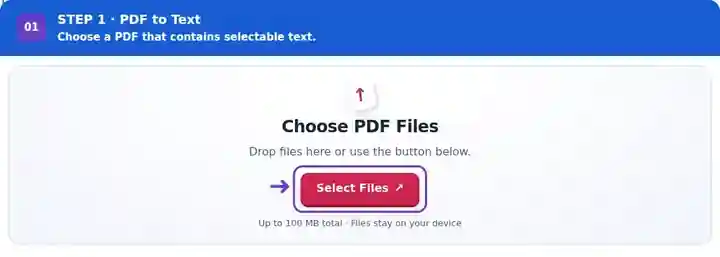
Choose the pages and optional download name.
Select the screenshot to enlarge it.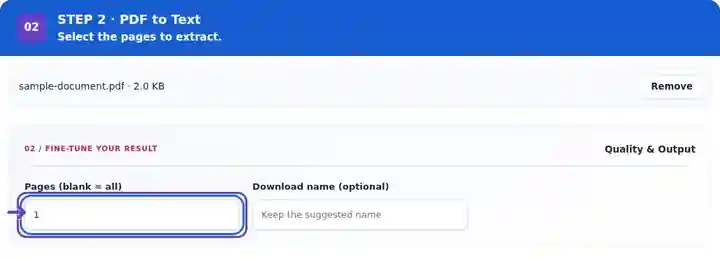
Download the TXT file and verify its wording against the PDF.
Select the screenshot to enlarge it.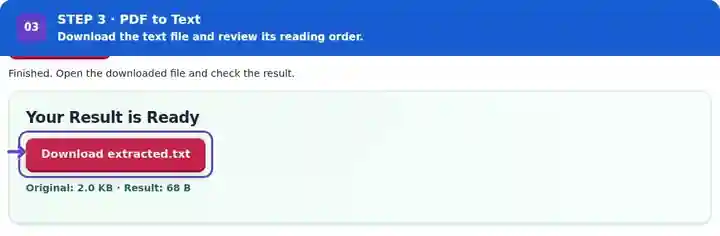
Screenshots show this toolkit using harmless sample files. Your file name, page count and settings may differ.
| Setting | What to expect |
|---|---|
| Accepted input | |
| Processing location | Your browser |
| File selection | One input file |
| Input size | 100 MB total; decoded images and pages also have pixel limits |
| Page selection | Up to 200 selected pages per job. Blank Pages means all pages only when the PDF has 200 pages or fewer; use separate ranges for a longer document. |
If no wording can be selected because the page is a scan, add and check an OCR text layer before using text extraction.
Text fragments can appear in the PDF in an order different from their visible positions. Sidebars, footnotes and two-column layouts are common reasons an exported sentence can be interrupted. The visible letter may also depend on a font mapping that does not supply the same character to extraction. Compare a paragraph crossing a column or page boundary, and inspect technical symbols and ligatures such as “fi” before treating the TXT as reliable source wording.
| Situation | What to do |
|---|---|
| The text file is empty or conversion is rejected | The selected pages may have no text layer. Use OCR first when available. |
| Some letters are incorrect | The PDF’s text encoding or OCR layer may be defective. Compare names, numbers and symbols with the visible page. |
| You need an editable formatted document | Use PDF to Word for a DOCX starting point; exact layout still requires review. |
Imagine two columns containing A1, A2 on the left and B1, B2 on the right. Position-based grouping can produce A1 B1 followed by A2 B2, mixing the columns. Read each column in the PDF before rearranging the extracted lines; a clean-looking text file can still join unrelated sentences.
This original PDF contains one sample page for each of the 15 interface languages. Select page 1 and compare the order reference, decimal values and wording with the downloaded text. All names and values are invented.
Settings used: Page 1; UTF-8 text output.
This checks selectable text on one simple page. It does not test OCR or certify every font, table or reading order.
Checked on . Original sample processed locally in Chromium 153 with release 3.24.0; not a live-host benchmark.
This fictional English sample contains two text columns, a wrapped table label, two links, two bookmarks and one form field. Compare the source with the actual output before using the same workflow on your document.
Text extraction joined the two columns across the page and omitted the form answer. Restore the intended reading order and copy any needed form answer from the source; the TXT is not a complete document replica.
| Check | Source | Result |
|---|---|---|
| Column reading order | L1, L2, L3, R1, R2, R3 | L1, R1, L2, R2, L3, R3 |
| Form answer | Sample Reader | Not extracted |
Settings used: All pages; plain text.
Checked 12 October 2026 with release 3.24.0 in Chromium 153. Output structures were parsed independently; this is one sample, not a universal fidelity guarantee.
Run OCR first to add recognized text. Selecting an image-only source returns a clear no-text message.
Position-based line grouping approximates line order. Paragraph breaks and complex columns need editorial review.
Text from the selected pages is joined with blank lines. Keep the physical page range in your notes if you need precise citations back to the PDF.
Continue with OCR PDF, PDF Reader. For another-language output, read the PDF translation workflow; text extraction itself does not translate.