Open a Local PDF Preview
Choose a PDF from your device and display its page artwork in the browser. The viewing operation does not send the selected document to a conversion server.

View PDF pages locally with page navigation and zoom controls.
Drop files here or use the button below.
Up to 100 MiB total · Files stay on your device
Preview the document here. For added content, this is a placement guide; check the saved output.
Open PDF pages in a browser preview without uploading the selected document for processing. Use page navigation and zoom to inspect a file before choosing another operation. This is helpful for checking orientation, locating page numbers and confirming that a saved result contains the expected content.
The viewer displays pages using the PDF’s visible page boxes and rotation settings. It provides a canvas preview rather than a full desktop reader interface. The download action returns a copy of the selected file; it does not alter its content.
Choose a PDF from your device and display its page artwork in the browser. The viewing operation does not send the selected document to a conversion server.
Use Previous, Next or the page-number input to move through the document. Physical positions count every page, including covers and unnumbered sections.
Increase zoom to inspect footnotes, diagram labels or the edge of a scan. Zoom changes the preview, not the source PDF’s page size or content.
The reader’s download action returns a copy of the selected file. Use a separate tool when the task requires rotation, extraction, text export or other changes.
Choose a PDF from your device and wait for its page preview.
Select the screenshot to enlarge it.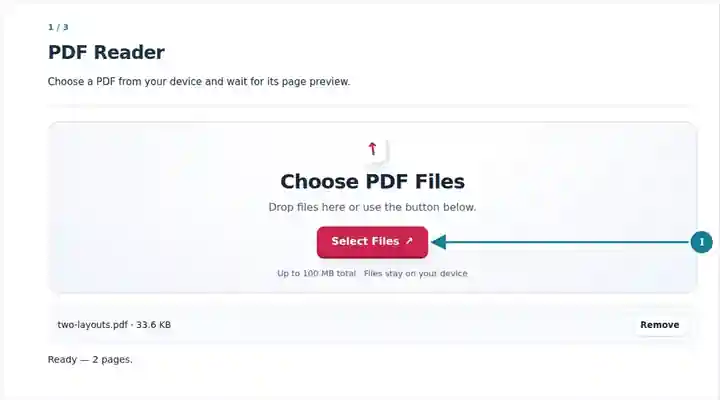
Navigate with Previous/Next or the page-number field and adjust Zoom.
Select the screenshot to enlarge it.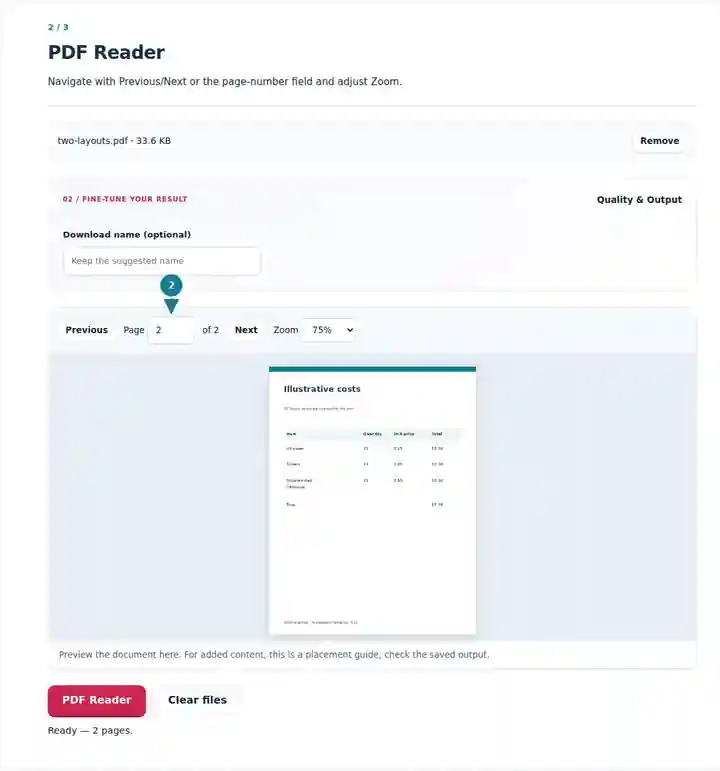
Inspect different page layouts in the preview. The download saves an unchanged copy of your selected PDF.
Select the screenshot to enlarge it.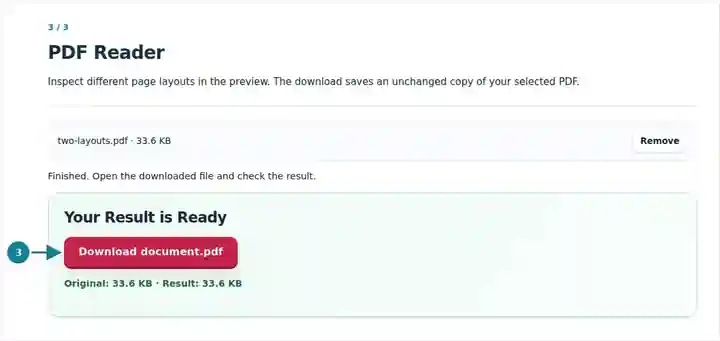
Screenshots show this toolkit using harmless sample files. Your file name, page count and settings may differ.
| Setting | What to expect |
|---|---|
| Accepted input | |
| Processing location | Your browser |
| File selection | One PDF; preview and unchanged source-copy download up to 500 pages |
| Input size | 100 MB total; decoded images and pages also have pixel limits |
| Document length | Up to 500 pages for reading and the unchanged source-copy download. |
The preview does not provide certificate validation, accessible text navigation, XFA form interaction or a complete annotation interface. Use a dedicated reader when those features are necessary. For encrypted files, create an authorized unlocked copy first.
A short inspection can prevent choosing the wrong conversion or page range. Check whether the file has mixed orientations, unusually wide pages, small captions or a different physical count from its printed numbering. A cover is rarely enough: inspect a normal text page, a table and an illustrated page before deciding what result you need.
A student can find the physical positions of a chapter or inspect an upside-down scan before extracting or rotating it. Use zoom for small equations and keep the original available when reviewing a converted study copy.
A staff member can check a routine attachment’s page count and overall appearance before assembling a packet. Inspect the first and final pages to catch a missing cover or an incomplete final section.
A reviewer can zoom into drawing labels or chart legends to judge whether a smaller print copy will remain legible. The preview helps with appearance checks; it does not validate drawing accuracy or a signing certificate.
| Situation | What to do |
|---|---|
| The preview cannot open an encrypted file | Use an authorized unlocked copy for this workspace. |
| A page takes a long time to draw | Large scans and complex vector artwork require more memory. Reduce zoom or try a smaller document. |
| You need editable text | Choose PDF to Word or PDF to Text after checking that the file contains a text layer. |
For a twelve-page report, inspect a body-text page, a table page and the final illustrated page. Compare their orientation and the smallest text at a comfortable zoom. Note physical positions before extracting or converting a section. Keep the source available while reviewing a downloaded conversion; a correct-looking cover does not establish that the table and illustration survived equally well.
View PDF pages locally with page navigation and zoom controls.
Settings used: {"range": "1", "dpi": "72"}
Compare the source and result before relying on this tool. This sample checks a bounded operation; output mode and document-structure limitations still apply.
Checked on . Small synthetic sample processed with release 3.23.0 in Chromium 153. This is a recorded local check, not a live-host or every-document guarantee.
The viewer reads the selected file in your browser. The processing code does not send that document to a server.
This interface provides page navigation and zoom. Export the text or use a dedicated reader for full text-search controls.
PDF readers can vary in handling unsupported forms, fonts and annotations. Check important documents in the reader used by the recipient.
Continue with Rotate PDF, PDF to Text, Print PDF. · Compare PDF Text · DjVu to PDF · What is a PDF?