One File per Selected Page
Choose individual-page mode to turn each selected physical page into its own PDF. It suits documents whose pages are complete, independent items.

Split a document into individual pages or separate page ranges.
Drop files here or use the button below.
Up to 100 MiB total · Files stay on your device
Preview the document here. For added content, this is a placement guide; check the saved output.
Separate a long PDF into smaller documents without first converting it to an image or Office file. This is useful when a recipient needs individual invoices, chapters or application sections rather than a complete bundle. The result is a ZIP containing the new PDFs.
The individual-page mode creates one file for each selected page. Custom-range mode creates one file for each group separated by a semicolon. A comma joins page selections inside one group; a semicolon starts another output file. For example, 1-2; 3, 5 creates two files containing different selections.
Choose individual-page mode to turn each selected physical page into its own PDF. It suits documents whose pages are complete, independent items.
Choose custom ranges for sections that need several pages together. Semicolons separate the output files; commas combine selections inside a single file.
Use the preview to locate the beginning and end of a section. Page selections refer to physical positions, including covers and unnumbered introductory pages.
The generated PDFs are delivered inside one ZIP archive. Extract it, review the numbered parts and rename them to describe their contents.
Open a PDF and identify where each complete section starts and ends.
Select the screenshot to enlarge it.
Select the split mode; semicolons separate custom groups such as 1-3; 4-6.
Select the screenshot to enlarge it.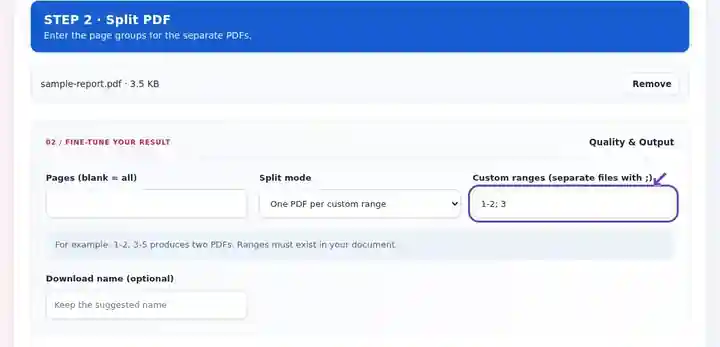
Download and extract the ZIP, then check each numbered PDF part.
Select the screenshot to enlarge it.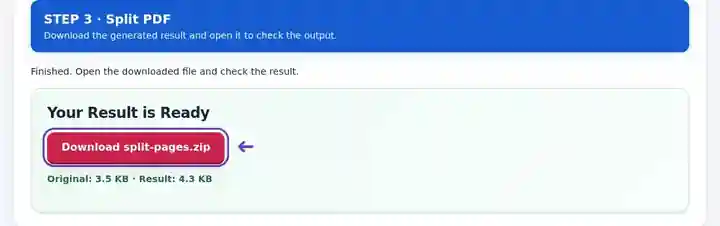
Screenshots show this toolkit using harmless sample files. Your file name, page count and settings may differ.
| Setting | What to expect |
|---|---|
| Accepted input | |
| Processing location | Your browser |
| File selection | One PDF; up to 500 pages and 300 output parts |
| Input size | 100 MB total; decoded images and pages also have pixel limits |
| Document length | Up to 500 input pages. Selecting a small range does not bypass this source-document limit. |
| Split output | Up to 300 separate PDF files in one ZIP; divide larger jobs into groups. |
Page numbering in the interface counts from the first physical page, even when the document prints Roman numerals or a different visible number. A selection outside the document is rejected. Keep the source until every extracted file has been checked.
Splitting separates complete items that happen to share one file. It helps when a scanner produced one batch of receipts or a handbook needs chapter-by-chapter distribution. It can also make an oversized document easier to handle, although the tool does not calculate file sizes or guarantee that a particular part fits an upload limit.
Keep each complete item together, even when neighboring items have different lengths. The splitter cannot detect report boundaries or derive recipient names from the content; choose and name the sections yourself.
A teacher can separate a course pack into readings for different weeks. Include the exercise instructions with their answer sheet and keep any definitions that the selected chapter refers to.
An assistant can divide a non-sensitive demonstration scan into individual receipts for a training exercise. Check whether each receipt occupies one or two pages before choosing individual-page mode; the splitter cannot recognize a receipt’s end.
A supervisor can separate an equipment manual into task-specific instruction packets. Retain the warning and setup pages with the procedure they support, and name the extracted files with the equipment model and section title.
| Situation | What to do |
|---|---|
| A range ends beyond the document | Change the last number to an existing physical page. The tool rejects invalid ranges rather than silently dropping them. |
| You downloaded a ZIP rather than a PDF | Extract the archive using your device’s file manager. Each part inside is a PDF. |
| The same page appears in several parts | Overlapping custom ranges can intentionally repeat a page across files. Review the ranges if this was accidental. |
For a nine-page scan containing three complete three-page reports, select custom-range mode and enter 1-3; 4-6; 7-9. After extracting the ZIP, each part should contain three pages. Inspect the last page of each report for continuation text; if one report actually runs to a fourth page, change the boundaries instead of forcing equal-sized parts.
Split a document into individual pages or separate page ranges.
Settings used: {"range": "1"}
Compare the source and result before relying on this tool. This sample checks a bounded operation; output mode and document-structure limitations still apply.
Checked on . Small synthetic sample processed with release 3.23.0 in Chromium 153. This is a recorded local check, not a live-host or every-document guarantee.
Yes. Use custom ranges and keep the desired pages in the same semicolon-separated group.
Pages are copied into new PDFs rather than rendered at a lower DPI. This operation is not image compression.
A split can produce many PDFs. The ZIP keeps the outputs together; extract it with your device’s archive utility.
Continue with Extract PDF Pages, Delete PDF Pages, Merge PDF.