Make One Focused PDF
Keep selected pages together in a single output document. Extraction is useful for an excerpt that needs a cover, a relevant section and an appendix in one file.

Save chosen pages together in a new PDF.
Drop files here or use the button below.
Up to 100 MiB total · Files stay on your device
Preview the document here. For added content, this is a placement guide; check the saved output.
Create a single PDF containing the pages you want to keep. Extraction is helpful when a report contains a relevant appendix or a contract packet includes several unrelated schedules. The source is read locally and the selected pages are copied into a new document.
Unlike splitting, extraction returns one PDF. The range field accepts individual pages and inclusive ranges. Entries are processed in the order written, while repeated page references are removed. Entering 5, 1-2 therefore builds a document beginning with source page five.
Keep selected pages together in a single output document. Extraction is useful for an excerpt that needs a cover, a relevant section and an appendix in one file.
Use selections such as 1, 4-6, 10 to combine different parts of the source. Physical PDF positions are used rather than the numbers printed on the pages.
Typed page references are processed in the order written. Enter 5, 1-2 when page five should come first; repeated references in one selection are removed.
Click page thumbnails to build a selection, or type the required order directly into Pages. Use the full-size preview when a thumbnail cannot show enough context.
Load the source PDF and locate the pages needed for a complete excerpt.
Select the screenshot to enlarge it.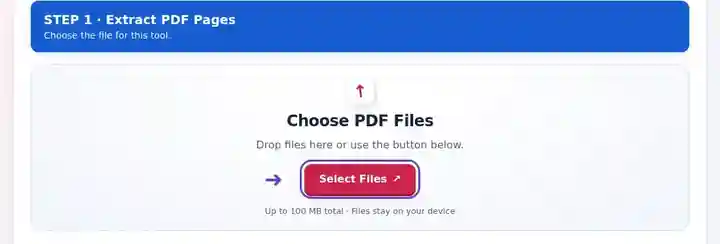
Select thumbnails or type the required Pages sequence, such as 1, 4-6.
Select the screenshot to enlarge it.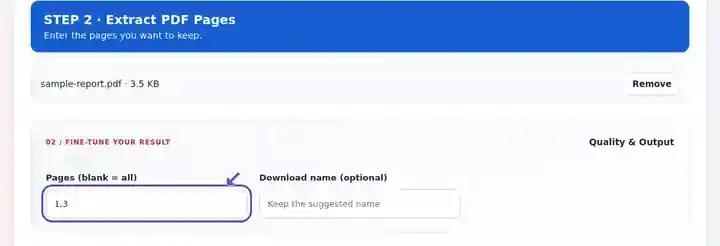
Download the single extracted PDF and check its order and supporting context.
Select the screenshot to enlarge it.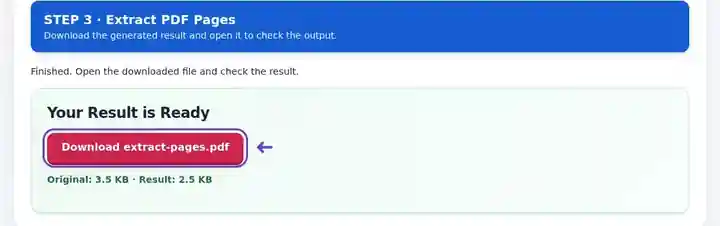
Screenshots show this toolkit using harmless sample files. Your file name, page count and settings may differ.
| Setting | What to expect |
|---|---|
| Accepted input | |
| Processing location | Your browser |
| File selection | One PDF |
| Input size | 100 MB total; decoded images and pages also have pixel limits |
| Document length | Up to 500 input pages. Selecting a small range does not bypass this source-document limit. |
An excerpt saves a reader from searching through unrelated chapters while keeping the selected material in one place. Extraction is particularly useful when a report’s conclusion needs its title page and supporting table, but not every working appendix. Unlike splitting, this tool returns one PDF containing your chosen sequence.
A useful excerpt needs enough context to stand on its own. Include a title, revision date, units, definitions and footnotes when the selected pages depend on them. Internal links can point to pages you omit, and copied pages may not retain the complete bookmark structure or signature authentication. Review references as well as the visible text.
A researcher can extract a methods section and its relevant data table for a discussion, where sharing is permitted. Keep the publication details and explanatory footnotes with the excerpt so colleagues can identify its source and interpret the figures.
An engineer can select the sheets that apply to one component while retaining the drawing index or legend. Use the source’s physical page positions and check sheet identifiers in the download; a printed drawing number may not match a PDF page number.
A trainer can assemble selected pages from a public procedure manual for a short refresher. Include the definitions and revision information that govern the procedure, rather than distributing a detached instruction with no context.
| Situation | What to do |
|---|---|
| You need separate downloads | Use Split PDF. Extract creates one combined PDF. |
| Pages are not in the intended sequence | The selection is processed in the order entered. Use Organize PDF afterward for a visual ordering pass. |
| An internal link no longer works | Its target may have been omitted. Include the target page or remove the obsolete link in your source application. |
In a ten-page report, selecting 1, 4-6, 10 should create a five-page excerpt: the cover, a three-page section and the final appendix page. Verify all five in that order. If a retained table refers to notes on page 7, include those notes too; a shorter download is not useful when essential explanations have been omitted.
Save chosen pages together in a new PDF.
Settings used: {"range": "1"}
Compare the source and result before relying on this tool. This sample checks a bounded operation; output mode and document-structure limitations still apply.
Checked on . Small synthetic sample processed with release 3.23.0 in Chromium 153. This is a recorded local check, not a live-host or every-document guarantee.
Yes. Enter the references in the required sequence. Use Organize PDF when you want to reorder the entire document instead.
The tool creates a separate download. Your selected source file is not overwritten.
Enter a comma-separated selection such as 1, 3, 5, 7. There is no automatic odd/even selector in this interface.
Continue with Split PDF, Organize PDF, Delete PDF Pages.