Remove Individual Pages or Ranges
Enter source positions such as 2, 5-7 in Pages to remove. All numbers refer to the original document before the operation begins.

Remove selected pages and keep the remaining pages in order.
Drop files here or use the button below.
Up to 100 MiB total · Files stay on your device
Preview the document here. For added content, this is a placement guide; check the saved output.
Remove unwanted pages from a PDF and save the remaining pages in their existing order. Common uses include discarding duplicate scans, removing a blank trailing sheet or separating private supporting material from a document prepared for sharing.
The selection means pages to remove, not pages to keep. An empty selection is rejected to avoid an apparently successful download with no requested change. Deleting every page is also rejected because the output must remain a usable document.
Enter source positions such as 2, 5-7 in Pages to remove. All numbers refer to the original document before the operation begins.
Use the page thumbnails to mark pages for removal. Open each questionable page in the larger preview before treating a faint scan as blank.
Pages that are not selected stay in their original order. Deleting a duplicate does not automatically move an appendix or change the remaining printed page numbers.
Download the remaining pages as a new PDF. An empty removal range and a selection that would delete the entire document are rejected.
Open the PDF and inspect suspected blank or duplicate pages.
Select the screenshot to enlarge it.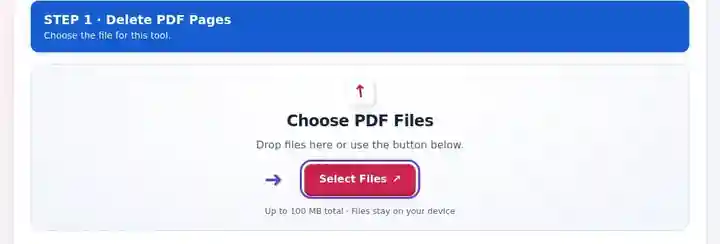
Mark the unwanted thumbnails or type their source positions in Pages to remove.
Select the screenshot to enlarge it.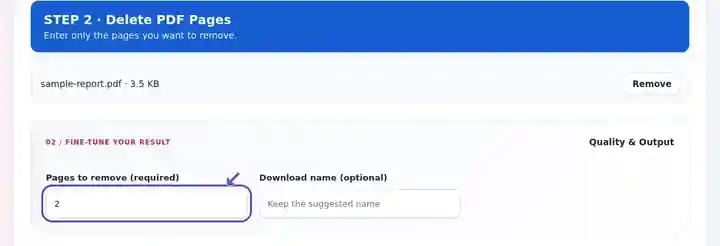
Download the remaining pages and check each transition around a deletion.
Select the screenshot to enlarge it.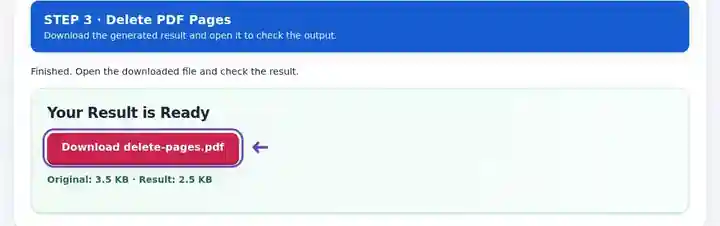
Screenshots show this toolkit using harmless sample files. Your file name, page count and settings may differ.
| Setting | What to expect |
|---|---|
| Accepted input | |
| Processing location | Your browser |
| File selection | One PDF |
| Input size | 100 MB total; decoded images and pages also have pixel limits |
| Document length | Up to 500 input pages. Selecting a small range does not bypass this source-document limit. |
Deleting pages can break references to appendices, attachments or terms elsewhere in the document. It also changes the signed document’s contents. For a confidential region within a retained page, use actual redaction rather than removing a different page or covering text with an annotation.
Deleting pages is useful when a scanning or assembly error leaves extra material in an otherwise complete file. Removing a blank back page or a duplicated sheet can make the packet easier to read and prevent a recipient from interpreting repeated information as a separate item.
An applicant can remove an accidental blank sheet from a scan before uploading it. Check the submission instructions first: a page that looks unnecessary may be a required declaration, even when it contains very little text.
An archivist can remove duplicate captures from a working copy while keeping the original acquisition file. Compare both sides of a sheet at high zoom before assuming the second image is empty or repeated.
A coordinator can remove an obsolete timetable page from a draft program before inserting the replacement with another tool. Keep the current version identifiable and review the transition between the pages on either side of the deletion.
| Situation | What to do |
|---|---|
| The tool asks you to keep at least one page | A PDF output must contain a page. Select fewer pages for removal. |
| A supposedly blank page has faint marks | Zoom in before deletion. Scan bleed-through, annotations or a signature may be easy to miss. |
| You need to keep just a few pages | Extract PDF Pages is usually quicker than listing every page to delete. |
For a ten-page scan with duplicates at positions 4 and 5, enter 4-5 in Pages to remove. The new document should contain eight pages. Inspect the transition from original page 3 to original page 6, and compare the removed pages with their supposed duplicates in the source before treating the cleaned copy as final.
Remove selected pages and keep the remaining pages in order.
Settings used: {"range": "2"}
Compare the source and result before relying on this tool. This sample checks a bounded operation; output mode and document-structure limitations still apply.
Checked on . Small synthetic sample processed with release 3.23.0 in Chromium 153. This is a recorded local check, not a live-host or every-document guarantee.
Yes. Select its physical page number. Verify the page is genuinely blank and does not contain a required signature field.
Keep the original file. This tool provides a new download and does not maintain an undo history for the downloaded result.
No. The remaining printed page numbers are unchanged. Add new numbering separately if needed.
Continue with Extract PDF Pages, Organize PDF, Redact PDF.