Lossless Optimization First
Recompress internal PDF data without deliberately lowering image resolution. Already optimized files may not shrink.

Optimize PDF size without lowering image quality, or choose image compression for scans.
Drop files here or use the button below.
Up to 100 MiB total · Files stay on your device
Preview the document here. For added content, this is a placement guide; check the saved output.
Reduce a PDF’s size on your device using lossless optimization or optional image compression. Image-heavy scans often have more room for reduction than short text-only files. The result reports the measured size before and after processing.
Start with Lossless to recompress internal data without lowering image resolution. Image compression rebuilds the document as JPEG page images at your chosen resolution and quality; it removes selectable text, links, forms and signatures. When the generated file is not smaller, the tool returns the unchanged original and explains that outcome.
Recompress internal PDF data without deliberately lowering image resolution. Already optimized files may not shrink.
Rebuild pages as JPG images using 100–300 DPI and 60–95% quality when a smaller image-only copy is acceptable.
The result shows source and output sizes so you can judge the actual reduction rather than an estimated promise.
If the processed output is not smaller, the tool returns the original and explains that no useful reduction occurred.
Use compression when a mail service or upload portal rejects a document solely because of its byte size. First confirm which pages the recipient actually needs: removing an irrelevant appendix may save more than recompressing a small text document. The useful target is a readable file below the destination’s stated limit; an arbitrary percentage reduction is not a measure of quality.
Reduce an image-heavy assignment to fit the learning portal’s upload allowance. Check equations and handwritten labels after compression, then confirm that all required pages remain present.
Prepare a smaller portfolio attachment for a recruitment form. Test small captions and photographs at normal viewing size instead of choosing the lowest resolution solely for file size.
Send a scan of routine field paperwork over a limited connection. Compare measurement notes and initials in the downloaded copy before passing it to the office.
Choose the PDF and identify the destination’s size limit.
Select the screenshot to enlarge it.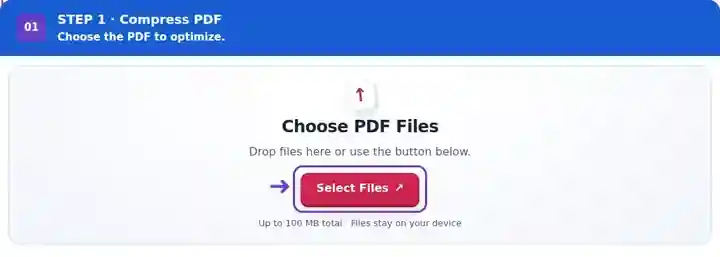
Select lossless mode or configure and confirm image compression.
Select the screenshot to enlarge it.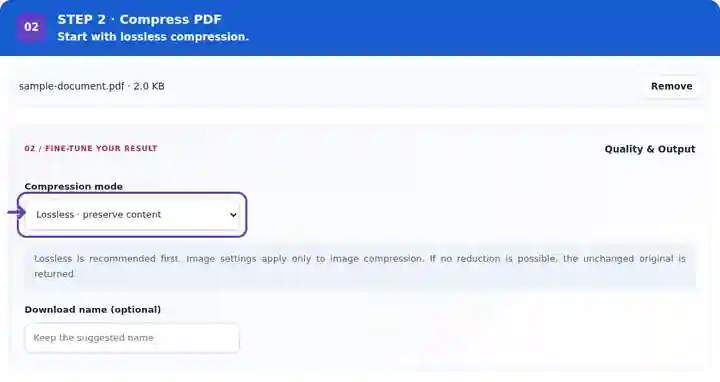
Download the result and compare size, readability and functionality.
Select the screenshot to enlarge it.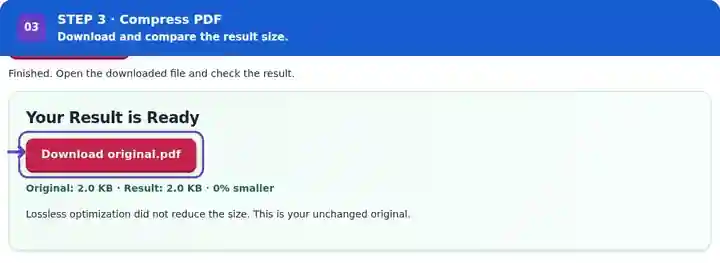
Screenshots show this toolkit using harmless sample files. Your file name, page count and settings may differ.
Lossless compression rewrites the structure of this small six-page PDF. The first page is shown below; text extraction and rendered-page comparisons were checked for all six pages.
The unoptimized source contains six pages of selectable text.
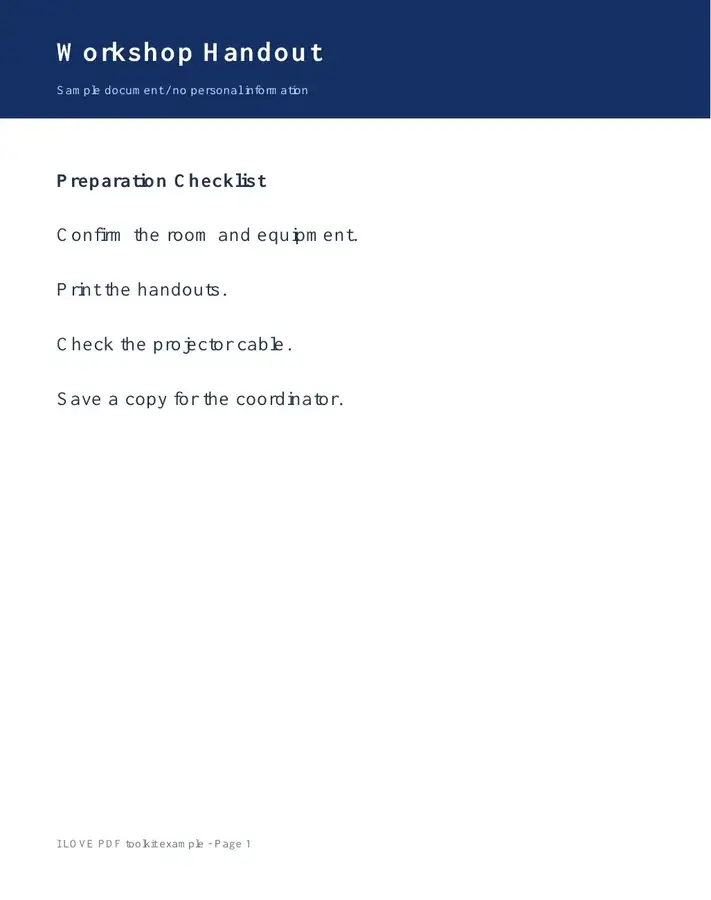
The first page looks unchanged. All six result pages matched their source renders at the tested size.
Settings used: Lossless preset. No raster compression, quality reduction or page selection.
This percentage applies only to the supplied fixture. Already optimized files may not shrink; the tool keeps the original when lossless rewriting does not produce a smaller result.
Checked on . Harmless samples processed in a local Chromium browser with this toolkit. These examples are not a live hosting benchmark.
| Setting | What to expect |
|---|---|
| Accepted input | |
| Processing location | Your browser, on your device |
| File selection | One input file |
| Input size | Up to 100 MB, subject to device memory and decoded-page limits |
| Mode-specific limits | Image compression: up to 50 input pages. Lossless mode has no separate page-count cap, but the displayed file-size limit, available memory and two-minute processing timeout still apply. |
A document rewrite can invalidate existing certificate-based signatures, even in lossless mode. Retain the signed original when signature validation matters. Neither mode can promise an exact target such as 100 KB or 200 KB.
Inspect the information most likely to suffer before approving a compressed scan: a faint pen mark, a small stamp and a thin table border. Compare at normal reading size and at increased zoom. If one critical detail becomes unclear, raise quality or DPI and retry. For a digitally created PDF, test text selection and links after lossless processing; a smaller file that fails the recipient’s required workflow is not a useful replacement.
| Situation | What to do |
|---|---|
| The size did not decrease | The source may already be efficient. Remove unnecessary pages or reduce oversized source images if appropriate. |
| Small text becomes hard to read | Use a gentler setting and compare the same detail at normal zoom and at 200%. |
| A form or signature behaves differently | Processing can alter interactive or authenticated features. Use the original workflow when those features must remain intact. |
No. Size depends on the source’s content. Remove unnecessary pages or reduce image-heavy material if ordinary compression is insufficient.
The selected setting did not create a smaller file. Returning the original avoids making the document larger while claiming a reduction.
Start with Lossless. For a scanned document that remains too large, compare image compression at 150 DPI and 80% quality with the original.
Lossless mode does not deliberately remove its text layer. Image compression rebuilds pages as JPEG pictures and removes selectable text. If searchability is required, try Lossless first and test a known phrase in the downloaded file.
Image mode accepts at most 50 source pages per job and checks each page’s rendered size. Divide a longer scan into smaller PDFs; for oversized pages, lower Scan resolution. The separate lossless route uses a two-minute processing timeout rather than this 50-page cap.
Continue with Delete PDF Pages, Split PDF, PDF to JPG.