Choose the Pages You Need
Export a single page, a range such as 2–4, or the whole document instead of producing unused pictures.

Render selected PDF pages as JPG images.
Drop files here or use the button below.
Up to 100 MiB total · Files stay on your device
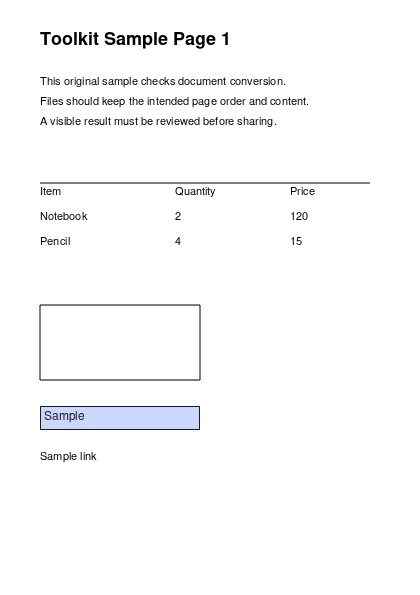
Preview the document here. For added content, this is a placement guide; check the saved output.
Render selected PDF pages as JPG images for sharing in image-based workflows. JPG is often a practical choice for photographs and page previews where a smaller image is useful.
JPG compression is lossy. The quality selector trades file size against fine detail, while DPI controls the number of pixels rendered from the PDF. Small text can become less clear at low resolution.
Export a single page, a range such as 2–4, or the whole document instead of producing unused pictures.
Select 72–450 DPI. Higher settings produce more pixels for fine print, while modest settings suit screen previews.
Choose 70%, 90%, 98% or 100% quality to balance visible detail and the size of the rendered image.
One selected page downloads as a JPG. Several pages arrive in a ZIP with source page numbers in the filenames.
A website, message composer or presentation can accept images while offering no useful PDF preview. A JPG makes a page visible directly in that workflow. It is especially practical for photograph-heavy posters, flyers and cover previews. Convert only the relevant page, then check the smallest lettering at the size people will actually view it. If labels show halos or blockiness, increase quality or use PNG. Keep the PDF when readers need searchable wording, links or several pages in one document.
Turn the final page of an event flyer into a JPG for a booking listing. Compare the venue, date and contact details after upload because the listing may resize the image again.
Place a permitted page from a class handout into a slide as a visual reference. Retain a source citation and use enough resolution for the lecturer’s text to remain readable.
Create a catalog-page preview for a product announcement. A JPG can suit product photography; check prices and small terms before approving the graphic for publication.
Select the PDF and confirm its page preview.
Select the screenshot to enlarge it.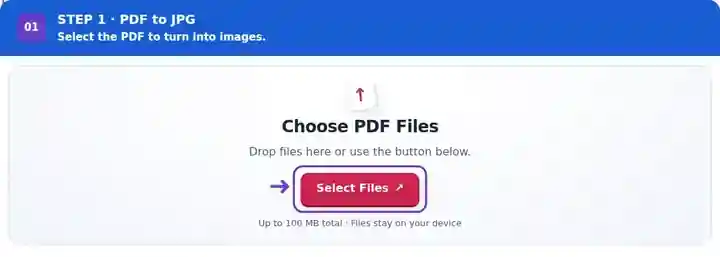
Set the page range, image resolution and JPG quality.
Select the screenshot to enlarge it.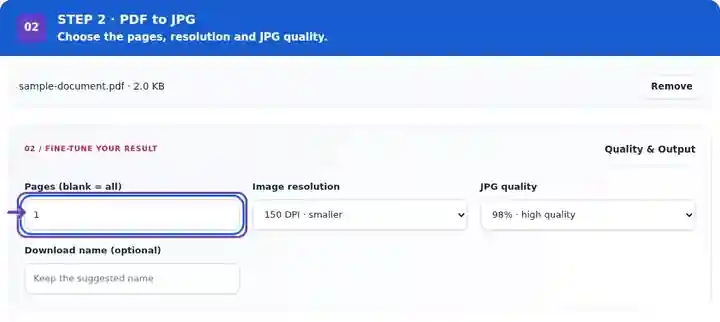
Download the JPG or ZIP and inspect the rendered pages.
Select the screenshot to enlarge it.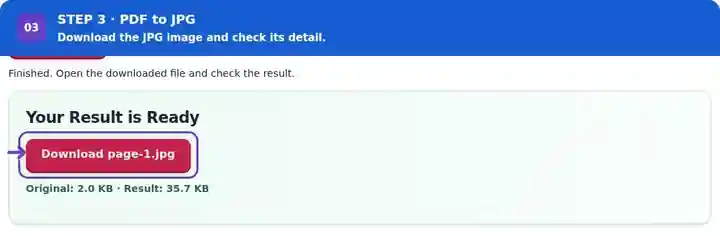
Screenshots show this toolkit using harmless sample files. Your file name, page count and settings may differ.
| Setting | What to expect |
|---|---|
| Accepted input | |
| Processing location | Your browser |
| File selection | One input file |
| Input size | 100 MB total; decoded images and pages also have pixel limits |
| Page selection | Up to 200 selected pages per job. Blank Pages means all pages only when the PDF has 200 pages or fewer; use separate ranges for a longer document. |
| Rendered image limits | 36 megapixels per page and 120 megapixels across selected pages. Lower DPI or choose fewer pages if the selection is too large. |
The result is a white-background rendering of each selected page. Its words are pixels, so keep the PDF when selectable text or vector scaling is needed.
Keep DPI fixed while comparing 70% and 90% quality. Inspect a small label and a smooth photograph area at the intended display size. Then, if the destination allows larger pixel dimensions, compare 150 and 300 DPI at the same quality. Change one control at a time so you can identify which adjustment helps.
| Situation | What to do |
|---|---|
| Text looks fuzzy | Increase DPI before increasing JPEG quality, and compare the result. Use PNG for text-heavy pages if the receiving system allows it. |
| The file exceeds an upload limit | Try a lower DPI or smaller JPEG quality setting and check whether important text remains readable. |
| You need only an embedded photograph | Use Extract Images from PDF. Rendering a page also includes its text, borders and other objects. |
An A4 page at 300 DPI is approximately 2,480 by 3,508 pixels; exact rounding depends on the source page dimensions. For an online form that only displays the image on screen, 150 or 200 DPI may be sufficient. Review the receiving service’s actual pixel and file-size limits.
Render selected PDF pages as JPG images.
Settings used: {"range": "1", "dpi": "72"}
Compare the source and result before relying on this tool. This sample checks a bounded operation; output mode and document-structure limitations still apply.
Checked on . Small synthetic sample processed with release 3.23.0 in Chromium 153. This is a recorded local check, not a live-host or every-document guarantee.
Yes. The JPG quality options are 70%, 90%, 98% and 100%. Choose a rendering DPI first, then compare compression settings at the intended image size.
Enter a single page number in the range field. A one-page selection produces a direct image download.
No. This operation renders whole pages. Extract Images from PDF saves supported embedded raster objects separately.
Continue with Extract Images from PDF, Image to PDF, PDF Reader.