Mixed Image Formats
Combine JPG, PNG, WebP and browser-readable BMP files in one batch, instead of converting each format separately.

Arrange supported images and fit them onto PDF pages.
Drop files here or use the button below.
Up to 100 MiB total · Files stay on your device
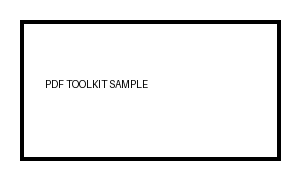
Preview the document here. For added content, this is a placement guide; check the saved output.
Combine supported photographs and graphics into one PDF, with one image fitted onto each page. You can arrange the images before processing and choose paper size, orientation and margins. This is useful for receipts, screenshots, sketches and photographed documents.
The image is scaled proportionally and centered inside the available page area. It is not cropped to fill the paper. PNG transparency is retained in the embedded image, while JPG photographs remain opaque. The tool accepts JPG, PNG, WebP and browser-readable BMP inputs.
Combine JPG, PNG, WebP and browser-readable BMP files in one batch, instead of converting each format separately.
Use the earlier and later arrows in the file list to put an overview before its supporting detail images.
Choose A4, Letter, custom paper or image-matched pages. The image stays proportional and is centered inside the margins.
Build the PDF on your device. Each selected image becomes one page; this operation does not add OCR or a collage layout.
Choose the image files and use the arrows to establish the PDF page order.
Select the screenshot to enlarge it.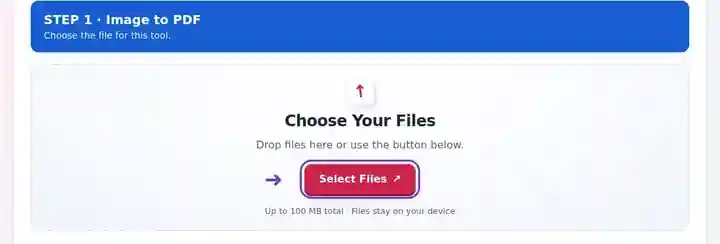
Set page size and margins; use Source image DPI only for image-matched pages.
Select the screenshot to enlarge it.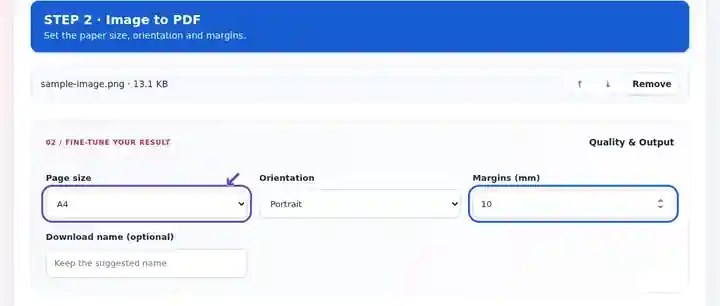
Download the combined PDF, then check image order and small details in a reader.
Select the screenshot to enlarge it.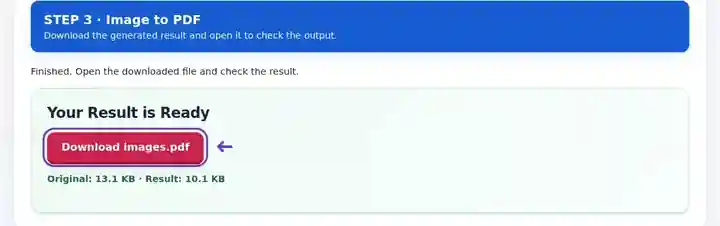
Screenshots show this toolkit using harmless sample files. Your file name, page count and settings may differ.
A project can contain phone photographs, a diagram and a screenshot in different formats. A PDF gives the recipient a single reading sequence rather than several attachments with unrelated filenames. Choose a standard paper size when the packet will be printed, or image-matched pages when preserving each image’s proportions matters more than uniform sheets. Keep the source images for later cropping or corrections; the assembled PDF is the distribution copy.
Put a photographed model, a PNG diagram and a results screenshot into submission order. Check the assignment’s permitted file size and whether captions must be added to the source images.
Create an overview-to-detail inspection packet: room view, affected surface, then a close-up label. Keep original photographs when dates, metadata or further image analysis are required.
Present a concept sketch followed by product photographs and reference graphics. Choose landscape for wide artwork and verify fine lines at the recipient’s normal viewing size.
| Setting | What to expect |
|---|---|
| Accepted input | JPG, JPEG, PNG, WEBP, BMP |
| Processing location | Your browser |
| File selection | Multiple files, with a maximum of 20 per batch |
| Input size | 100 MB total; decoded images and pages also have pixel limits |
An image PDF has no searchable text unless OCR is added separately. Rotations, perspective correction and automatic document-edge detection are not included. Each image must be below the pixel limit as well as within the total file-size limit.
An image-matched page keeps a tall receipt narrow and a landscape diagram wide. Standard A4 or Letter gives a mixed packet consistent sheets, but a narrow source may occupy only part of the page. To compare results, convert one tall and one wide image together, then inspect the smallest labels before applying that choice to the complete packet.
Source image DPI changes physical size only in image-matched mode. A 1,200-pixel-wide image at 300 DPI is 4 inches wide before any margin allowance; the same pixels at 150 DPI span 8 inches. Neither setting creates additional detail. Upright JPEGs avoid another JPEG quality reduction; images that require decoding or orientation normalization are embedded as PNG.
| Situation | What to do |
|---|---|
| A photo is sideways | Rotate the source image before selection, or rotate the PDF page afterward. |
| The document is too large | Reduce oversized source images only as far as the intended use allows. A screenshot and a camera photo may have very different size needs. |
| You need searchable text | Use OCR after creating the PDF, when available, and review recognition errors. |
For a three-page project submission, place a JPG overview first, a PNG diagram second and a WebP screenshot last. The file-list order should become that three-page sequence. Choose uniform paper for printing, or image-matched pages when the three sources need different physical shapes.
Arrange supported images and fit them onto PDF pages.
Settings used: {"paper": "a4", "orientation": "portrait", "margin": "10", "imageDpi": "72"}
Compare the source and result before relying on this tool. This sample checks a bounded operation; output mode and document-structure limitations still apply.
Checked on . Small synthetic sample processed with release 3.23.0 in Chromium 153. This is a recorded local check, not a live-host or every-document guarantee.
This tool puts one image on each page. Prepare a collage externally if several images must share a sheet.
Yes, when the browser can decode the selected WebP file. The generated PDF embeds a raster image.
No. Fitting an image onto larger paper does not recover detail missing from the source.
Continue with JPG to PDF, Scan to PDF, OCR PDF. Compare other source formats in the Create PDF guide. · PNG to PDF · BMP to PDF · HEIC to PDF