Supported Raster Object Extraction
Find embedded bitmap images rather than converting the surrounding text and page layout into one picture.

Save supported embedded raster images separately from page text.
Drop files here or use the button below.
Up to 100 MiB total · Files stay on your device
Preview the document here. For added content, this is a placement guide; check the saved output.
Save supported embedded raster images separately from the surrounding PDF text. This operation looks for raster image objects on selected pages and exports decoded PNG files in a ZIP. It suits documents that contain photographs or bitmap illustrations you need as standalone files.
Extracting objects differs from rendering pages. A page with vector charts can contain no extractable bitmap chart, while a scanned page may be one large image. Repeated image references within a page are deduplicated.
Find embedded bitmap images rather than converting the surrounding text and page layout into one picture.
Decode supported image pixels into standalone PNG files. Original compressed source bytes are not preserved.
Repeated references to the same raster object on one page are extracted once; equivalent images on other pages can recur.
Collect extracted images in a ZIP with page-identifying names. Up to 300 supported images can be exported per job.
Extraction is useful when you need the bitmap itself, such as a permitted brochure photograph or research illustration. It separates that asset from the surrounding paragraphs without choosing a page-rendering DPI. Keep its source page, caption and attribution with your working files.
Recover a permitted photograph from an older brochure when the asset folder is unavailable. Compare crop and color with the brochure, then ask for the original asset if production quality matters.
Extract a raster figure from a paper for a properly attributed working note. Check that the image includes the required labels; vector chart elements may not be included.
Recover a bitmap equipment photograph for an approved teaching slide. Keep its caption or explanation separately and confirm that page overlays did not supply essential labels.
Choose a PDF containing embedded raster pictures.
Select the screenshot to enlarge it.
Choose the source pages and start embedded-image extraction.
Select the screenshot to enlarge it.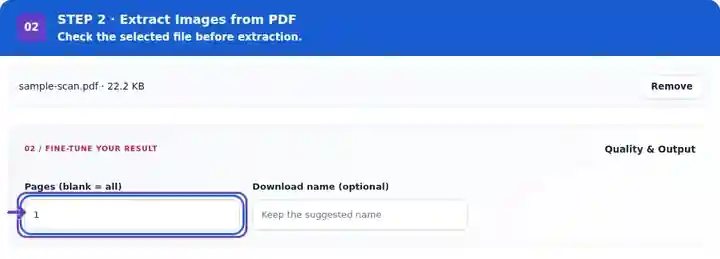
Download the ZIP and compare extracted PNGs with their pages.
Select the screenshot to enlarge it.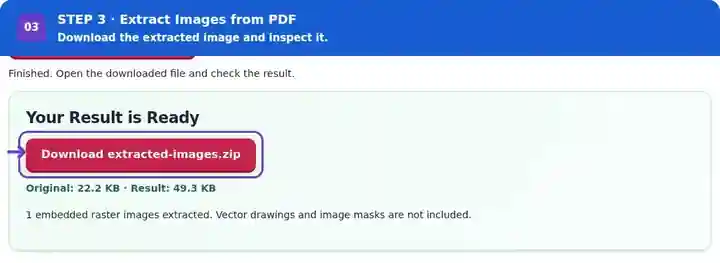
Screenshots show this toolkit using harmless sample files. Your file name, page count and settings may differ.
| Setting | What to expect |
|---|---|
| Accepted input | |
| Processing location | Your browser |
| File selection | One input file |
| Input size | 100 MB total; decoded images and pages also have pixel limits |
| Page selection | Up to 200 selected pages per job. Blank Pages means all pages only when the PDF has 200 pages or fewer; use separate ranges for a longer document. |
| Embedded image limits | Up to 300 extracted images; each supported embedded image must be no larger than 24 megapixels. Select fewer source pages for a smaller ZIP. |
Vector drawings and image-mask objects are not exported by this tool. Decoding to PNG does not preserve the original compressed image bytes or every color-profile detail. Use PDF to PNG when you need the complete page appearance.
A PDF can rotate, clip or overlay an embedded image when placing it on the page. The extracted PNG contains decoded image pixels rather than the final page composition, so its orientation or crop can differ. A figure may also be assembled from several raster tiles with vector labels drawn over them. Match each file to its source page and check whether the missing surrounding elements matter before reusing it. Render the page when the full composition is the useful result.
| Situation | What to do |
|---|---|
| Many small image files are produced | The source page may use tiled or repeated image resources rather than one picture. |
| A chart is not extracted | It may be vector artwork. Render its page to PNG instead. |
| Transparency or masking differs | Some masks are not included by this extraction path. Compare the result with the page preview. |
Consider a brochure page with a photograph inside a circular crop, a separate caption and a figure assembled from raster tiles. These parts can produce different extraction results, so compare the exported files with the page before reuse.
| On the PDF page | What to check in the extracted PNG files |
|---|---|
| Photo clipped by a page-level circular path | The bitmap can include pixels hidden by that page crop. Confirm the intended crop before publishing the extracted image. |
| Caption drawn as separate PDF text or vector objects | It is not part of the extracted raster image. Keep the caption and attribution separately, or render the complete page when their placement matters. |
| One figure assembled from several raster tiles | Several PNG files may represent one visible figure. Use the page rendering if you need the assembled appearance. |
Save supported embedded raster images separately from page text.
Settings used: {"range": "1", "dpi": "72"}
Compare the source and result before relying on this tool. This sample checks a bounded operation; output mode and document-structure limitations still apply.
Checked on . Small synthetic sample processed with release 3.23.0 in Chromium 153. This is a recorded local check, not a live-host or every-document guarantee.
The diagram may use vector paths and text rather than an embedded raster image.
Only supported image objects are saved. PDF to JPG or PNG renders complete pages.
The same raster object is deduplicated within a page. Separate pages can still reference equivalent images.
No. Supported image objects are decoded and written as PNG. Their original compression bytes, metadata and color-profile details are not guaranteed to survive. Ask the source owner for the original asset when those properties matter.
The PDF can apply cropping, rotation, masks and labels while placing an image. Extraction returns supported decoded pixels without rebuilding the entire page composition. Use PDF to PNG for the visible page, or reconstruct the intended crop only after comparing with the source.
You can also create a reusable page subset with Extract PDF Pages. Continue with PDF to PNG, PDF to JPG, Image to PDF.