See Source-Page Thumbnails
Identify a cover, appendix or misplaced scan by its thumbnail. Each card retains its original page label as it moves, helping you track its source position.

Reorder PDF pages with thumbnails and keyboard-friendly controls.
Drop files here or use the button below.
Up to 100 MiB total · Files stay on your device
Preview the document here. For added content, this is a placement guide; check the saved output.
Rearrange the pages inside one PDF while keeping every page exactly once. Thumbnail previews help identify misplaced covers, reversed attachments and landscape tables that belong beside a particular section. The saved result follows the displayed page sequence.
Each thumbnail keeps its source-page label as it moves. The page-order field is another way to supply the sequence. A three-page document can use 3, 1, 2, but cannot use 1, 1, 2 because that would repeat one page and omit another. Extraction and deletion have separate tools for those changes.
Identify a cover, appendix or misplaced scan by its thumbnail. Each card retains its original page label as it moves, helping you track its source position.
Use the buttons under a thumbnail to change its position. These controls also work with keyboard focus and avoid requiring precise drag-and-drop movement.
Type a comma-separated sequence when you already know the required arrangement. For a four-page document with its cover last, use 4, 1, 2, 3.
The organizer checks for missing and duplicate positions. It rearranges the whole document; use extraction or deletion when the intended change also alters the page count.
Load the PDF and identify misplaced pages using the source-labelled thumbnails.
Select the screenshot to enlarge it.
Use Earlier/Later or enter a complete Page order such as 4, 1, 2, 3.
Select the screenshot to enlarge it.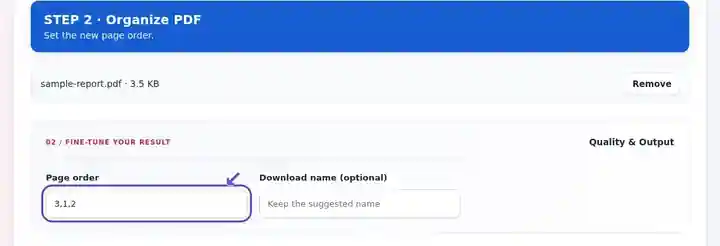
Download the organized PDF and review the new reading sequence.
Select the screenshot to enlarge it.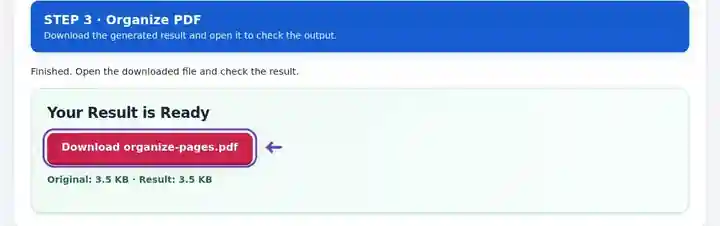
Screenshots show this toolkit using harmless sample files. Your file name, page count and settings may differ.
| Setting | What to expect |
|---|---|
| Accepted input | |
| Processing location | Your browser |
| File selection | One PDF |
| Input size | 100 MB total; decoded images and pages also have pixel limits |
| Document length | Up to 500 input pages. |
The organizer copies page content into a new file. Printed page numbers do not automatically update when pages move. If a report has a contents page, revise it separately or add fresh page numbers after reorganizing.
A document can contain the right pages in an unhelpful order. A scanner may capture a cover last, or an appendix may have been inserted halfway through a report. Reordering restores the reading sequence without requiring you to regenerate the original page artwork.
A student can move the title page ahead of a scanned report and place the bibliography before appendices. Check the table of contents afterward because moving pages does not rewrite page references printed in the document.
An administrator can put an agenda, briefing and appendices into the sequence used during a meeting. Compare the final packet with the agenda order, especially where several short items have similar-looking cover pages.
Put the exercise overview, equipment checklist, timetable and feedback sheet in session order. Keep safety notes beside the activity they govern and check revision labels before distributing the training pack. Moving a page does not update references printed elsewhere.
| Situation | What to do |
|---|---|
| Only the first thumbnails are visible | Load another batch. The full order still covers all pages even when some thumbnails have not been drawn. |
| The order field is rejected | Include every page number once, separated by commas. Do not use ranges in this field. |
| Page numbers printed on the document look wrong | Printed numbers are part of the original page artwork. Reordering does not rewrite them. |
For a four-page scan with the cover at source position 4, enter 4, 1, 2, 3 in Page order. The download should still contain four pages, beginning with the cover. Check that a continued table has not been separated from its first page and that any printed contents-page references still describe the new sequence accurately.
Reorder PDF pages with thumbnails and keyboard-friendly controls.
Settings used: {"order": "2,1"}
Compare the source and result before relying on this tool. This sample checks a bounded operation; output mode and document-structure limitations still apply.
Checked on . Small synthetic sample processed with release 3.23.0 in Chromium 153. This is a recorded local check, not a live-host or every-document guarantee.
This fictional English sample contains two text columns, a wrapped table label, two links, two bookmarks and one form field. Compare the source with the actual output before using the same workflow on your document.
The pages were reversed. Links survived, but the editable form structure and bookmarks did not. Recheck navigation and forms after reordering; retain the source for further editing.
| Check | Source | Result |
|---|---|---|
| Pages | 2 | 2 |
| Clickable links | 2 | 2 |
| Editable form fields | 1 | 0 |
| Bookmarks | 2 | 0 |
Settings used: Page order: 2,1.
Checked 12 October 2026 with release 3.24.0 in Chromium 153. Output structures were parsed independently; this is one sample, not a universal fidelity guarantee.
This tool keeps each source page once. Use Delete PDF Pages to remove pages before or after reorganizing.
Printed numbers are part of the page content. Reordering changes sequence, not the text already drawn on a page.
The Earlier and Later controls are standard buttons. Focus them with Tab and activate them with Enter or Space.
Continue with Delete PDF Pages, Rotate PDF, Add PDF Page Numbers.