Choose Where Numbering Begins
Set Start number for the first selected page. Each subsequent selected page advances the sequence by one, even when the physical page positions are not consecutive.

Add page numbers with a chosen start, position and page range.
Drop files here or use the button below.
Up to 100 MiB total · Files stay on your device
Preview the document here. For added content, this is a placement guide; check the saved output.
Place a new sequence of visible numbers on selected PDF pages. Numbering makes a merged packet easier to reference and gives unnumbered scans a consistent sequence. You choose the start number, text size and one of six positions at the top or bottom of the page.
The start number applies to the first selected page. Later selected pages advance the sequence by one, even if the chosen physical pages are not consecutive. Existing printed numbers remain on the page; this tool adds a new layer rather than identifying and removing earlier numbering.
Set Start number for the first selected page. Each subsequent selected page advances the sequence by one, even when the physical page positions are not consecutive.
Select only the pages that need visible numbers, leaving covers or inserts unnumbered when appropriate.
Place numbers at the left, center or right of the top or bottom edge. Choose a position that avoids existing footnotes, logos and other page furniture.
Set Number size in points to suit the available margin. The number is added as visible page text; it does not replace existing numbering or change reader page labels.
Choose the PDF and page range. Confirm that selected pages are correctly upright at 0° rotation before placing numbers.
Select the screenshot to enlarge it.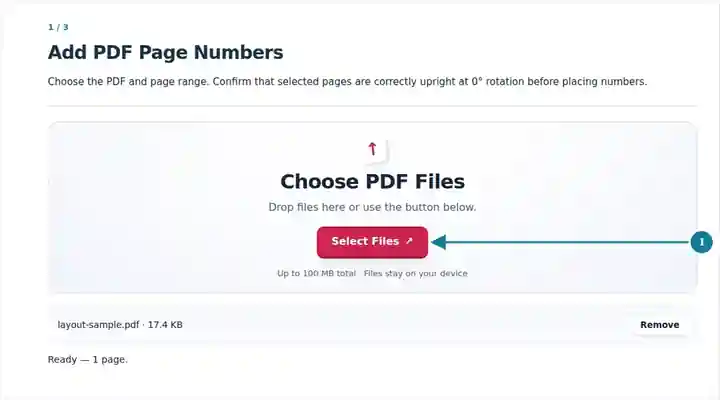
Set Start number, Position and Number size using the available controls.
Select the screenshot to enlarge it.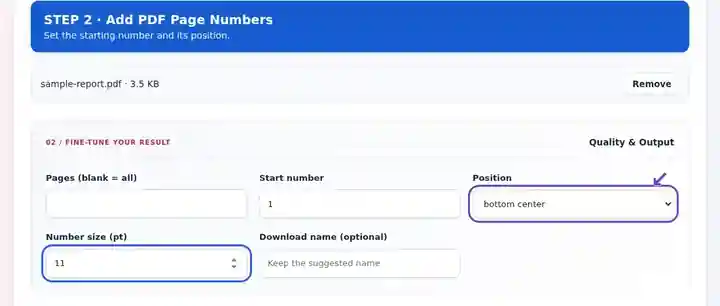
Download the numbered PDF and check the sequence and any footer overlap.
Select the screenshot to enlarge it.
Screenshots show this toolkit using harmless sample files. Your file name, page count and settings may differ.
| Setting | What to expect |
|---|---|
| Accepted input | |
| Processing location | Your browser |
| File selection | One PDF |
| Input size | 100 MB total; decoded images and pages also have pixel limits |
| Document length | Up to 500 input pages. Selecting a small range does not bypass this source-document limit. |
Placement uses the visible crop box and requires 0° page rotation. Rotate PDF changes display metadata only. If a correctly upright page turns sideways at 0°, export a fresh PDF from the source application or a suitable native editor with the artwork oriented correctly. Reopen that copy before placing numbers. Choose a clear margin; narrow pages may need smaller type.
A shared page reference is useful during a discussion of an unnumbered scan or a merged packet. Visible numbers help readers refer to the same point without naming whichever original attachment contained it. Number the finished sequence after merging or reorganizing so later moves do not leave the new numbering out of order.
Decide whether to count the cover before entering the range. Check every layout that has a different header or footer, since one position is used across the selected pages. Numbering does not rewrite an existing contents page or generate Roman numerals. If original printed numbers already exist, a second sequence needs a clear purpose to avoid ambiguous references.
A secretary can number an assembled meeting packet so participants can say “page 8” instead of describing an attachment. Apply numbering after the packet order is agreed, and check that each numbered page has room in the chosen margin.
A teacher can number a set of unnumbered practice sheets while excluding the cover. Keep exercise numbers distinguishable from page numbers, especially when both appear near the bottom of a worksheet.
A team can add a continuous review reference to a combined working document. Preserve the original drawing sheet identifiers and explain which reference system is being used; a new page number does not replace a drawing revision or sheet number.
| Situation | What to do |
|---|---|
| The number overlaps a footer | Choose a different top/bottom position or reduce the type size. |
| The first body page should show 1 | Select the body-page range and keep Start number at 1. |
| The numbering skips a physical page | Numbers increase across the selected pages only. Review your range if every page should participate. |
For a twelve-page packet with an unnumbered cover, select 2-12 and set Start number to 1. The final body page should show 11. Inspect the first and final body pages, plus any landscape page or page with a dense footer. If existing numbers already occupy the chosen position, pick a different position or revise the source rather than covering them.
Add page numbers with a chosen start, position and page range.
Settings used: {"range": "1", "start": "1", "position": "bottom-center", "fontsize": "11"}
Compare the source and result before relying on this tool. This sample checks a bounded operation; output mode and document-structure limitations still apply.
Checked on . Small synthetic sample processed with release 3.23.0 in Chromium 153. This is a recorded local check, not a live-host or every-document guarantee.
Yes. Select a range beginning at page two and set the desired start number.
The tool adds numbers. Replacing numbers already in the page content requires editing the source or carefully rebuilding the affected area.
These are visible page marks. They do not redefine a reader’s internal page labels.
Continue with Merge PDF, Organize PDF, Rotate PDF.