Turn Pages by Quarter or Half Turns
Choose 90°, 180° or 270° clockwise. A 270° clockwise turn gives the same orientation as a 90° counterclockwise turn.

Turn selected pages clockwise without flattening the document.
Drop files here or use the button below.
Up to 100 MiB total · Files stay on your device
Preview the document here. For added content, this is a placement guide; check the saved output.
Turn selected PDF pages to correct sideways or upside-down scans. Choose a clockwise quarter or half turn while keeping the original page artwork, rather than rebuilding the document as low-resolution page images.
The operation changes orientation metadata. A portrait page’s stored dimensions may remain unchanged even though a reader displays the turned page in landscape orientation; use resizing when the paper dimensions themselves need to change.
Rotate PDF changes display metadata; it does not rebuild page artwork to keep it upright at 0°. If an upright page becomes sideways at 0°, return to the original and export a correctly oriented copy with normalized rotation from a suitable PDF editor or source application before using this operation.
Choose 90°, 180° or 270° clockwise. A 270° clockwise turn gives the same orientation as a 90° counterclockwise turn.
Select the sideways or upside-down pages with thumbnails or a Pages range. Leave the field blank only when the same turn is needed throughout the file.
Rotation changes page orientation rather than rebuilding the page as an image. Ordinary selectable text and vector artwork do not need to be resampled.
The chosen angle is added to each page’s stored rotation. A page already at 90° returns to 0° after a 270° clockwise turn.
Choose the PDF and identify pages whose text or drawings are sideways.
Select the screenshot to enlarge it.
Select the affected Pages and choose the clockwise rotation angle.
Select the screenshot to enlarge it.
Download the rotated PDF and reopen each changed page to confirm its orientation.
Select the screenshot to enlarge it.
Screenshots show this toolkit using harmless sample files. Your file name, page count and settings may differ.
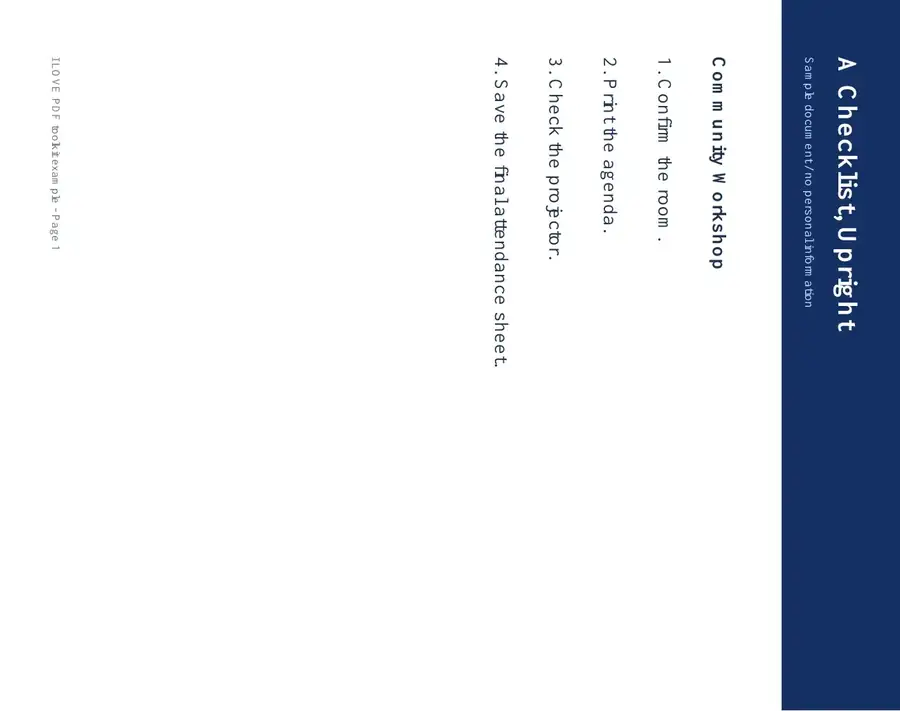
This one-page checklist was saved with a 90° page rotation. A 270° clockwise turn restores its upright display without rasterizing the document.
The source opens sideways because its page rotation is 90°.
The downloaded result has a 0° page rotation. Its extracted text is unchanged.
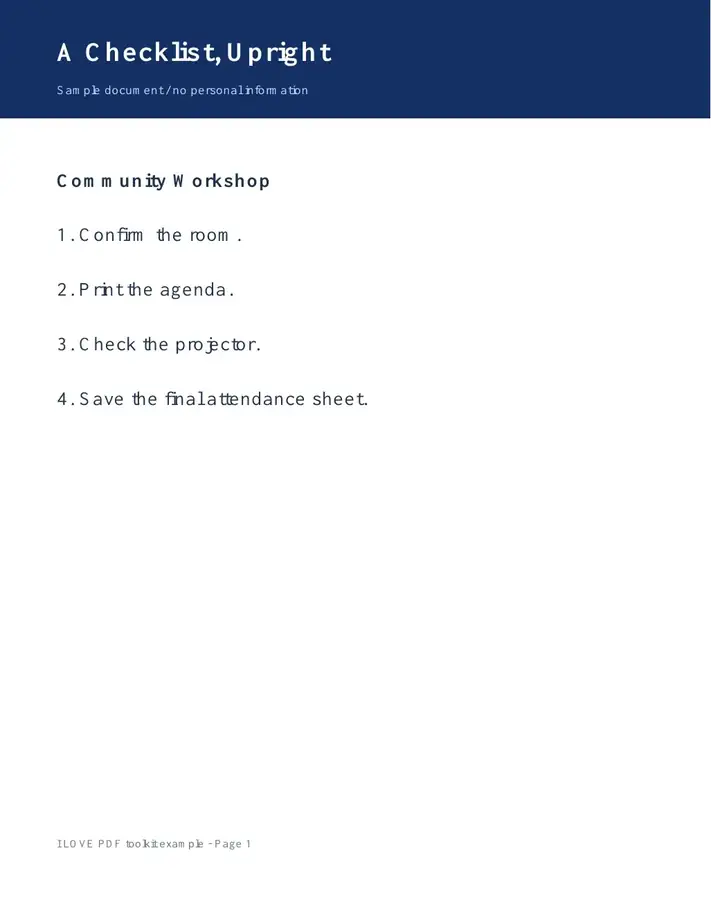
Settings used: Page 1; rotate clockwise by 270°.
This example checks page orientation and preserved text. It does not deskew a tilted scan or rotate individual objects within a page.
Checked on . Harmless samples processed in a local Chromium browser with this toolkit. These examples are not a live hosting benchmark.
| Setting | What to expect |
|---|---|
| Accepted input | |
| Processing location | Your browser |
| File selection | One PDF |
| Input size | 100 MB total; decoded images and pages also have pixel limits |
| Document length | Up to 500 input pages. Selecting a small range does not bypass this source-document limit. |
Rotation preserves page count and does not change the order. Check the downloaded pages because the workspace preview shows the source while you choose an angle.
A page that reads sideways interrupts a reader, even when the rest of the document is correct. Rotation helps with scans fed into a scanner in different directions, a landscape appendix displayed on its side, or an upside-down final sheet. It turns the entire page; it cannot rotate one photograph independently of the surrounding text.
Choose the reading direction deliberately for a wide drawing or table: the top of its labels may differ from the top of the surrounding portrait pages. A slightly tilted scan needs deskewing in another application rather than a 90° turn. The width and scale of a drawing do not change simply because its displayed orientation changes.
A student can correct a sideways diagram page in a lecture scan while leaving the portrait notes unchanged. Check the diagram’s axis labels after downloading; the easiest orientation may differ from the surrounding text pages.
A reviewer can turn a landscape drawing that a scanner captured on its side. Inspect the title block and dimensions at full size afterward. Rotating makes the sheet easier to read but does not change its scale or printed units.
A trainer can correct upside-down pages in a non-sensitive sample statement used in a classroom. Check the page order as well as orientation so the worked example still leads from opening balance to closing balance.
| Situation | What to do |
|---|---|
| A page turned the wrong way | A 270° clockwise turn is equivalent to 90° counterclockwise. Start again from the original or apply a compensating turn. |
| An editing tool requests 0° rotation | Zero rotation is required for placement, but resetting it can turn an upright page sideways. Use a normalized source export in that case; the FAQ below explains the distinction. |
| Only some pages are sideways | Specify their page positions rather than rotating the entire file. |
In a five-page scan, suppose page 2 needs a 90° clockwise correction and page 5 needs 180°. First select page 2 and apply 90°. Then load the saved copy, select page 5 and apply 180°. The result should still contain five pages. Reopen pages 2 and 5 at readable zoom and confirm that all three unchanged pages retain their original orientation.
This fictional English sample contains two text columns, a wrapped table label, two links, two bookmarks and one form field. Compare the source with the actual output before using the same workflow on your document.
Only page 1 was rotated by 90 degrees. This sample retained links, the editable field and bookmarks. Placement tools can still reject nonzero rotation metadata; follow their normalization guidance.
| Check | Source | Result |
|---|---|---|
| Pages | 2 | 2 |
| Clickable links | 2 | 2 |
| Editable form fields | 1 | 1 |
| Bookmarks | 2 | 2 |
Settings used: Page 1; 90 degrees.
Checked 12 October 2026 with release 3.24.0 in Chromium 153. Output structures were parsed independently; this is one sample, not a universal fidelity guarantee.
Choose 270 degrees clockwise, which produces the same final orientation as 90 degrees counterclockwise.
Yes. Enter that page’s physical number in the range field.
Placement tools need 0° rotation metadata. Rotate PDF changes that metadata but does not rebuild the artwork to preserve its orientation. If a page already looks upright and becomes sideways at 0°, use a suitable PDF editor or source application to export an upright copy with normalized rotation. Reopen that copy before placing text, a watermark or a signature.
Continue with Organize PDF, Crop PDF, Resize PDF Pages.