Set Each Edge Independently
Enter separate left, right, top and bottom crop amounts in millimeters. Uneven scanner borders can need different values rather than one equal margin.

Trim visible page margins using a crop box.
Drop files here or use the button below.
Up to 100 MiB total · Files stay on your device
Preview the document here. For added content, this is a placement guide; check the saved output.
Trim the visible margins of PDF pages by changing their crop boxes. This can make scanned pages easier to view when a scanner adds a broad border. Enter the amount to hide from the left, right, top and bottom in millimeters.
Cropping is a viewing adjustment. The hidden region can still exist inside the PDF and may become visible if another application resets the crop box. Use it for presentation and margins, not to remove private information.
Enter separate left, right, top and bottom crop amounts in millimeters. Uneven scanner borders can need different values rather than one equal margin.
Restrict the change with Pages when only part of a scan has excess margins. Blank selection applies the same measurements across the whole document.
The crop box defines the area shown by PDF readers. The operation changes that visible box without resampling all the retained page content into an image.
Opposing crop amounts must leave usable width and height. Work from a source copy because another crop run trims the current visible box again.
Load the PDF and inspect the excess border on the intended pages.
Select the screenshot to enlarge it.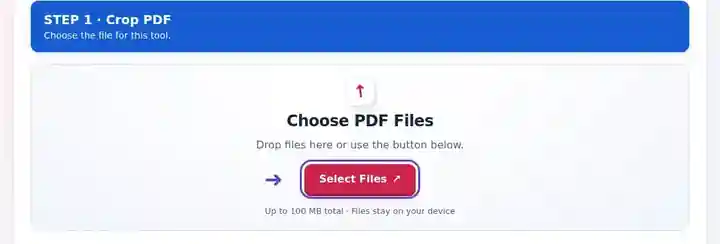
Set the page range and the four crop amounts in millimetres.
Select the screenshot to enlarge it.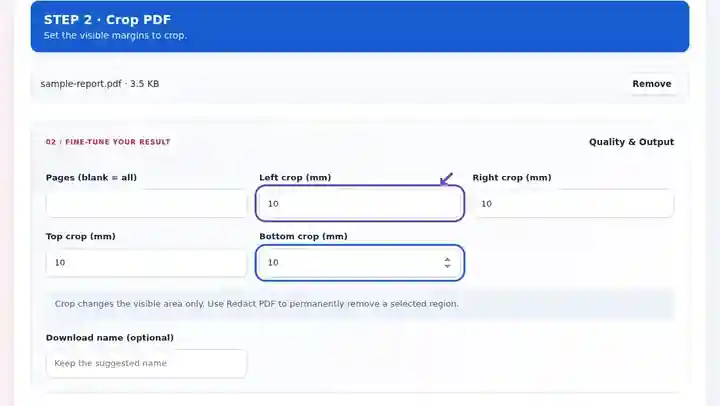
Download the cropped PDF and check all edges for clipped notes or page numbers.
Select the screenshot to enlarge it.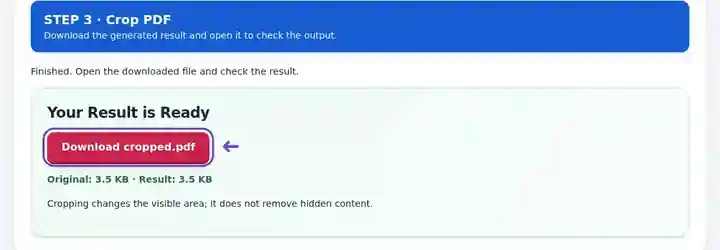
Screenshots show this toolkit using harmless sample files. Your file name, page count and settings may differ.
| Setting | What to expect |
|---|---|
| Accepted input | |
| Processing location | Your browser |
| File selection | One PDF |
| Input size | 100 MB total; decoded images and pages also have pixel limits |
| Document length | Up to 500 input pages. Selecting a small range does not bypass this source-document limit. |
Cropping requires pages with 0-degree rotation. Repeated cropping uses the current crop box, so keep an original copy if you expect to try several values. A crop amount that removes the entire page is rejected. This action requires pages with 0° rotation. If changing an upright page to 0° turns it sideways, normalize the page in the source application first. Rotate PDF.
Broad empty scanner borders can make a document’s actual text look unnecessarily small in a fit-to-page view. Cropping those borders concentrates the visible area on the material a reader needs. It can also make a scanned handout look more consistent when only some pages have excessive whitespace.
Start with a small measurement and inspect all four edges of the download. A page number, handwritten note or drawing dimension may sit farther out than the main text. Cropping does not straighten a tilted scan, stretch content to a standard sheet or erase hidden material. Use Resize PDF for paper dimensions and a checked redaction workflow for information that must be removed.
A student can reduce broad borders around a scan so the text uses more of a small screen. Preserve the course heading, page number and handwritten annotations that may be important when referring back to the original handout.
An archivist can make a working reading copy with less empty scanner bed visible. Keep the uncropped original and inspect edge notes, stamps and binding information before choosing a shared margin for a batch.
An illustrator can trim unused scan margins around a sketch for review. Retain any registration or scale marks the reviewer needs; cropping here is a visible-area adjustment rather than a professional prepress bleed-setting workflow.
| Situation | What to do |
|---|---|
| The crop is rejected | The combined opposing margins must leave a positive visible width and height. |
| The wrong edge is affected | Cropping requires 0° rotation metadata. If resetting it changes the correct reading direction, export a normalized copy from a suitable editor first, then recheck all four margins. |
| The content now appears on a smaller sheet | Crop changes the visible boundary. Use Resize PDF afterward if a standard output sheet is required. |
For an uncropped A4 page measuring 210 × 297 mm, removing 5 mm from both side margins and 3 mm from top and bottom leaves a visible area of 200 × 291 mm. Try those values only when the borders are empty. Check stamps, notes and page numbers on later pages; the same crop can cut useful material when a batch contains uneven scans.
Trim visible page margins using a crop box.
Settings used: {"range": "1", "left": "5", "right": "5", "top": "5", "bottom": "5"}
Compare the source and result before relying on this tool. This sample checks a bounded operation; output mode and document-structure limitations still apply.
Checked on . Small synthetic sample processed with release 3.23.0 in Chromium 153. This is a recorded local check, not a live-host or every-document guarantee.
No. It changes the visible page area. Use Redact PDF for a region that must be removed from the generated document.
Not necessarily. The original page resources generally remain in the document.
Start with small margins and inspect the download. Scans can have uneven borders, so one setting may not suit every page.
Continue with Redact PDF, Resize PDF Pages, Rotate PDF.