Page Selection
Export a specific page range while retaining original page numbers. This makes a small sample easier to inspect before processing a longer document.

Export selectable text, page geometry and text positions as JSON.
Drop files here or use the button below.
Up to 25 MB total · Files stay on your device
Preview the document here. For added content, this is a placement guide; check the saved output.
Turn a PDF text layer into a JSON file for inspection or further processing. The export records selected pages, their dimensions and the text items returned by the PDF reader, including their positions and transforms.
A PDF stores instructions for displaying a page. This tool does not infer invoice fields, rebuild tables or identify original heading levels. Scanned pages need OCR before their words can appear in the export.
Export a specific page range while retaining original page numbers. This makes a small sample easier to inspect before processing a longer document.
Keep text items alongside page geometry and positioning information. Use the original PDF to interpret the coordinates and verify how items relate visually.
Download valid JSON for your own parser or review workflow. Exported text is escaped as data; the tool does not execute document content.
Read the selected PDF in your browser. Your document is not sent to a conversion server, and the original file is not modified.
Choose a PDF containing selectable text.
Select the screenshot to enlarge it.
Set the page range and review the extraction limits.
Select the screenshot to enlarge it.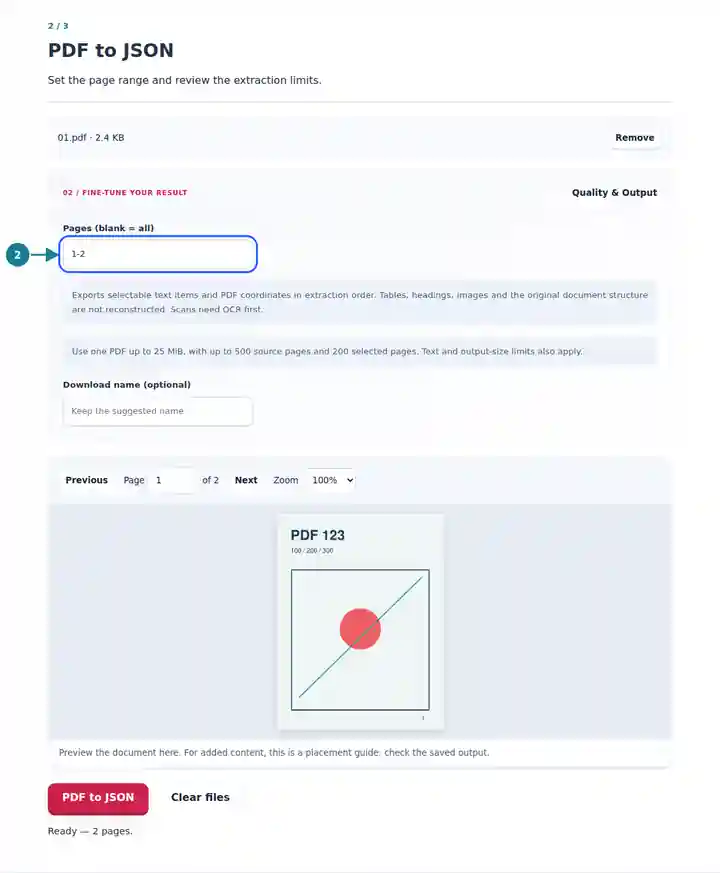
Save the JSON and compare it with the source page.
Select the screenshot to enlarge it.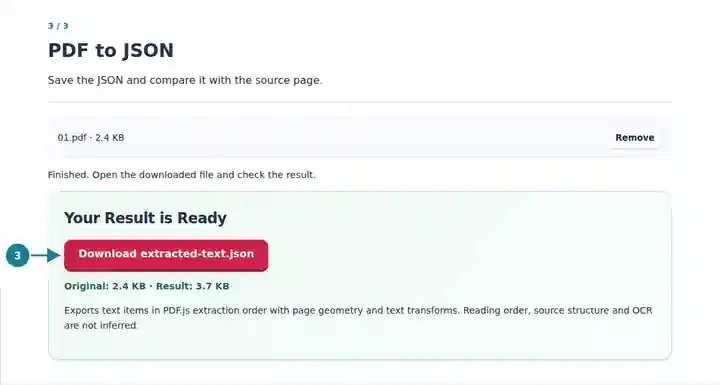
Screenshots show this toolkit using harmless sample files. Your file name, page count and settings may differ.
JSON is useful when a document workflow needs both text and its position. A developer can inspect extraction quality, locate repeated labels or prepare a separate mapping process. Keep that mapping explicit: a nearby amount is not automatically an invoice total, and extraction order is not guaranteed to match a human reader's order.
Inspect the text layer before building a parser and keep page references for debugging.
Compare sampled values with the source page before accepting an extraction rule.
Explore how visible text is represented in a fixed-layout document.
| Setting | What to Expect |
|---|---|
| Input | One PDF up to 25 MiB; up to 500 source pages. |
| Selection | Up to 200 selected pages; up to 20,000 text items per page, 100,000 per job and two million text characters. |
| Output | JSON containing extracted text and geometry; maximum 64 MiB. |
| Scanned pages | No automatic OCR, image export or document-field recognition. |
For a two-column statement, export one page first. Locate a familiar label and compare its position with the printed value. If items from both columns are interleaved, group them using coordinates in your own code instead of assuming the array is already a finished table.
| Situation | What to Check |
|---|---|
| No selectable text is found | Run OCR on scanned pages, then export the resulting PDF text layer. |
| Text appears in an unexpected order | Compare the page and text positions; extraction order does not establish reading order. |
| A large selection is rejected | Choose fewer pages. Dense pages can reach the text-item limit before the page limit. |
No. The result contains text items and geometry. Field names, relationships and business validation require a separate mapping process.
Images are not exported. Text inside a table can be extracted, but row and column relationships are not reconstructed.
The export is an inspection format, not a complete PDF representation. Keep the original PDF for appearance, graphics, fonts and interactive features.