Page-Based Elements
Keep source page numbers, rotation and visible page bounds beside extracted text. This preserves a useful reference when reviewing a selected range.

Extract PDF text items and page geometry into a documented XML structure.
Drop files here or use the button below.
Up to 25 MiB total · Files stay on your device
Preview the document here. For added content, this is a placement guide; check the saved output.
Export the selectable text layer of a PDF as XML. The file groups text items under their original page numbers and records page geometry, text direction and positioning transforms. It provides structured evidence for inspection and later processing.
The XML describes what the PDF text reader extracted. It is not the original XML that may have generated the document, and it does not identify invoice fields, reconstruct table relationships or export images. Image-only pages need OCR first.
Keep source page numbers, rotation and visible page bounds beside extracted text. This preserves a useful reference when reviewing a selected range.
Characters such as ampersands and angle brackets remain data inside XML elements. Text resembling markup cannot become executable page content through this export.
Characters XML cannot represent directly use an explicitly marked JSON string encoding. The marker allows a receiving program to recover those values accurately.
Create the XML file on your device. The source is neither uploaded for conversion nor rewritten.
Select a PDF with a readable text layer.
Select the screenshot to enlarge it.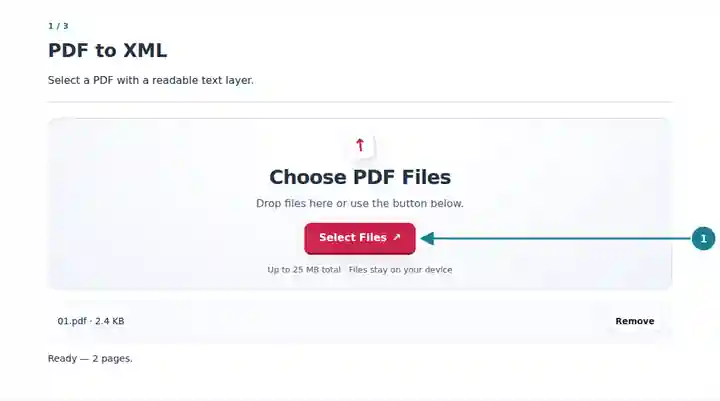
Choose the pages needed for the XML extraction.
Select the screenshot to enlarge it.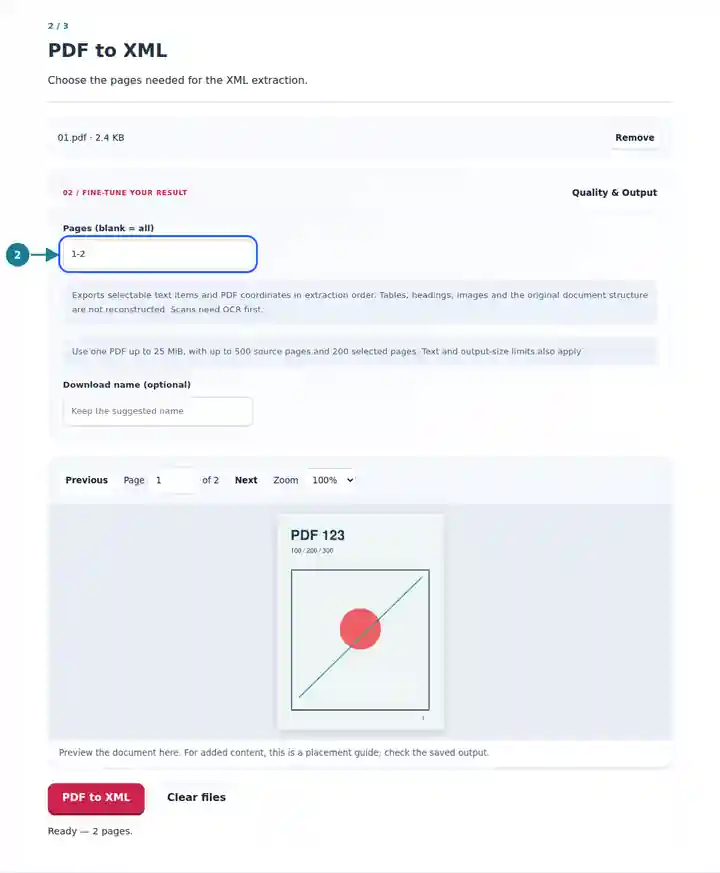
Download the XML and inspect its page elements.
Select the screenshot to enlarge it.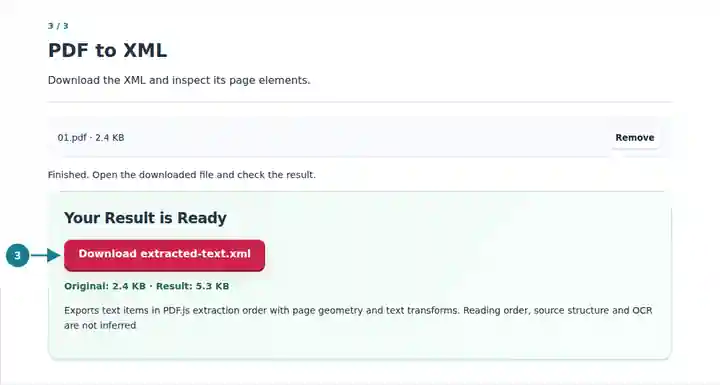
Screenshots show this toolkit using harmless sample files. Your file name, page count and settings may differ.
An XML-based workflow may need explicit page and item elements before applying its own transformation rules. A team can inspect those elements, retain source-page references and build a separate mapping for known document types. Keep that mapping distinct from extraction: a text item near another item does not establish a business relationship by itself.
Use page and item elements as input to a controlled document-processing workflow.
Inspect whether text remains available alongside the preserved original PDF.
Compare sampled output values with their source pages before accepting transformation rules.
| Setting | What to Expect |
|---|---|
| Source | One PDF up to 25 MiB, with no more than 500 source pages. |
| Page range | Up to 200 selected pages. An empty range includes all pages only when within that limit. |
| Text limits | Up to 20,000 items on a page, 100,000 items per job and two million text characters. |
| Download | An XML document up to 64 MiB. No external DTD or schema is fetched. |
For a delivery document, export one page and locate a familiar reference number. Check its text transform and nearby items against the original page. Your application can then apply a rule for that document type. Avoid treating every nearby number as the same field across unrelated layouts.
| Situation | What to Check |
|---|---|
| The XML does not match a supplier's schema | The export uses its own extraction structure. Create a separate mapping to the schema your receiving system expects. |
| An element has an encoding attribute | If encoding is json, parse its text as a JSON string to recover characters that cannot appear directly in XML. |
| Words are absent or ordered unexpectedly | Check for scanned pages or unusual text placement. Apply OCR where needed and review coordinates. |
Extract PDF text items and page geometry into a documented XML structure.
Settings used: {"range": "1", "dpi": "72"}
Compare the source and result before relying on this tool. This sample checks a bounded operation; output mode and document-structure limitations still apply.
Checked on . Small synthetic sample processed with release 3.23.0 in Chromium 153. This is a recorded local check, not a live-host or every-document guarantee.
No. A PDF generally does not retain the source data model. This export records the text layer and geometry that the reader can extract.
No. The tool does not reconstruct tagged-PDF semantics, headings or table structure. Its page and item elements describe extraction results.
The XML to PDF tool can print XML source, but it cannot recreate the original page design from this extraction file. Retain the original PDF.