Searchable PDF or TXT
Download recognized wording as plain text or add a text layer over the retained scan appearance in a PDF.

Make scans searchable while keeping the original page appearance.
Drop files here or use the button below.
Up to 100 MB total · Files stay on your device
Preview the document here. For added content, this is a placement guide; check the saved output.
Add a searchable text layer to a scanned PDF with Tesseract running in your browser. Choose the language that matches the source; English is selected by default. Supported readers can then search and select recognized words while the scanned page keeps its original appearance.
By default, the operation keeps pages that already contain text. You can also recognize every selected page; this adds a new layer and may duplicate any existing text. OCR accuracy depends on focus, contrast, language and page alignment. Small print, handwriting, unusual typefaces and noisy scans need careful review rather than automatic trust.
Download recognized wording as plain text or add a text layer over the retained scan appearance in a PDF.
The download contains only selected pages. Choose up to 20 pages; leave Pages blank to include the whole document only when it has 20 pages or fewer.
Choose the source language, 200 or 300 DPI, a recognition rotation, and automatic, single-block or sparse-text page layout. The supported languages are listed in the FAQ below.
Pages already containing text can be retained. Force recognition only when you have considered possible duplicate text layers.
A scan stores the page as a picture, so ordinary text search cannot find the words printed on it. OCR in the selected language can make a typed scan searchable and provide wording for copy-and-paste or later text extraction. It is especially useful for archives where finding a known name or phrase matters more than redesigning the page. The recognized layer can contain mistakes even when the scan looks clear. Test search and selection, then compare names, references and numbers with the page image before using extracted wording.
Make a short typed record searchable by title, name or reference number. Keep the original scan and test those search terms in the downloaded copy, including any easily confused characters.
Make typed course notes searchable before building study notes. Handwritten annotations may remain unreliable, so check quoted passages against the scan.
Extract wording from an approved scanned memo for an internal index. Compare dates, staff names and reference numbers carefully because a single recognized character can change an identifier.
Choose a scan in a supported language and select up to 20 pages.
Select the screenshot to enlarge it.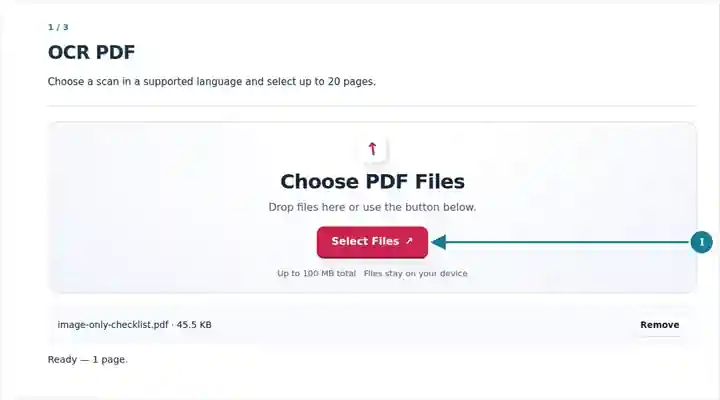
Choose the source language, OCR output, resolution, layout and recognition orientation.
Select the screenshot to enlarge it.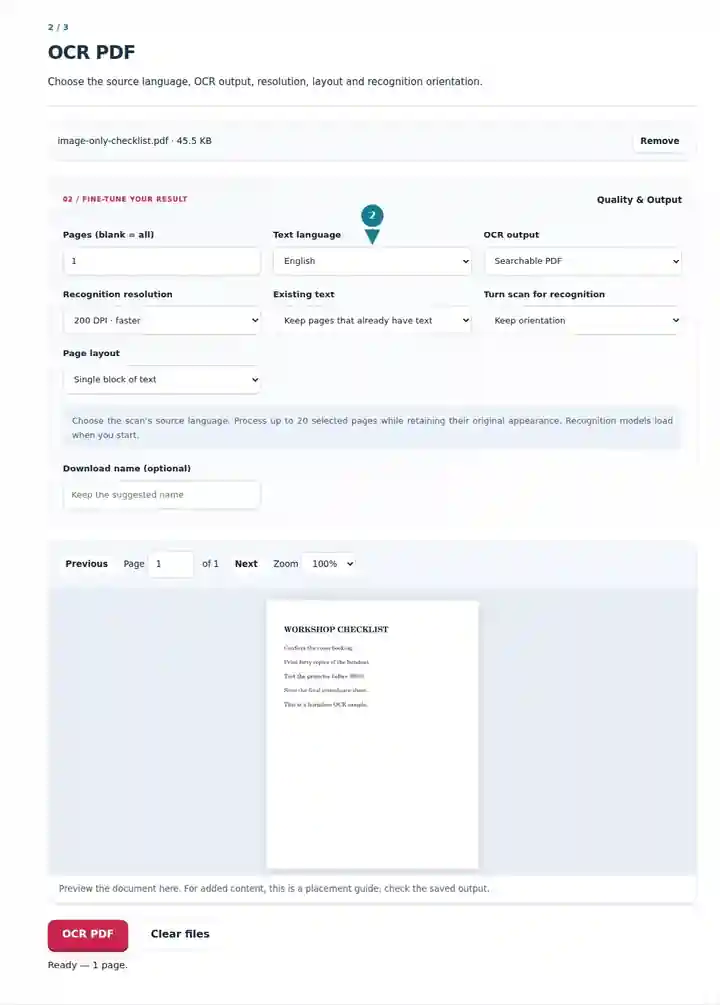
Download and test recognized text against the original scan.
Select the screenshot to enlarge it.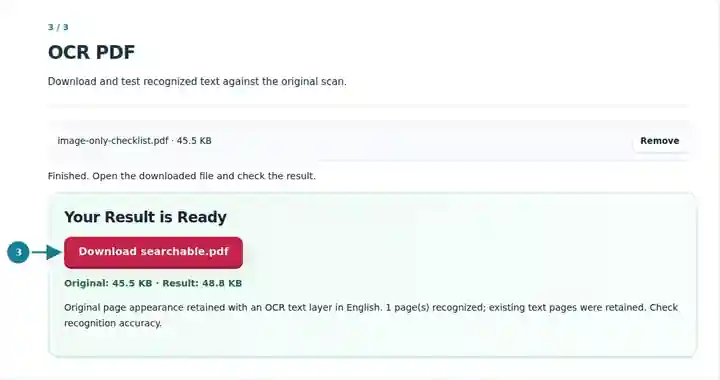
Screenshots show this toolkit using harmless sample files. Your file name, page count and settings may differ.
The source page is an image with no extractable text. OCR adds a text layer while keeping the page’s visible appearance. Both images therefore look the same; the downloadable result also contains the recognized words.
Text extraction from the source returned zero characters.
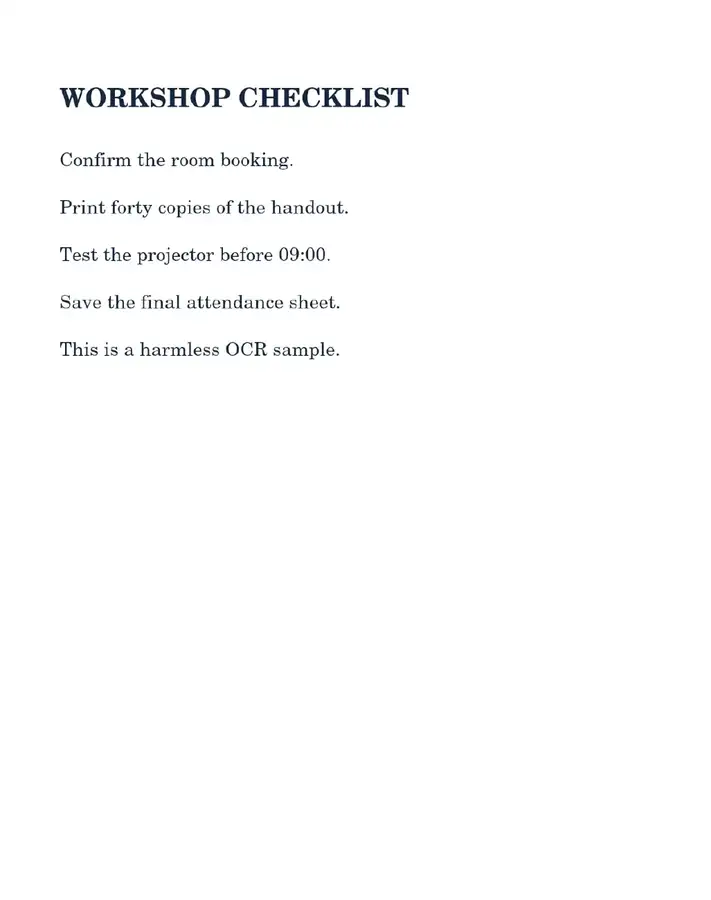
The result contains all six sample lines. Its rendered pixels match the source at the tested 1,300-pixel image size.
WORKSHOP CHECKLIST
Confirm the room booking.
Print forty copies of the handout.
Test the projector before 09:00.
Save the final attendance sheet.
This is a harmless OCR sample.
Settings used: Page 1; searchable PDF; 200 DPI recognition; single block of text; English; original orientation.
This clean, large-print English sample is not an accuracy benchmark for small print, handwriting, skewed scans or other languages. Proofread names, amounts and dates in your own result.
Checked on . Harmless samples processed in a local Chromium browser with this toolkit. These examples are not a live hosting benchmark.
| Setting | What to expect |
|---|---|
| Accepted input | |
| Processing location | Your browser, on your device |
| File selection | One input file |
| Input size | Up to 100 MB, subject to device memory and decoded-page limits |
| Recognition batch | Up to 20 selected pages; only those pages appear in the searchable PDF download. |
The tool adds a text layer; it does not reconstruct tables as an editable spreadsheet or correct factual content. OCR is not a substitute for reviewing names, account numbers and other precision-sensitive text.
The rotation setting turns the rendered scan supplied to recognition; the searchable PDF retains the source page’s visible appearance. It is not a replacement for Rotate PDF when you want readers to see the page upright. If an existing text layer contains errors, forcing recognition can add another layer and produce duplicate search results. Plain-text OCR can be a useful checked extraction in that situation. Compare easily confused characters such as 0/O, 1/l and decimal points against the image.
| Situation | What to do |
|---|---|
| A name or number is wrong | Compare the recognized text with the image. Correct it in a suitable downstream editor before reuse. |
| An existing bad OCR layer did not improve | Choose Recognize every selected page to add a fresh layer. Existing text is retained, so an existing layer may produce duplicate search results; export plain text if you need a clean extraction. |
| A long packet is rejected | Split it into groups of 20 pages or fewer, OCR each group and verify them before merging. |
For a typed inspection sheet, search a known equipment ID in the searchable PDF, then copy that ID and one measurement into a text editor. Compare both with the scan and confirm that selection highlights the intended line. A successful word search alone does not establish correct reading order or reliable numeric extraction.
The output remains a PDF with an added text layer. Use PDF to Word afterward if a reflowed text document is needed.
This release includes English, Spanish, Portuguese, German, Indonesian, Russian, French, Italian, Turkish, Arabic, Simplified Chinese, Japanese, Korean, Polish and Hindi recognition models. English is the default; select the language matching the source. OCR recognizes characters but does not translate the document. Other languages need a separately configured OCR workflow.
The default setting keeps pages with an existing text layer. Select Recognize every selected page to run recognition on them too.
No. The searchable PDF contains only the selected pages. To keep a long document together, recognize batches of up to 20 pages and combine the checked outputs in their original order.
No. It rotates the image supplied to recognition while retaining the source page’s visible appearance in the PDF. Use Rotate PDF first when the saved page itself should appear upright.
The tool recognizes text in the selected language; it does not promise reliable handwriting recognition or reconstruct table cells. Use a sharp, upright typed scan and verify the wording before taking it into a Word or spreadsheet workflow.
Continue with PDF to Word, PDF to Text, Scan to PDF. For long-term storage requirements, see PDF to PDF/A; a searchable PDF is not automatically PDF/A.