Choose the Required Profile
Select PDF/A-1b, PDF/A-2b or PDF/A-3b according to the receiving archive's requirements. The tool does not create level-a accessibility or level-u searchable-text conformance.

Rebuild selected PDF pages as an image-only PDF/A-1b, 2b or 3b copy.
Drop files here or use the button below.
Up to 100 MiB total · Files stay on your device
Preview the document here. For added content, this is a placement guide; check the saved output.
Create a new archival PDF from the visible pages of an existing PDF. The converter renders each selected page, embeds the resulting RGB image and an sRGB color profile, then builds the document for PDF/A-1b, PDF/A-2b or PDF/A-3b.
This is an image-only conversion. Selectable text, forms, links, layers, attachments and digital signatures are removed as interactive or logical objects. Their visible page appearance can remain in the rendered image. Keep the original file whenever those original features matter.
Select PDF/A-1b, PDF/A-2b or PDF/A-3b according to the receiving archive's requirements. The tool does not create level-a accessibility or level-u searchable-text conformance.
Build a new document from flattened page images instead of adding an archival label to the original objects. Source scripts, embedded files and interactive fields are not copied into the output.
Choose 72, 150, 200 or 300 DPI and select the pages to retain. Higher resolution can improve small detail but also increases memory use and the resulting file size.
Check the generated document's page tree, metadata, color profile and image resources before offering a download. Release fixtures are also independently tested with veraPDF.
Choose the document whose visible pages you want to retain.
Select the screenshot to enlarge it.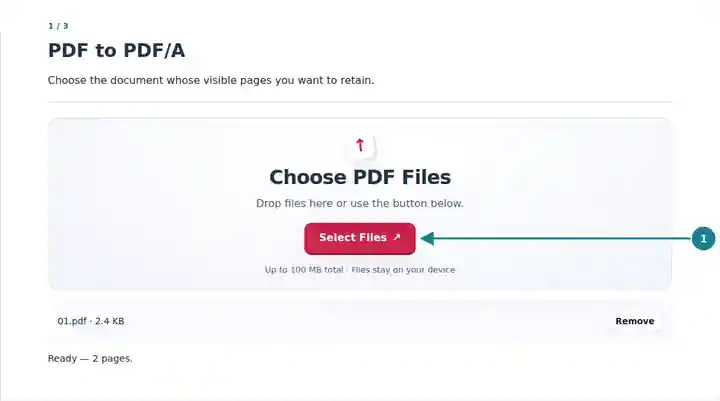
Set the archival profile, pages and DPI, then acknowledge the removed features.
Select the screenshot to enlarge it.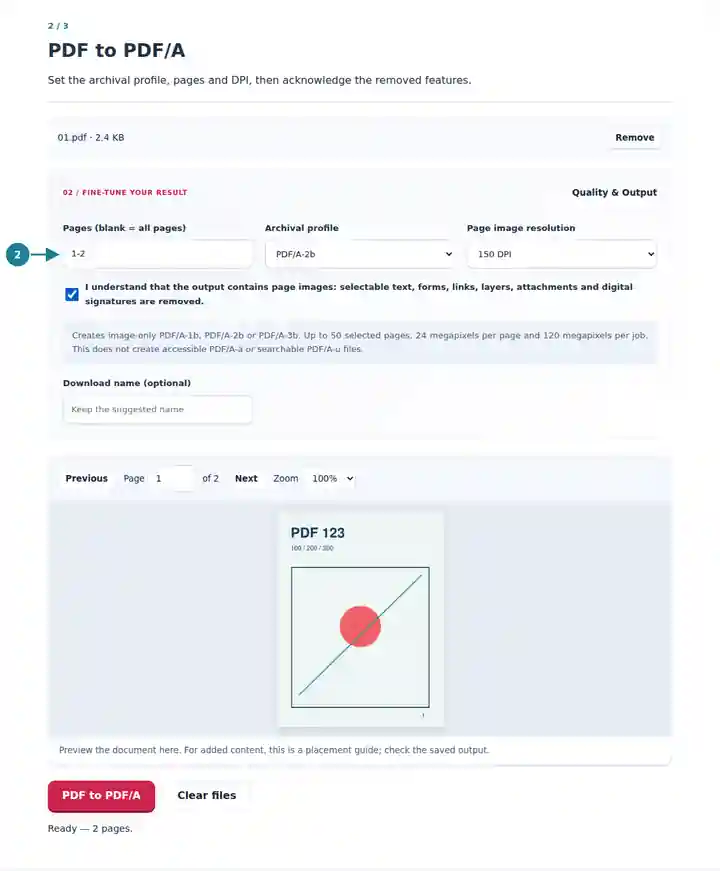
Download the checked output and review its page appearance.
Select the screenshot to enlarge it.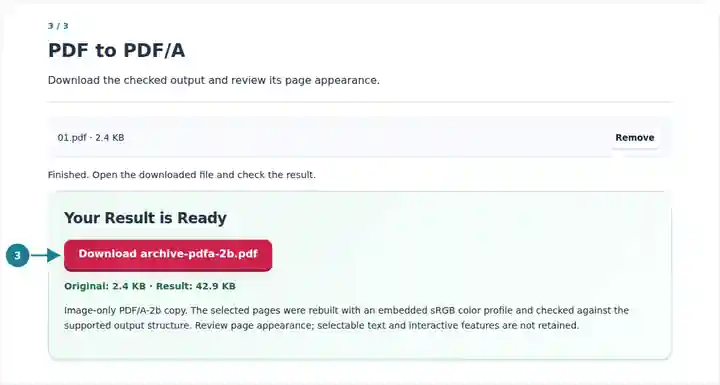
Screenshots show this toolkit using harmless sample files. Your file name, page count and settings may differ.
This approach suits workflows that need a stable visual copy and explicitly accept page images. It can also normalize mixed source content into a simpler document structure. It is unsuitable when the archive requires retained text search, accessibility tags, embedded supporting files or a valid original digital signature. Confirm those requirements before choosing a profile; PDF/A conformance alone does not establish suitability for every archive.
Prepare a visual derivative while retaining the source and following the receiving archive's requirements.
Create a fixed copy of completed pages when interactive fields are no longer needed in the derivative.
Preserve the visible arrangement of selected pages alongside the original research material.
| Setting | What to Expect |
|---|---|
| Source | One unencrypted PDF up to 100 MiB and 500 source pages. |
| Profiles | PDF/A-1b, PDF/A-2b and PDF/A-3b; image-only output. |
| Page and pixel limits | Up to 50 selected pages, 24 megapixels per page and 120 megapixels per job. |
| Resolution and size | 72, 150, 200 or 300 DPI; generated output up to 160 MiB. |
| Page dimensions | Each output side must measure between 3 and 14,400 PDF points. Visible page rotation and cropping are applied. |
Suppose an archive requests PDF/A-2b and accepts page images. Select that profile, convert a short sample at 200 DPI and inspect the smallest text. Check that completed form values are visible and that no required information exists only in an attachment. Convert the remaining permitted pages only after the sample meets those needs.
| Situation | What to Check |
|---|---|
| The job reaches a pixel limit | Lower the DPI or select fewer pages. Large drawings may hit the per-page limit even in a short document. |
| The output text is not searchable | This is expected for an image-only copy. Keep the original or use a different archival workflow when retained text is required. |
| The receiving archive rejects the file | Read its exact profile and submission requirements. This converter is not a general validator for uploaded PDFs or a substitute for archive-specific checks. |
Rebuild selected PDF pages as an image-only PDF/A-1b, 2b or 3b copy.
Settings used: {"range": "1", "pdfaConfirm": true, "pdfaPart": "2"}
Compare the source and result before relying on this tool. This sample checks a bounded operation; output mode and document-structure limitations still apply.
Checked on . Small synthetic sample processed with release 3.23.0 in Chromium 153. This is a recorded local check, not a live-host or every-document guarantee.
No. This tool rebuilds the page content, embeds a color profile and writes the required archival metadata and supported structure. A filename or metadata label alone cannot establish conformance.
This conversion creates a new image-only document. It does not retain the original signature object or its cryptographic validity. Keep the signed original.
No. It checks the specific output structure it generates. Use a dedicated validator or the receiving system to assess arbitrary PDFs and any additional archive requirements.