Selectable PDF Text
Write supported source characters into a PDF text layer so the reader can select or search ordinary text.

Create a paginated PDF from UTF-8 text with adjustable type size.
Drop files here or use the button below.
Up to 100 MiB total · Files stay on your device
Preview the document here. For added content, this is a placement guide; check the saved output.
Create PDF pages from plain-text files, with adjustable paper size and type size. Lines are wrapped to the available width and continue onto new pages when the page is full.
The bundled font supports many common Latin and other characters, but does not provide every script or complex shaping feature. Tabs are treated as spaces. Each selected file starts a new page sequence.
Write supported source characters into a PDF text layer so the reader can select or search ordinary text.
Wrap long lines to the available width and continue onto additional pages when the lower margin is reached.
Choose A4, Letter or custom dimensions and set Text size from 6 to 40 points. Eleven points is the default.
Combine up to 20 TXT inputs in the selected order. Each file starts a new page sequence within the resulting PDF.
Select UTF-8 TXT files and arrange several notes in the required sequence.
Select the screenshot to enlarge it.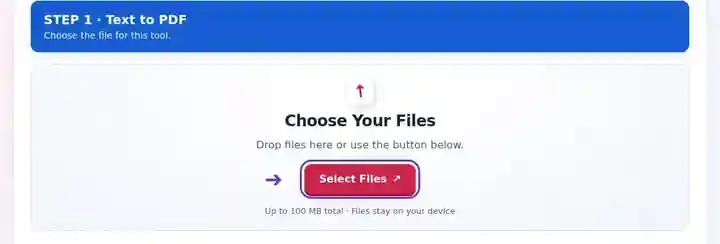
Choose page dimensions and a readable Text size for the source.
Select the screenshot to enlarge it.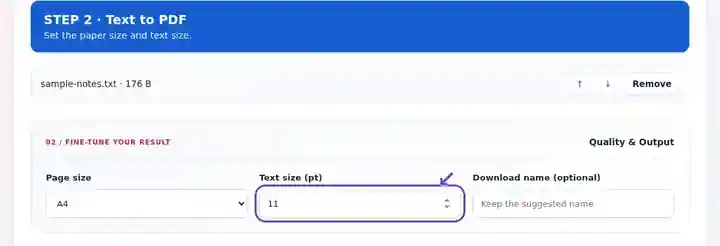
Download the PDF, test text selection and inspect wrapped lines and special characters.
Select the screenshot to enlarge it.
Screenshots show this toolkit using harmless sample files. Your file name, page count and settings may differ.
A TXT file is easy to edit but its line wrapping can vary between readers and editors. A PDF gives a reading copy with defined pages and a chosen text size. It is suitable for straightforward notes or written instructions when a designed word-processing document is unnecessary. Use a structured source format for complicated tables or layout, because tab spacing and a proportional PDF font do not reproduce a fixed-width text screen exactly.
Prepare reading notes or a typed instruction sheet from a simple text file. Choose a comfortable type size and check that paragraph boundaries remain understandable across pages.
Attach a short, sanitized log extract to a support record. Remove credentials and unrelated private data from the TXT source, then verify long identifiers after line wrapping.
Military or workplace trainers can paginate an approved plain-text checklist. Keep each procedure in a separate source file so it starts a fresh page sequence, then check long equipment identifiers after wrapping.
| Setting | What to expect |
|---|---|
| Accepted input | TXT |
| Processing location | Your browser |
| File selection | Multiple files, with a maximum of 20 per batch |
| Input size | 100 MB total selection limit; each source is additionally limited to one million characters |
Choose a reading size that remains clear on the selected paper. Increase page width for long paths or log lines rather than reducing type until it is hard to read.
Use UTF-8 source text for predictable decoding. The bundled font supports many characters, but not every script, emoji or specialist symbol. Source files with tab-aligned tables can lose their intended visual alignment because the renderer is not a full word processor. For a structured report, use a Word or Markdown source instead.
| Situation | What to do |
|---|---|
| Accented characters look wrong | Save the source as UTF-8 and try again. |
| Lines or tables wrap unexpectedly | Increase the paper width, reduce the type size or simplify the source layout. |
| A symbol is missing | Choose a source format and font workflow that explicitly supports that character. |
For a multi-page instruction sheet, choose an ordinary reading size and review where paragraphs cross page boundaries. Inspect the first and last page as well as a page containing the longest line. Keep the text file so corrections remain easy to make.
Create a paginated PDF from UTF-8 text with adjustable type size.
Settings used: {"fontsize": "11", "paper": "a4"}
Compare the source and result before relying on this tool. This sample checks a bounded operation; output mode and document-structure limitations still apply.
Checked on . Small synthetic sample processed with release 3.23.0 in Chromium 153. This is a recorded local check, not a live-host or every-document guarantee.
Line breaks are retained and tabs expand to spaces. The proportional font does not preserve every fixed-width layout.
Yes. Select multiple TXT files and arrange their order. Each source begins a new page sequence in the combined output.
The text exporter writes a PDF text layer. Check search and selection for the characters used in your source, especially when uncommon scripts are present.
Continue with PDF to Text, Image to PDF, PDF Reader.