Compare Exactly Two Documents
Choose two PDFs whose text you want to review. The tool supports documents up to 200 pages each and pairs pages by their physical position.

Compare extracted text page by page between two PDFs.
Drop files here or use the button below.
Up to 100 MB total · Files stay on your device
Preview the document here. For added content, this is a placement guide; check the saved output.
Compare the extracted text at matching page positions in two PDFs. The output is an HTML report that places each page’s text from the two documents side by side and identifies whether those text strings differ. It can help locate changes in a revised text-based draft.
Comparison follows physical page positions. Inserting a page near the beginning can make later page pairs differ even when their text has only moved. The report does not attempt semantic alignment, word-level highlighting, image comparison or visual layout analysis.
Choose two PDFs whose text you want to review. The tool supports documents up to 200 pages each and pairs pages by their physical position.
The downloadable HTML report displays extracted text from both files for each position. It labels the pair as same text or text differs.
A count of differing positions helps you find pages requiring review. It does not provide word-level highlights or automatically explain the changes.
A comparison with no usable text in either file is rejected. Scans may need OCR, while images, signatures and layout still require visual inspection.
Choose exactly two PDF versions, with the original first and the revision second.
Select the screenshot to enlarge it.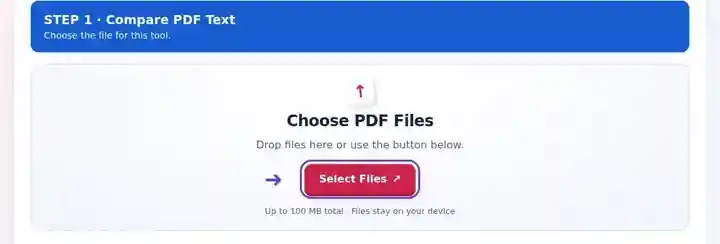
Run the text comparison after checking page alignment and usable text layers.
Select the screenshot to enlarge it.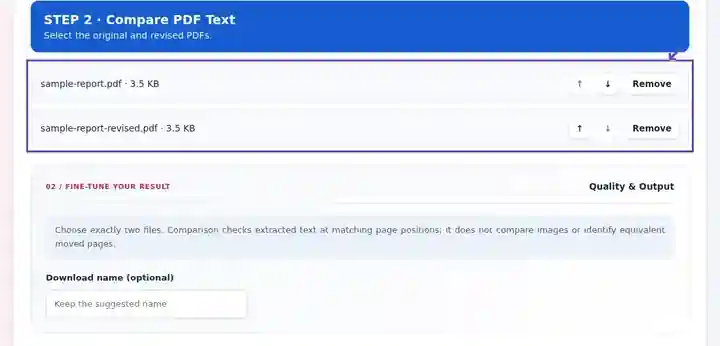
Open the downloaded HTML report and review each differing page pair beside the source PDFs.
Select the screenshot to enlarge it.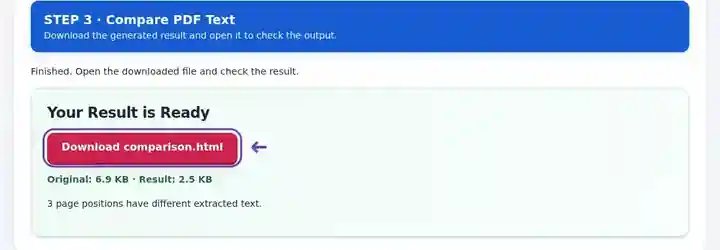
Screenshots show this toolkit using harmless sample files. Your file name, page count and settings may differ.
Only the workshop mark changes: a teal circle becomes a red square. The actual text-comparison report finds zero page positions with different text.
The original one-page handout contains a teal circular mark.
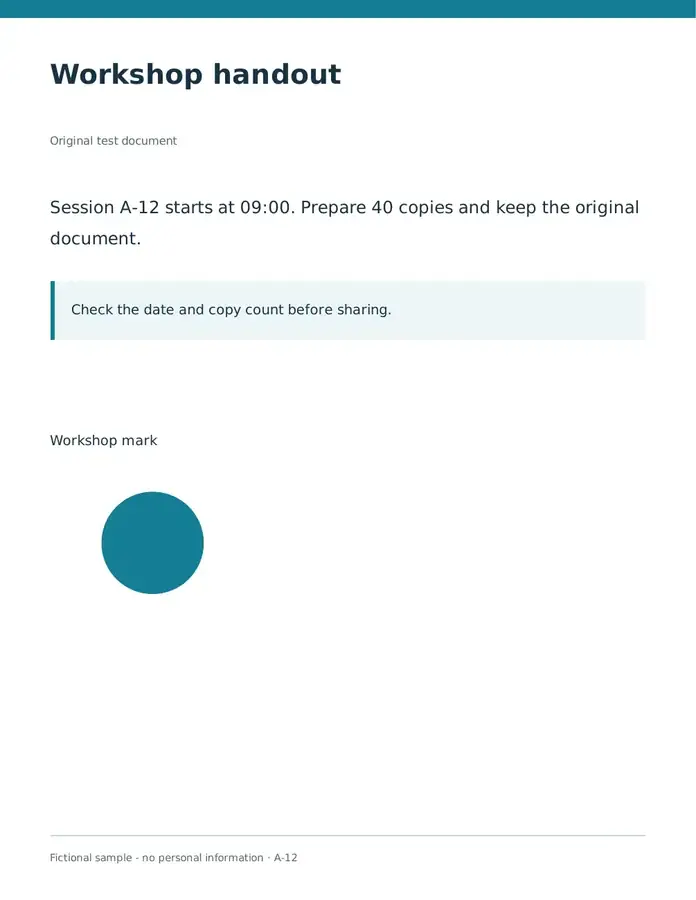
The text is unchanged, but the graphic has a different shape and color.
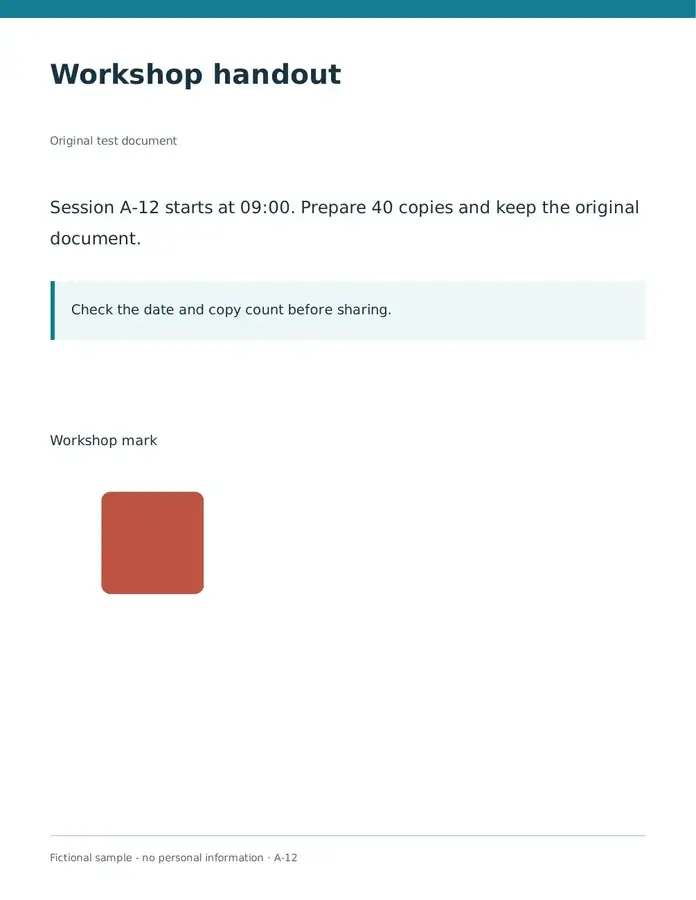
Settings used: Compare the two complete one-page PDFs at matching page positions.
Text comparison cannot certify visual equality. Open both PDFs and inspect marks, colors and layout.
Checked on . Original harmless samples processed locally in Chromium with version 3.16.0; this is not a production hosting benchmark.
| Setting | What to expect |
|---|---|
| Accepted input | |
| Processing location | Your browser |
| File selection | Exactly two PDFs; up to 200 pages in each |
| Input size | 100 MB total; decoded images and pages also have pixel limits |
| Comparison length | Each of the two source PDFs can contain up to 200 pages. |
Two image-only scans can have empty text layers and appear textually identical despite different pictures. The report rejects a comparison when neither file yields usable text. OCR can prepare scans, but recognition differences may also create apparent edits.
Comparison is useful when you have similarly paginated versions of a text document and need to locate pages where extracted wording differs. A page-level report narrows the manual review, and the side-by-side text helps you inspect the original and revised wording yourself.
An editor can compare two similarly paginated public notices to find pages whose wording changed. Read the complete changed page rather than treating a difference label as a summary of the edit.
A student can check exported versions of a project report after a revision. If new paragraphs changed pagination, compare corresponding excerpts instead of assuming all reported differences are new wording.
An author can review two permitted versions of a training handout to locate altered instructions. Confirm the extracted wording against the source, and inspect tables or diagrams separately because the text report cannot establish visual equivalence.
| Situation | What to do |
|---|---|
| Many pages differ after adding one page | Align the document sections first or compare matching excerpts. |
| A scan produces no useful comparison | Both files need readable text layers. OCR the scans first when an OCR tool is available. |
| Spacing produces unexpected differences | Text extraction can vary between PDFs. Inspect the displayed wording rather than treating every difference as a substantive change. |
For two versions of a three-page notice, first confirm that corresponding sections occupy the same positions. If only page 2’s extracted text changed, that position should be marked as different in the report. Read both versions of the complete page and inspect the source PDF. A same-text label on other positions does not establish that their logos, signatures or layout are unchanged.
No. It compares extracted text. Review the PDFs visually for changes to photos, diagrams and formatting.
Yes. Text is compared at matching page positions, so a change in pagination affects the report.
No. The files can differ in images, metadata, annotations and layout while containing the same extracted text.
Continue with PDF to Text, OCR PDF, PDF Reader.