Worksheet Selection
Export visible worksheets by default or enter exact sheet names. Naming a hidden worksheet can include it, so inspect the intended selection.

Export XLSX worksheets as readable PDF tables on your device.
Drop files here or use the button below.
Up to 25 MiB total · Files stay on your device
Preview the document here. For added content, this is a placement guide; check the saved output.
Convert a modern XLSX workbook into a PDF on your device. The browser exporter places cell values into PDF pages with selectable text and supported cell formatting. Choose visible worksheets or specific sheet names, select a paper size and orientation, and inspect the result before sharing a statement, inventory or report.
The browser uses saved formula results; it does not calculate formulas, refresh external data or reproduce Excel’s saved print settings. Recalculate and save the workbook in your spreadsheet editor before conversion. A formula without a stored result is rejected so that the tool does not silently produce a missing value.
Export visible worksheets by default or enter exact sheet names. Naming a hidden worksheet can include it, so inspect the intended selection.
Create PDF text from saved cell values with supported formatting. Formulas are not recalculated and must have saved results.
Choose A4 or Letter, portrait or landscape, and fit-width or readable scaling to balance column width and legibility.
Repeat up to five top rows across pages and optionally add cell gridlines to make long tables easier to follow.
Choose the saved XLSX workbook after recalculating and checking its values.
Select the screenshot to enlarge it.
Select worksheets, paper orientation, table scaling and any repeated heading rows.
Select the screenshot to enlarge it.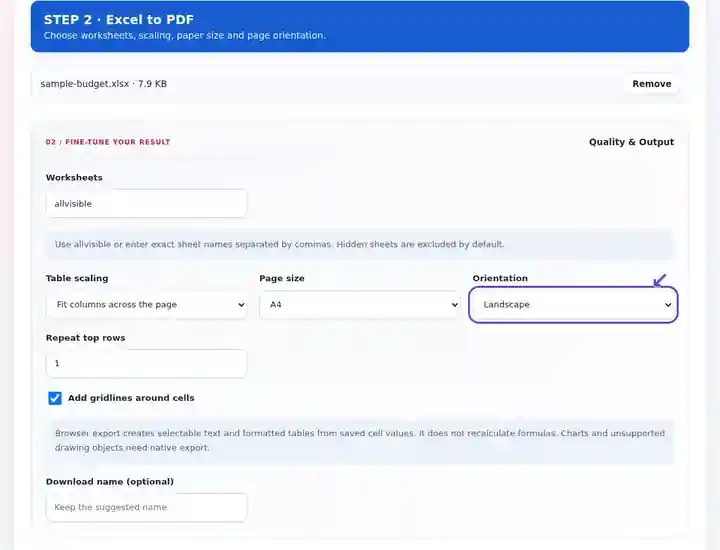
Download the PDF and compare totals, number formats and the rightmost columns with Excel.
Select the screenshot to enlarge it.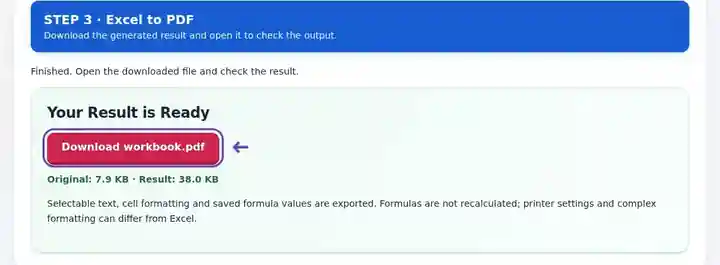
Screenshots show this toolkit using harmless sample files. Your file name, page count and settings may differ.
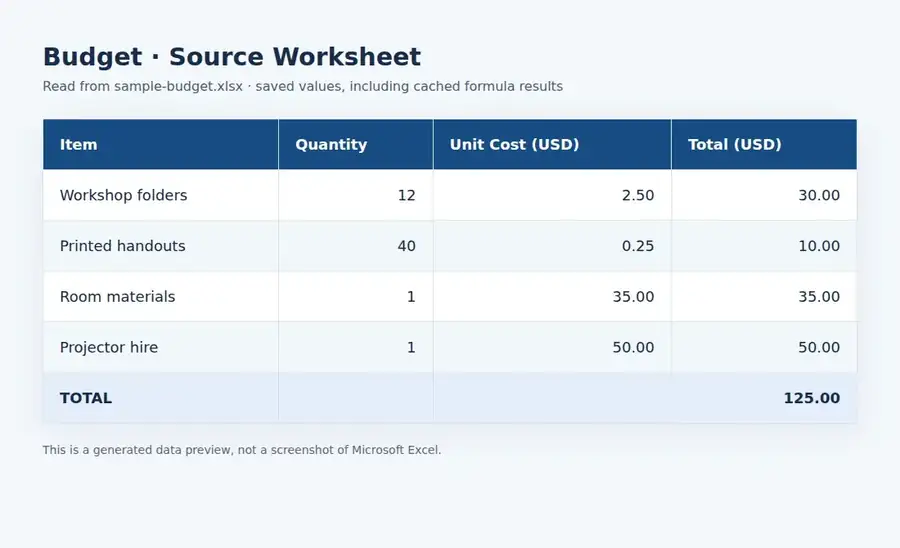
The workbook contains one six-row budget table. Its formulas already have saved results. This browser export reads those stored values and creates a PDF with selectable text.
This preview reads values from the actual XLSX file. It is a generated data preview, not Microsoft Excel’s interface.
The output retains all four item rows, the headers and the saved total of 125.00.
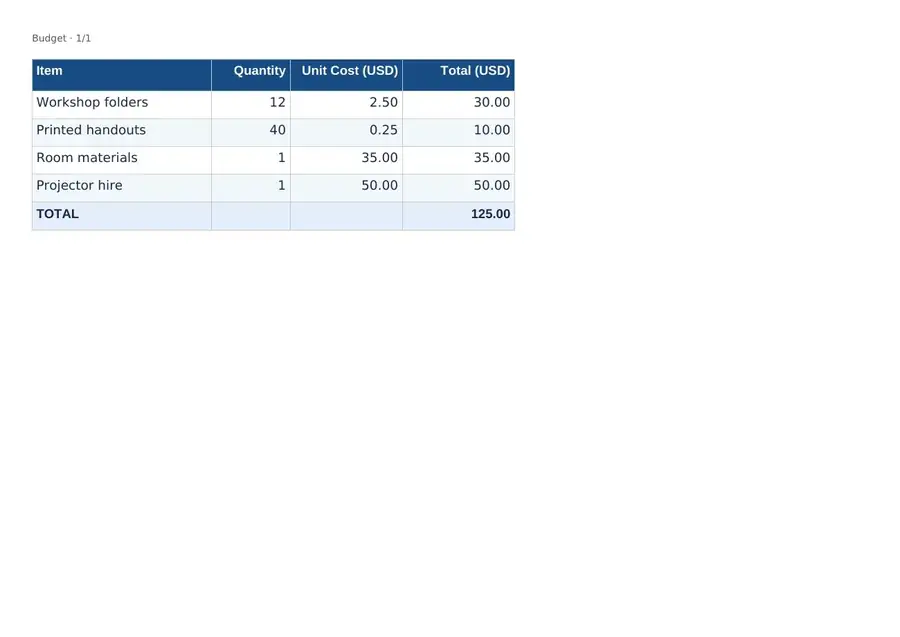
Settings used: Worksheet Budget; fit columns across the page; A4 landscape; repeat top row; gridlines enabled.
The 125.00 total is a cached formula result from the workbook. The tool did not recalculate it. This example contains no charts, macros or unsupported drawing objects.
Checked on . Harmless samples processed in a local Chromium browser with this toolkit. These examples are not a live hosting benchmark.
A workbook is the working file for calculation; a PDF is useful when a recipient needs the reported values as a reading copy. Export only the required worksheets instead of distributing unrelated tabs. Recalculate and save first, then compare the PDF with the saved workbook, because this browser route uses cached results rather than a calculation engine. It does not honor the workbook’s saved print area or certify that the source calculations are correct.
Share a permitted summary statement or reconciliation table. Check saved balances, number formats and currency symbols, and export only the worksheets authorized for that report.
Distribute an inventory or materials schedule with repeated heading rows. Check part numbers, quantities and the rightmost column after scaling a wide sheet.
Submit a results table as a fixed reading copy while keeping the workbook for analysis. Verify dates and decimal places; use a native export when charts or advanced objects are required.
| Setting | Browser conversion |
|---|---|
| Input | One unencrypted XLSX workbook, up to 25 MB |
| Sheet selection | All visible worksheets by default; exact names can also select a hidden worksheet |
| Page layout | A4 or Letter, portrait or landscape; fit-width or readable scaling |
| Repeated rows | Repeat 0–5 top rows on subsequent pages |
| PDF content | Selectable cell text, saved values, supported formatting and embedded PNG/JPEG images |
| Limits | Up to 50 sheets, 10,000 rows and 100 columns per sheet, 100,000 layout cells total, including blank or formatted cells and 300 PDF pages |
| Legacy formats | Save XLS and ODS workbooks as XLSX in your source application first. |
A wide sheet needs enough space for each column. Landscape paper can help, but fitting many columns onto one page reduces text size. The readable scaling mode stops a sheet that would need excessive shrinking; fit-width still has a minimum scale. Remove unused distant cells or create a smaller report worksheet when the used range is much wider than the report.
Browser layout uses the controls above rather than the workbook’s stored print area, printer settings or page breaks. Hidden rows and columns are omitted; hidden sheets are omitted unless you name them explicitly. Horizontal merged cells are supported, while vertical merges require a native export. Supported formatting includes direct cell fills, borders, bold text, alignment and column widths. Conditional-formatting rules are not recalculated, and the bundled PDF font may differ from the original.
| Situation | What to do |
|---|---|
| A formula has no saved result | Recalculate and save in the spreadsheet editor. The browser does not run the calculation engine. |
| The sheet is too wide | Use landscape paper, reduce the used columns or prepare a focused report worksheet. |
| A chart or advanced object is rejected | The browser does not render charts, SmartArt or embedded objects. Use native PDF export for those workbooks. |
| An image crosses a page boundary | Resize or reposition the embedded PNG/JPEG picture, or use the source editor’s PDF export. |
| A language or symbol cannot be displayed | Use the native exporter with an appropriate font. The browser rejects characters missing from its bundled PDF font. |
For a wide monthly report, inspect the rightmost column and the first row after each PDF page break. Repeat the required heading rows so a continuation page is understandable on its own. If a formula has no cached result, recalculate and save the XLSX in the source editor before retrying; changing paper size will not supply that value.
It contains the displayed saved results rather than editable formulas. Formula recalculation and external-data refresh must happen in the source application.
Browser export uses its own page-size, orientation and scaling controls. Use optional Native Office export or Excel’s PDF export when saved print areas, complex print titles or exact printer layout matter.
The default exports visible worksheets. Entering the exact name of a hidden worksheet can include it. Review the complete output before sharing.
The exporter reads stored results and does not calculate formulas. Open the workbook in Excel or a compatible calculation engine, recalculate it and save a fresh XLSX. Verify that external links have been refreshed before converting that copy.
Distant formatted cells can enlarge the worksheet’s used range. In the source editor, remove genuinely unused rows and columns outside the report, save a clean copy and retry. The browser checks both populated cells and the rectangular area it needs to lay out.
Hidden rows and columns are excluded from browser output, even within a selected sheet. Unhide the necessary data in the source workbook and save it before conversion. An explicitly named hidden worksheet is a separate setting and can be included.
Continue with PDF to Excel, Rotate PDF and Resize PDF Pages.