A Worksheet for Each Page
Each selected source page becomes a separate worksheet in the XLSX download, making page-by-page review easier.

Build an editable workbook from position-based text rows.
Drop files here or use the button below.
Up to 100 MiB total · Files stay on your device
Preview the document here. For added content, this is a placement guide; check the saved output.
Build an editable workbook from PDF text arranged into rows and spacing-based columns. Each selected PDF page becomes a worksheet. This can help recover tabular text for careful cleanup and analysis.
The inference groups text fragments by vertical position and separates wide horizontal gaps into cells. It does not recognize arbitrary table semantics. Values are stored as text to preserve extracted content and avoid silently interpreting them as formulas.
Each selected source page becomes a separate worksheet in the XLSX download, making page-by-page review easier.
Change Column gap threshold to separate nearby values or keep a long description together.
Exclude top and bottom margins in PDF points to reduce repeated report furniture in extracted rows.
Values are stored as text. Leading zeros can remain visible, and PDF wording is not turned into executable formulas.
A PDF statement or inventory may contain useful rows but offer no editable workbook. Extracting those rows can reduce manual retyping when you need a reconciliation sheet or a working data table. The export is a starting point for review: it infers alignment from printed positions, not from original spreadsheet definitions. Verify identifiers and amounts, assign numeric types deliberately and create any calculations yourself. Source formulas, charts, merged-cell meaning and workbook logic cannot be recovered simply because they once produced the PDF.
Recover a permitted statement table for a controlled reconciliation worksheet. Verify transaction dates, debit and credit columns and totals against the PDF before calculating differences.
Extract a stock list to prepare an editable count sheet. Keep part codes as text, check blank quantity cells and remove repeated page headers before adding count columns.
Bring a published numeric table into a workbook for checked analysis. Compare decimal separators and units row by row, then document any manual corrections to inferred cells.
Select a PDF containing selectable table values.
Select the screenshot to enlarge it.
Choose sample pages and refine row, column and margin settings.
Select the screenshot to enlarge it.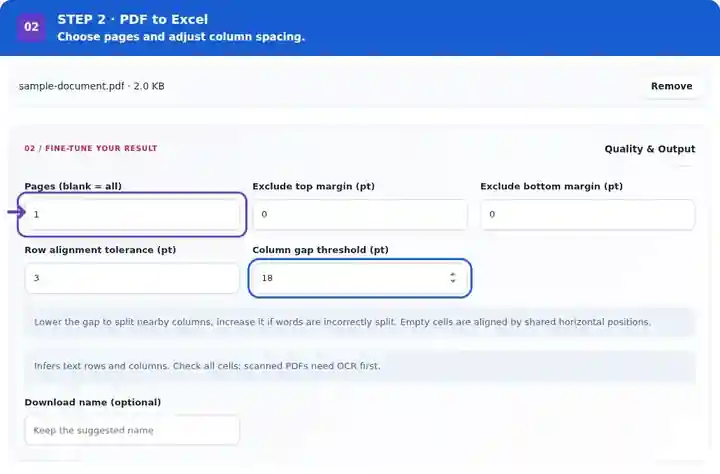
Download the XLSX and verify cells before calculating totals.
Select the screenshot to enlarge it.
Screenshots show this toolkit using harmless sample files. Your file name, page count and settings may differ.
The last item label wraps onto a second line. The exported data keeps that continuation on its own row, so it needs review before use as a spreadsheet record.
The original table has three line items and a total of 65.00. One item label spans two lines.
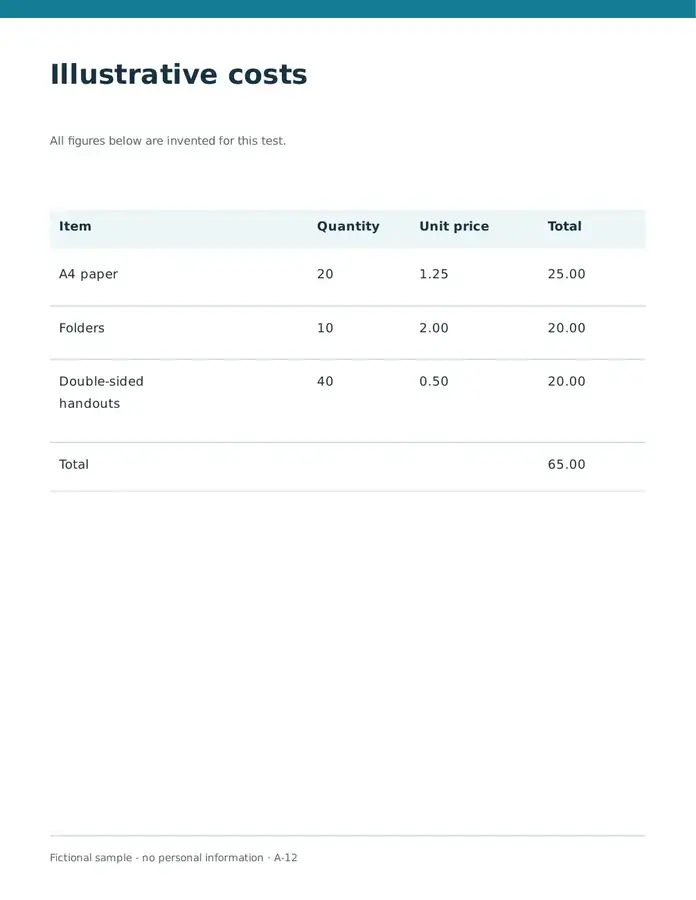
These cells were read from the downloaded file. The continuation of the last label is a separate row.
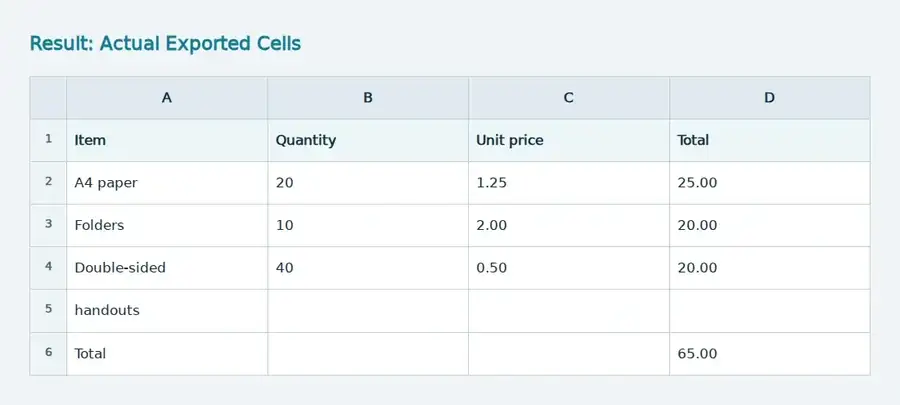
Settings used: Page 1; exclude 170 pt at the top and 340 pt at the bottom; row tolerance 3 pt; column gap 18 pt. CSV uses commas.
Position-based extraction does not rebuild merged records or formulas. In the Arabic sample, alignment also creates extra columns. Check each row against the PDF before calculating.
Checked on . Original harmless samples processed locally in Chromium with version 3.16.0; this is not a production hosting benchmark.
| Setting | What to expect |
|---|---|
| Accepted input | |
| Processing location | Your browser |
| File selection | One input file |
| Input size | 100 MB total; decoded images and pages also have pixel limits |
| Page selection | Up to 200 selected pages per job. Blank Pages means all pages only when the PDF has 200 pages or fewer; use separate ranges for a longer document. |
For scanned tables, add a reviewed OCR text layer first. Column inference then uses the recognized text positions, which can require more cleanup than a digitally created table.
Start with one page that includes both short and long cell descriptions. After opening its worksheet, compare an early row, a wrapped description and the final total row with the PDF. If a page header became an extra row, exclude its top margin in PDF points; 72 points equal one inch. Increase Row alignment tolerance cautiously when a printed row splits vertically. Adjust Column gap threshold only after identifying which source boundaries should become cells. Repeat the sample export until the layout is usable, then include the remaining pages.
A printed “Total” and its adjacent value do not become a SUM formula in the exported worksheet. After checking the relevant rows, convert amounts deliberately and write the calculation you actually need. Keep account codes, long identifiers and leading-zero values as text. Compare the newly calculated total with the source and investigate any difference before changing data. A PDF page with several unrelated tables may need to be split into separate reviewed tables manually.
| Situation | What to do |
|---|---|
| Two columns became one | Lower the column-gap threshold and compare a sample row with the PDF. |
| A long description split into several cells | Increase the gap threshold. Mixed-width or multi-line tables may still need manual cleanup. |
| A total does not calculate in Excel | The source PDF has values, not reusable formulas. Convert verified numeric cells deliberately and recreate formulas if required. |
For an invoice table, compare item descriptions, quantities, unit prices, leading-zero codes and totals row by row. Verify where blank cells occur. A workbook that opens successfully can still have a value in the wrong column; that is why table checking is part of the conversion task.
This fictional English sample contains two text columns, a wrapped table label, two links, two bookmarks and one form field. Compare the source with the actual output before using the same workflow on your document.
The wrapped label became an extra row. Combine A3 and A4 if they describe one item; check D3, D5 and D6 against the source before treating the text as numbers or adding formulas.
| Check | Source | Result |
|---|---|---|
| Wrapped item label | One item across two lines | Separate spreadsheet row |
| Decimal total | 46.00 | 46.00 (Text value) |
Settings used: Page 2; default column settings.
Checked 12 October 2026 with release 3.24.0 in Chromium 153. Output structures were parsed independently; this is one sample, not a universal fidelity guarantee.
Extracted cells are written as text. Review them and apply explicit numeric or date types in the spreadsheet application.
PDF spacing does not always define real table columns. Merged headings, proportional text and irregular alignment require manual cleanup.
Compare row counts and important cells with the PDF. Treat identifiers as text, choose number types explicitly and reconcile totals before performing calculations.
No. It creates a worksheet for each selected page using position-based text cells. Recreate checked formulas and combine tables deliberately after aligning their headers. Original spreadsheet formulas and merged-cell meaning are not stored in ordinary printed PDF text.
A scan can contain only an image of the table. Add a checked OCR text layer first, then export a representative page. Recognition can introduce wrong digits or irregular spacing, so compare the recovered cells with the scan before calculating.
Continue with PDF to CSV, Excel to PDF, OCR PDF.