Choose the Field Separator
Export comma, semicolon or tab-separated fields to match the next application’s import settings.

Export position-based text rows as quoted CSV data.
Drop files here or use the button below.
Up to 100 MiB total · Files stay on your device
Preview the document here. For added content, this is a placement guide; check the saved output.
Export position-based PDF text rows into a CSV file for spreadsheet review or data import. The exporter quotes cells and doubles embedded quotation marks so the extracted characters remain inside valid CSV fields.
Wide spacing can suggest columns but does not prove a table’s structure. Formula-like values receive a leading apostrophe to keep them inert in common spreadsheet workflows. This can change their visible text representation and should be accounted for during import.
Export comma, semicolon or tab-separated fields to match the next application’s import settings.
Fields are quoted and embedded quotation marks are doubled so commas inside a description stay within that field.
Adjust alignment tolerance, column gap and excluded margins when a report’s printed spacing produces the wrong cells.
Cells beginning with formula-like characters receive an apostrophe. Review this prefix when mapping imported data.
CSV is useful for moving printed records into a destination that accepts delimited text, such as an inventory import or a database staging table. Unlike an XLSX workbook, it carries no sheet tabs, colors or formulas. Use PDF to Excel when you want each source page kept on a separate worksheet; use CSV when the destination expects one stream of records.
Prepare a temporary import file from a legacy PDF listing. Remove repeated headings, verify record counts and check mappings in a staging import before transferring reviewed data.
Extract line items from a supplier’s PDF schedule for a comparison table. Confirm that unit, quantity and price are separate fields and that quotation marks in descriptions remain intact.
Recover a text-based measurement table for a data-cleaning exercise. Compare raw exported cells with the PDF and convert verified values to numeric types in the analysis environment.
Choose a PDF table with selectable text.
Select the screenshot to enlarge it.
Select pages, separator and row or column inference settings.
Select the screenshot to enlarge it.
Download the CSV and inspect fields before importing records.
Select the screenshot to enlarge it.
Screenshots show this toolkit using harmless sample files. Your file name, page count and settings may differ.
The last item label wraps onto a second line. The exported data keeps that continuation on its own row, so it needs review before use as a spreadsheet record.
The original table has three line items and a total of 65.00. One item label spans two lines.
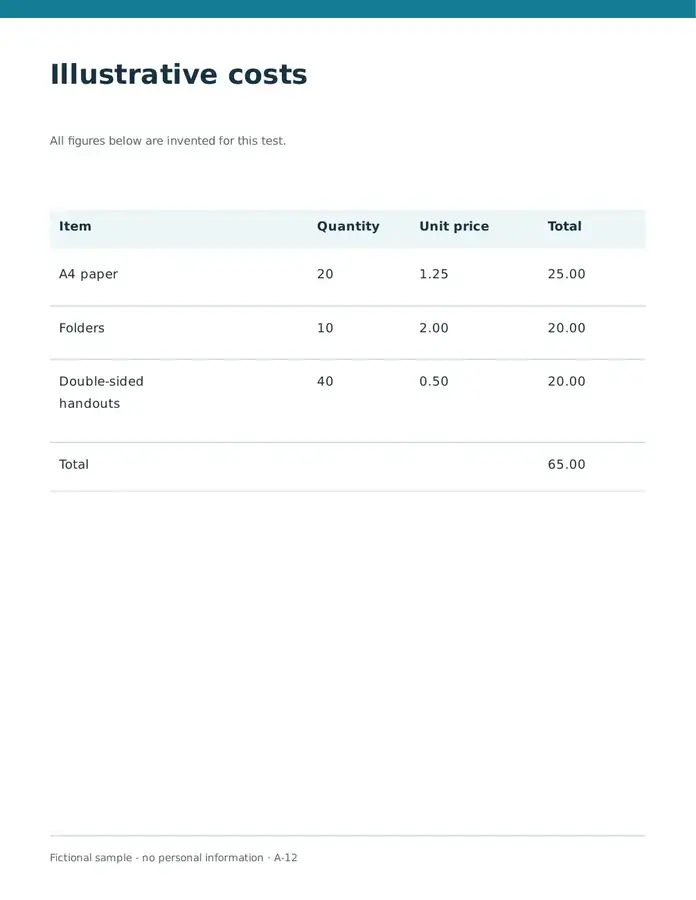
These cells were read from the downloaded file. The continuation of the last label is a separate row.
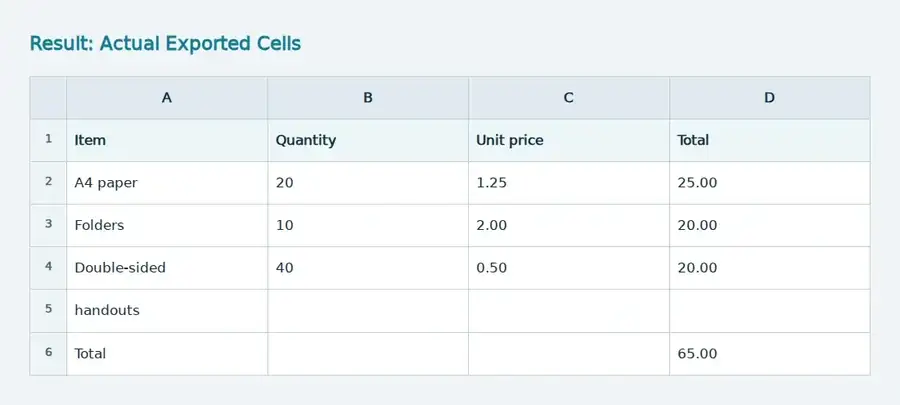
Settings used: Page 1; exclude 170 pt at the top and 340 pt at the bottom; row tolerance 3 pt; column gap 18 pt. CSV uses commas.
Position-based extraction does not rebuild merged records or formulas. In the Arabic sample, alignment also creates extra columns. Check each row against the PDF before calculating.
Checked on . Original harmless samples processed locally in Chromium with version 3.16.0; this is not a production hosting benchmark.
| Setting | What to expect |
|---|---|
| Accepted input | |
| Processing location | Your browser |
| File selection | One input file |
| Input size | 100 MB total; decoded images and pages also have pixel limits |
| Page selection | Up to 200 selected pages per job. Blank Pages means all pages only when the PDF has 200 pages or fewer; use separate ranges for a longer document. |
An image-only table has no text rows to export. Recognize it with OCR and check digits and spacing before preparing the CSV.
Export one representative page before processing a long report. If a heading or footer becomes an extra record, increase the excluded top or bottom margin; these controls use PDF points, with 72 points per inch. Lower the column-gap threshold when neighbouring fields merge, or raise it when a description splits into several cells. A wrapped address may occupy several extracted rows, so inspect at least one such record before choosing your final settings.
Selected-page rows are combined without reconstructing a database schema. A repeated column heading can therefore appear as a record, and an empty cell does not explain whether data is missing or intentionally blank. Preserve the unedited export, document manual cleanup and test a small staging import before accepting the entire dataset. A value beginning with =, +, @ or – can receive a protection apostrophe, including a negative-looking amount; handle it deliberately when the destination requires an exact string or a numeric value.
| Situation | What to do |
|---|---|
| Descriptions split into many columns | Increase the gap threshold and retry a representative page. |
| Leading-zero IDs disappear after import | Import that column as text in your spreadsheet or database application. |
| Several tables have different shapes | Convert them separately, then reconcile their headers and column order before joining the data. |
Suppose a statement prints account code 00127 and an amount of -45.50. Import the account-code column as text so its zeros survive. Inspect whether the exported amount carries a leading protection apostrophe, then convert the checked value deliberately in the destination. Reconcile the transaction total with the statement and retain the original CSV as evidence of the extraction.
Potential formula-like values are prefixed with an apostrophe. Still review untrusted data before importing it into an application.
Yes. Enter its physical page number. Use a restricted range to reduce unrelated rows and simplify cleanup.
Use UTF-8, quoted text fields and the same separator you chose during export: comma, semicolon or tab. Confirm the import preview places each value in the expected column. Keep identifiers with leading zeros as text and account for any formula-protection apostrophe.
The export prefixes values that could be interpreted as formulas, including strings beginning with -, +, = or @. Inspect the source and the intended data type before removing that protection in a controlled import; preserve identifiers as text.
The selected-page rows are combined into one file without separate sheet tabs or automatic table identification. Export tables with different column structures separately, or use PDF to Excel when separate per-page worksheets make checking easier.
Continue with PDF to Excel, Excel to PDF, OCR PDF.