Basic Markdown Structure
Render headings, paragraphs, lists, code blocks and simple tables supported by the parser and sanitized content renderer.

Render basic Markdown text, code and tables as PDF page images; all images are excluded.
Drop files here or use the button below.
Up to 500 kB total · Files stay on your device
Preview the document here. For added content, this is a placement guide; check the saved output.
Render a local Markdown file into PDF pages with basic headings, paragraphs, lists and tables. This suits simple notes and documentation that can be prepared in a plain-text editor.
The converter removes scripts, custom styling and every image element, including remote, local and embedded images. It renders the supported text structure as A4 portrait page images. Advanced diagrams and specialist Markdown extensions are not included.
Render headings, paragraphs, lists, code blocks and simple tables supported by the parser and sanitized content renderer.
Use the converter’s simple A4 portrait layout instead of depending on an editor theme or custom stylesheet.
Parse the selected Markdown file on your device. Scripts and remote resources are excluded from the rendered content.
Create a static visual reading copy of the supported content. Text selection and search are not carried into this image-based PDF.
Choose the local Markdown file containing the notes or procedure.
Select the screenshot to enlarge it.
Review the rendering notice: all images are excluded. Check source headings, lists, code and tables before conversion.
Select the screenshot to enlarge it.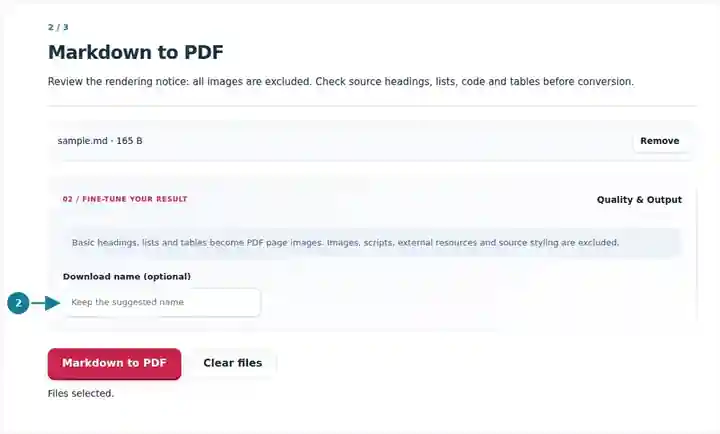
Download the PDF and inspect headings, code samples and table page breaks.
Select the screenshot to enlarge it.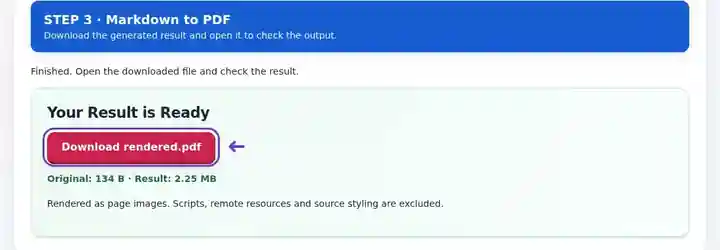
Screenshots show this toolkit using harmless sample files. Your file name, page count and settings may differ.
Markdown is convenient for drafting documentation, but a reader may not use the same editor or Markdown extensions. A PDF reading copy gives them the rendered basic structure without requiring that editor. Keep the Markdown source for corrections and links. When the document depends on mathematical notation, diagram plugins or specialist extensions, use the original publishing system; this converter’s deliberately simple rendering does not reproduce those features.
Share a short release note or installation checklist with a reviewer. Inspect code indentation and table endings, and remove any instructions that depend on a missing remote image.
Prepare an outline or reading summary written in Markdown. Check special characters and page breaks; use a dedicated publishing workflow for equation-heavy papers.
Send a compact procedure draft for wording review. Keep numbered actions short enough to read across page boundaries and retain the source for the next revision.
| Setting | What to expect |
|---|---|
| Accepted input | MD, MARKDOWN |
| Processing location | Your browser |
| File selection | One input file |
| Input size | Up to 500 kB (500,000 B) of source text; rendered content must not exceed 25,000 pixels in height |
Keep a long code block or table small enough to review across page boundaries. If the height limit is reached, divide the Markdown at headings so each converted part has a clear beginning.
A code line that fits a wide editor may exceed an A4 page’s readable width. Break a displayed command only where that does not change its meaning, or replace an oversized listing with a shorter relevant excerpt. For tables, shorten headings and avoid using a row of spaces to simulate alignment. Review the last row before each page break and the first row after it.
A link to a required diagram does not place the diagram in this export. Provide the picture separately or choose a source format that supports the complete document. Keep Markdown syntax available as the editable original, especially for documentation whose commands or references will change after the PDF is distributed.
| Situation | What to do |
|---|---|
| An image is missing | All image elements are excluded, including local files and embedded data images. Use a publishing workflow that supports pictures when they are part of the document. |
| A long table is clipped or breaks awkwardly | Reduce column width, simplify the table or split it into smaller sections. |
| The document exceeds the rendering limit | Divide it into shorter files and merge the checked PDFs afterward. |
For a short project note, use clear headings, short lists and compact tables. Review the rendered output around page boundaries and code samples. Keep the Markdown original as your editable source, and avoid publishing a result until you have checked characters and formatting at normal reading size.
Render basic Markdown text, code and tables as PDF page images; all images are excluded.
Settings used: {"range": "1", "dpi": "72"}
Compare the source and result before relying on this tool. This sample checks a bounded operation; output mode and document-structure limitations still apply.
Checked on . Small synthetic sample processed with release 3.23.0 in Chromium 153. This is a recorded local check, not a live-host or every-document guarantee.
No. Remote, local and embedded image elements are removed. Use Image to PDF for separate pictures, or a suitable publishing application for a document that combines text and images.
Long content can span pages. Inspect table headings and rows in the saved PDF because the basic renderer is not a publishing layout engine.
Markdown is rendered as page images. Keep the editable Markdown file and use a suitable OCR workflow if a searchable PDF copy is required.
Continue with PDF to Markdown, Image to PDF, PDF Reader.