Source Page Headings
The output adds a Markdown heading such as “Page 3” before the extracted text from each selected page.

Export extracted text with page headings in Markdown format.
Drop files here or use the button below.
Up to 100 MiB total · Files stay on your device
Preview the document here. For added content, this is a placement guide; check the saved output.
Save extracted PDF text with a Markdown heading identifying each source page. This suits note-taking tools and repositories where plain text is easier to search and revise.
The exporter does not infer original heading levels, lists or table syntax. It retains text lines beneath page headings. Review any Markdown-sensitive characters before rendering the file in another application.
The output adds a Markdown heading such as “Page 3” before the extracted text from each selected page.
Save an .md file that can be edited in a note app or a repository without PDF-specific software.
Export the pages you need instead of bringing unrelated chapters into a working note.
Existing PDF text is used directly. Original heading levels, list nesting and Markdown tables are not inferred.
Markdown is useful when a working document needs to remain easy to search, compare and edit as plain text. Page-labelled extraction gives you a starting point for a note, documentation draft or source review. The printed hierarchy still needs editorial work: a bold PDF title is not automatically a Markdown heading, and a visually aligned table is not automatically a Markdown table. Characters such as asterisks, hashes and brackets can affect rendering. Preview the file in the app where it will be used and correct unintended formatting.
Bring text from a permitted PDF specification into a documentation draft. Rebuild code fences and headings, then check the rendered repository preview before committing the draft.
Extract a short reading section into a Markdown notebook. Add your own outline and source references instead of treating page headings as a finished study guide.
Recover wording from a PDF handover pack for an editable team note. Link the final note to the original file and identify details that still require confirmation.
Select a PDF with selectable wording for Markdown export.
Select the screenshot to enlarge it.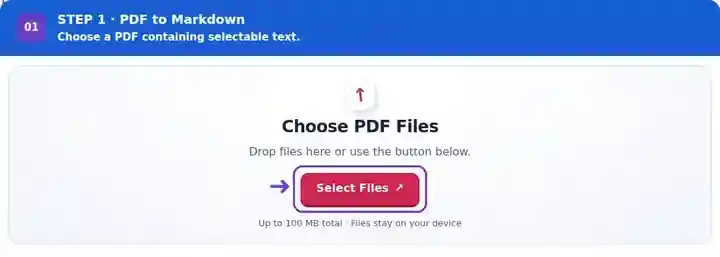
Choose the pages and optional name of the MD file.
Select the screenshot to enlarge it.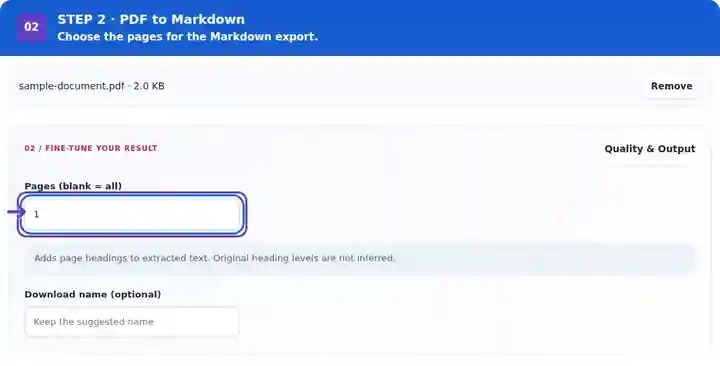
Download and preview the Markdown before organizing the note.
Select the screenshot to enlarge it.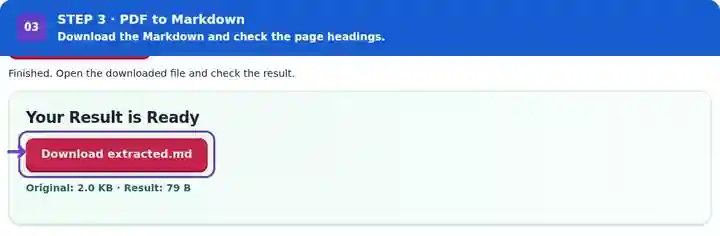
Screenshots show this toolkit using harmless sample files. Your file name, page count and settings may differ.
| Setting | What to expect |
|---|---|
| Accepted input | |
| Processing location | Your browser |
| File selection | One input file |
| Input size | 100 MB total; decoded images and pages also have pixel limits |
| Page selection | Up to 200 selected pages per job. Blank Pages means all pages only when the PDF has 200 pages or fewer; use separate ranges for a longer document. |
OCR is needed for image-only pages. Its recognition errors will carry into the Markdown file, so check wording before restructuring the note.
To keep a source line such as # 00127 as literal text, write \# 00127 in your editor. For a literal * 10, use \* 10. Compare the rendered preview with the PDF: these escapes prevent unintended headings or bullets. Keep actual source-page headings as navigation, then assign the document’s meaningful hierarchy yourself.
| Situation | What to do |
|---|---|
| A table becomes spaced text | The source PDF does not supply a reliable Markdown table structure. Rebuild the table after checking its cells. |
| The document has no extractable words | Use an OCR workflow first or retain it as an image attachment. |
| You need original heading levels | Assign them manually based on the document hierarchy; page headings are only navigation markers. |
For study notes, export a chapter and retain its page headings while checking the wording. Then replace long copied passages with your own notes and source references as appropriate. The conversion provides an editable file; it does not summarize, fact-check or interpret the material.
Export extracted text with page headings in Markdown format.
Settings used: {"range": "1", "dpi": "72"}
Compare the source and result before relying on this tool. This sample checks a bounded operation; output mode and document-structure limitations still apply.
Checked on . Small synthetic sample processed with release 3.23.0 in Chromium 153. This is a recorded local check, not a live-host or every-document guarantee.
Page headings are added, but source heading hierarchy and table structure are not inferred. Edit the Markdown after export.
Use Markdown to PDF for a rendered document. That renderer produces page images from supported basic Markdown.
Characters such as asterisks and hash marks can have meaning in a Markdown renderer. Review the exported text before rendering it as formatted notes.
Continue with Markdown to PDF, OCR PDF, PDF to Text.