24-Bit Color Output
The converter writes complete page images as uncompressed 24-bit BMP files, rather than editable PDF objects.

Export uncompressed bitmap images of PDF pages.
Drop files here or use the button below.
Up to 100 MiB total · Files stay on your device
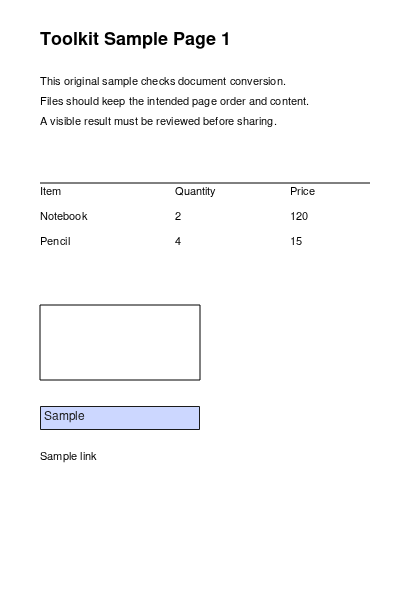
Preview the document here. For added content, this is a placement guide; check the saved output.
Export complete PDF pages as uncompressed 24-bit BMP bitmap images. This can suit older applications and workflows that specifically require the BMP format.
BMP output can be much larger than JPG or PNG because each pixel is stored directly with row padding. Use a smaller page range and modest DPI when the destination requires BMP.
The converter writes complete page images as uncompressed 24-bit BMP files, rather than editable PDF objects.
Choose DPI according to the receiving program’s needs. Higher resolution increases an uncompressed bitmap’s size quickly.
Use a page range to avoid sending a whole document when a legacy system needs only one page image.
One page downloads directly; multiple pages are placed in a ZIP with filenames identifying their source pages.
BMP remains useful when an older application, kiosk utility or internal image pipeline explicitly asks for a bitmap file. Converting the complete PDF page can avoid manually taking and cropping a screen capture. Its direct pixel storage is simple, but files can become large; it is usually a poor choice for a public web preview. Check the destination’s color-depth and dimension requirements before converting. This output is 24-bit color, so a system asking for a monochrome bitmap may need an additional conversion in an image editor.
Create a sample bitmap from a printed PDF form to test an older desktop import screen. Check the program’s required pixel dimensions and whether color BMP is accepted.
Prepare an approved reference-sheet image for a workstation utility that only imports BMP. Test one page before exporting a lengthy operating pack.
Compare an uncompressed page bitmap with PNG and JPG versions in a file-format exercise. Record the dimensions as well as file size so the comparison uses the same raster detail.
Select a PDF containing the page needed by your BMP workflow.
Select the screenshot to enlarge it.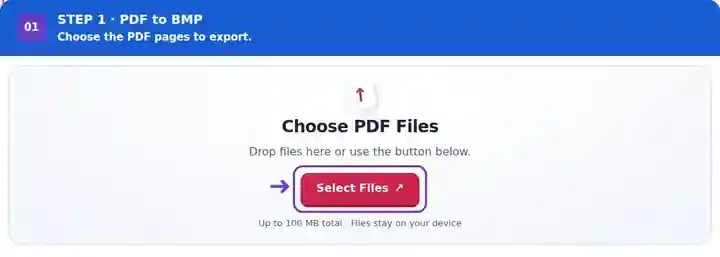
Choose the page range and bitmap resolution.
Select the screenshot to enlarge it.
Download the BMP and test it in the receiving application.
Select the screenshot to enlarge it.
Screenshots show this toolkit using harmless sample files. Your file name, page count and settings may differ.
| Setting | What to expect |
|---|---|
| Accepted input | |
| Processing location | Your browser |
| File selection | One input file |
| Input size | 100 MB total; decoded images and pages also have pixel limits |
| Page selection | Up to 200 selected pages per job. Blank Pages means all pages only when the PDF has 200 pages or fewer; use separate ranges for a longer document. |
| Rendered image limits | 36 megapixels per page and 120 megapixels across selected pages. Lower DPI or choose fewer pages if the selection is too large. |
Each BMP is an uncompressed page image. The ZIP may reduce transfer size, but the extracted BMP still needs its full pixel storage in the receiving application.
A 24-bit BMP uses approximately three bytes per pixel, plus row padding and a small file header. A page measuring 2,000 by 3,000 pixels therefore needs about 18 million bytes even before packaging. Doubling both image dimensions uses roughly four times the pixel storage. Check the destination’s maximum dimensions as well as its file-size limit, and export a modest-resolution sample before preparing a long batch.
| Situation | What to do |
|---|---|
| The output is much larger than the PDF | A vector PDF can describe text compactly, while BMP stores page pixels. |
| The receiving software rejects the image | Check its required bit depth, maximum dimensions and BMP variant. This exporter creates standard 24-bit RGB bitmaps. |
| You do not need BMP specifically | PNG usually preserves crisp page appearance with a smaller file. |
For a destination that accepts 24-bit BMP, check a small export against its size requirements. The table is a storage calculation for a 1,200 × 900 pixel page image; it does not predict the compressed size of a ZIP.
| Property | Value |
|---|---|
| Image dimensions | 1,200 × 900 px |
| Color depth | 24-bit RGB / 3 bytes per pixel |
| Pixel data before header and row padding | 1,200 × 900 × 3 = 3,240,000 B |
Export uncompressed bitmap images of PDF pages.
Settings used: {"range": "1", "dpi": "72"}
Compare the source and result before relying on this tool. This sample checks a bounded operation; output mode and document-structure limitations still apply.
Checked on . Small synthetic sample processed with release 3.23.0 in Chromium 153. This is a recorded local check, not a live-host or every-document guarantee.
The exporter writes uncompressed pixel data. Choose JPG or PNG if the receiving application accepts a more compact format.
Enter a single page number in the range field. A one-page selection produces a direct image download.
No. This operation renders whole pages. Extract Images from PDF saves supported embedded raster objects separately.
Continue with Extract Images from PDF, Image to PDF, PDF Reader.