Use Supported Interactive Fields
Complete detected text fields, checkboxes and choice fields. A visible box on a scan is not enough; the PDF must contain supported interactive form structures.

Fill supported text, checkbox and choice fields in an existing form.
Drop files here or use the button below.
Up to 100 MB total · Files stay on your device
Preview the document here. For added content, this is a placement guide; check the saved output.
Enter values into supported interactive PDF form fields. The interface detects text boxes, checkboxes, dropdowns, option lists and radio choices from the selected document. Field labels come from the PDF’s internal field names, which may differ from the visible wording beside each field.
The default output keeps supported fields interactive. Select the flatten option when the completed values should become fixed page content. Flattening is useful for recipients whose readers display saved field appearances inconsistently, but it removes later field editing.
Complete detected text fields, checkboxes and choice fields. A visible box on a scan is not enough; the PDF must contain supported interactive form structures.
Dropdowns, option lists and radio choices use the values defined by the document. Review the page to understand technical internal field names.
Fields marked read-only remain disabled. This preserves the document’s field setting rather than silently turning every item into an editable field.
Leave the flatten option off to retain supported fields, or select Make filled fields fixed in the output for a completed copy with those controls removed.
Choose a supported fillable PDF and match the detected fields to the page labels.
Select the screenshot to enlarge it.
Complete the text and choice fields; decide whether to keep them editable.
Select the screenshot to enlarge it.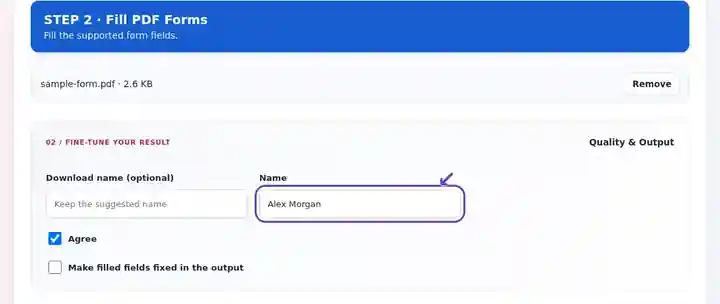
Download the filled PDF and verify every value and checkmark in the saved copy.
Select the screenshot to enlarge it.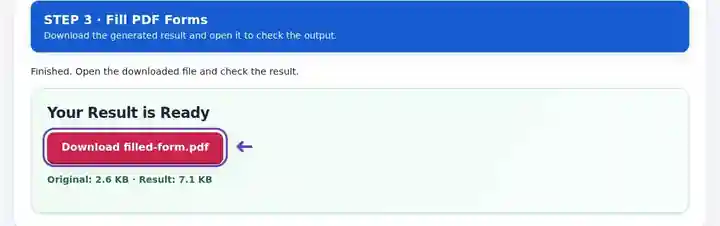
Screenshots show this toolkit using harmless sample files. Your file name, page count and settings may differ.
| Setting | What to expect |
|---|---|
| Accepted input | |
| Processing location | Your browser |
| File selection | One PDF |
| Input size | 100 MB total; decoded images and pages also have pixel limits |
| Document length | Up to 500 input pages. |
XFA forms and signature fields are not supported. Read-only fields remain disabled. A scanned form may look like a form while containing no interactive fields at all; use Edit PDF to place text on that kind of page.
A supported fillable form lets you put an answer into its intended field rather than estimating a text position on the page. It is useful when a form issuer provides an electronic template and the recipient needs readable text, consistent checkmarks and a saved copy that can be reviewed.
A student can fill a supported workshop registration or course request template. Compare each detected field with its visible label and inspect long course titles in the saved output so an answer does not extend beyond its box.
A coordinator can complete non-sensitive training-request templates that use standard interactive fields. Keep the output editable while it is under review, then make a fixed copy only if that matches the recipient’s process.
A facilities worker can fill supported checklist fields in a routine inspection template. Verify every checkbox in the download and do not assume specialist calculations or form scripts ran merely because the fields were detected.
| Situation | What to do |
|---|---|
| No fields are listed | The PDF may be flat or use an unsupported form technology. Check for a standard AcroForm version. |
| The recipient must edit your answers | Leave the flatten option off and keep the interactive output. |
| Your answers should be fixed on the page | Select the flatten option after verifying every answer. This removes supported field interactivity. |
Use harmless test values in a copy of a supported registration template. Enter a course title, choose an available session and tick the required checkbox. Keep fields editable during review. Save and reopen the PDF, then check the full course title and selected choices. If the form calculates a total, verify it with the issuer’s recommended application rather than assuming scripts ran here.
The file may be a flat scan or a non-supported form type. Visible lines and boxes alone do not create fillable fields.
Leave the flatten option unselected. Supported form fields remain in the saved output.
The PDF marks that field read-only. The interface preserves that setting rather than silently changing the form structure.
Do not rely on it to execute the issuer’s form scripts. It writes supported field values and appearances. Verify calculated totals, required-field rules and submission requirements in the application recommended by the form issuer.
The page field can have a fixed size, font appearance or scrolling behavior. Reopen the download and inspect long answers in their actual boxes. Shorten an entry only if its meaning remains correct; otherwise request a suitable form from the issuer.
Continue with Edit PDF, Flatten PDF Forms, Sign PDF.