Add Short Text Entries
Type a reference, date or note and choose Text size in points. The editor adds new content to the fixed page; it does not rewrite existing paragraphs.

Add new text or an image to a PDF and preview its position.
Drop files here or use the button below.
Up to 100 MiB total · Files stay on your device
Preview the document here. For added content, this is a placement guide; check the saved output.
Add new text or an image to an existing PDF. The tool suits short additions such as a reference number, date, note or replacement label prepared from your own source material. Placement is measured from the visible page’s top-left corner and can be previewed before saving.
This editor adds content. It does not select existing words for replacement, reflow paragraphs or reconstruct the original Word document. If substantial changes are needed, editing the original source usually produces a cleaner result than building several layers onto a fixed PDF.
Type a reference, date or note and choose Text size in points. The editor adds new content to the fixed page; it does not rewrite existing paragraphs.
Upload an image when the addition should be a logo, symbol or prepared label. The image replaces the text for that run and retains its proportions.
Left position and Top position use percentages of the visible page. Set Image width as a percentage of page width and use the preview to guide placement.
Choose the pages that should receive the same text or image. Use separate runs when each page needs a different answer or a different placement.
Load the PDF and choose the pages that should receive the same addition.
Select the screenshot to enlarge it.
Type text or choose an image, then adjust position and the relevant size control.
Select the screenshot to enlarge it.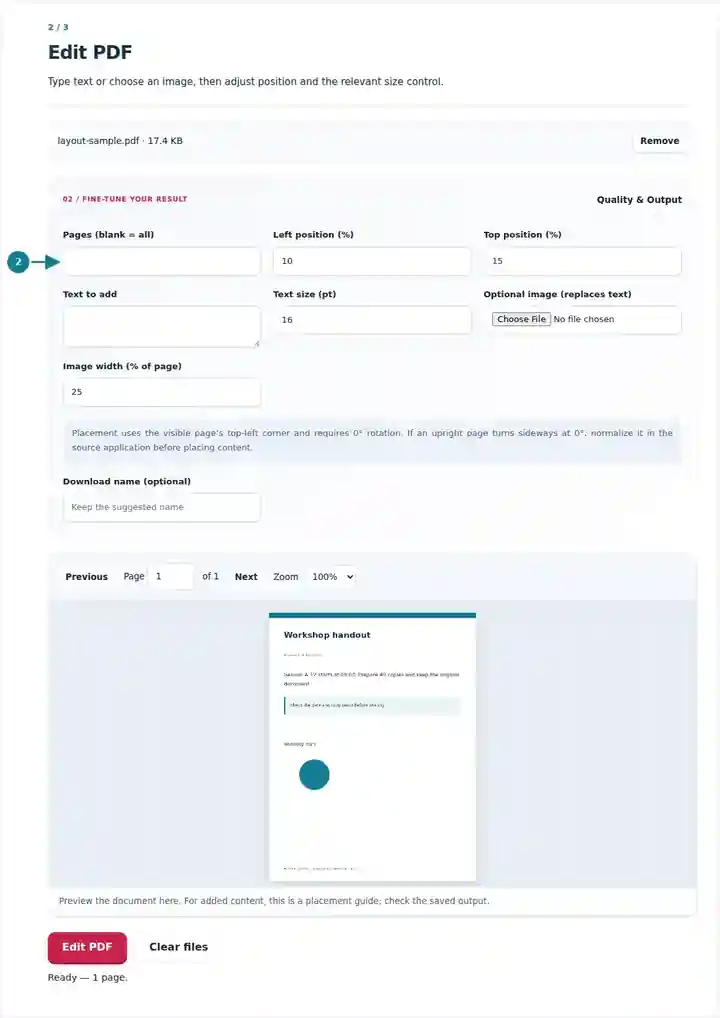
Download the edited copy and inspect the actual saved wrapping and placement.
Select the screenshot to enlarge it.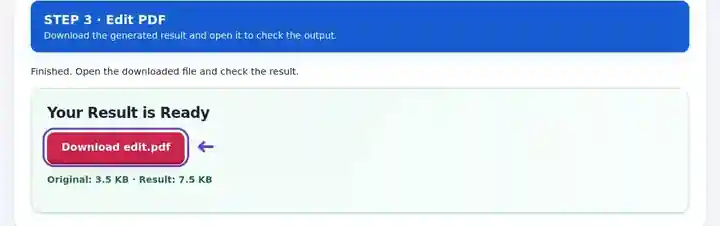
Screenshots show this toolkit using harmless sample files. Your file name, page count and settings may differ.
| Setting | What to expect |
|---|---|
| Accepted input | |
| Processing location | Your browser |
| File selection | One PDF |
| Input size | 100 MB total; decoded images and pages also have pixel limits |
| Document length | Up to 500 input pages. Selecting a small range does not bypass this source-document limit. |
Pages currently need 0-degree rotation for precise placement. The preview is a placement guide; the saved text uses the bundled document font and can wrap differently. Adding a box or image over private text does not remove the underlying information. This action requires pages with 0° rotation. If changing an upright page to 0° turns it sideways, normalize the page in the source application first. Rotate PDF.
A short addition can be useful when a fixed document needs a date, reference code or review note and you do not have an editable source. It also provides a way to place an answer on a flat form that has no supported interactive fields. Check Fill PDF Forms first when the document may already contain real fields.
A student can add a course code or short reminder in an unused margin of a permitted study copy. Restrict the addition to the relevant pages and leave the original equations, notes and references readable.
An administrator can add an internal reference number to a routine working document. Confirm there is no existing field for it and compare the saved copy with the source so the new label does not obscure an amount or date.
An instructor can place a short session label on a flat handout or add a prepared diagram image. Set an intentional page range; leaving it blank would repeat the same addition on every page, including pages with different layouts.
| Situation | What to do |
|---|---|
| The added text covers existing material | Move it into an empty area or reduce the type size. The editor does not automatically rearrange the original page. |
| You want to erase confidential wording | An overlay is not secure redaction. Use Redact PDF instead. |
| A character is missing | The bundled font covers many characters but not every writing system. Check the saved output, especially complex or uncommon scripts. |
For a four-page handout, select page 3 and add the short text Workshop 03 at 16 pt in an empty margin. Begin with Left position 10% and Top position 15%, then move it if existing content occupies that area. Reopen the download to check the actual font, wrapping and page range. Repeated additions on a flat form require separate runs for different answers.
Add new text or an image to a PDF and preview its position.
Settings used: {"range": "1", "fontsize": "11", "text": "SAMPLE", "x": "10", "y": "15"}
Compare the source and result before relying on this tool. This sample checks a bounded operation; output mode and document-structure limitations still apply.
Checked on . Small synthetic sample processed with release 3.23.0 in Chromium 153. This is a recorded local check, not a live-host or every-document guarantee.
The tool adds new content. Use the original document or export editable text to Word when you need to revise existing paragraphs.
Yes. Choose a PNG or JPG image and set its width and top-left position.
You can place text on a flat form. If actual interactive fields are present, Fill PDF Forms gives more accurate field handling.
Continue with Fill PDF Forms, PDF to Word, Redact PDF. · Watermark PDF