Use Text or a Logo Image
Type a short status label or choose a PNG/JPG image. An uploaded image replaces the text for that run; a transparent PNG can avoid a solid logo background.

Place text or a PNG/JPG watermark on selected pages.
Drop files here or use the button below.
Up to 100 MiB total · Files stay on your device
Preview the document here. For added content, this is a placement guide; check the saved output.
Add a visible text or image mark to selected pages. A draft label can distinguish a review copy, while a logo can identify a prepared document. Choose the mark’s position and opacity so it remains noticeable without making the underlying page difficult to read.
An uploaded PNG or JPG takes priority over the text field. Image width is a percentage of the visible page width and its height follows the image’s proportions. Text wraps to fit the remaining horizontal area. The same placement settings apply to each selected page.
Type a short status label or choose a PNG/JPG image. An uploaded image replaces the text for that run; a transparent PNG can avoid a solid logo background.
Set Opacity from 0.05 to 1. The default 0.25 means 25% opacity; 1 is fully opaque. The value applies to the text or the whole image, so test it over the densest content and on paper if printing matters.
Set the left and top positions relative to the visible page. Choose text size in points or image width as a percentage of the page width.
Apply the same mark to all pages or a selected range. Pages with different layouts may need separate runs to keep labels away from important content.
Load the PDF and choose which pages should carry the watermark.
Select the screenshot to enlarge it.
Enter the text or upload a logo, then adjust position, size and opacity.
Select the screenshot to enlarge it.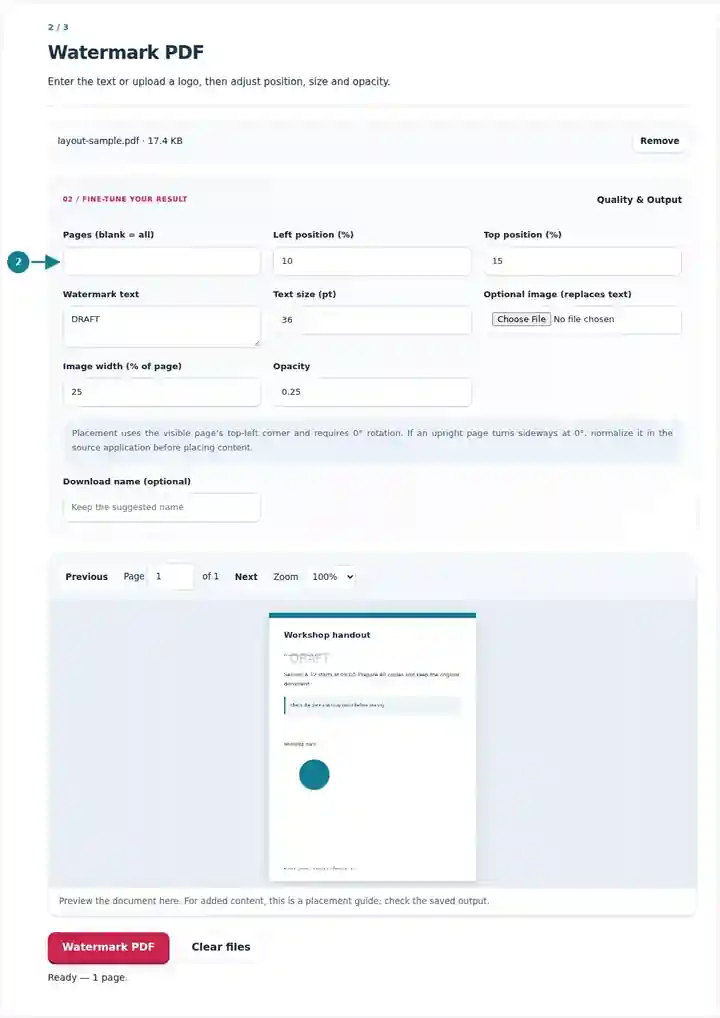
Download the watermarked PDF and check that the mark does not hide useful content.
Select the screenshot to enlarge it.
Screenshots show this toolkit using harmless sample files. Your file name, page count and settings may differ.
| Setting | What to expect |
|---|---|
| Accepted input | |
| Processing location | Your browser |
| File selection | One PDF |
| Input size | 100 MB total; decoded images and pages also have pixel limits |
| Document length | Up to 500 input pages. Selecting a small range does not bypass this source-document limit. |
A watermark is a visible mark, not access control or proof of ownership. It does not stop copying or reveal whether the file has been altered. It also does not permanently remove content underneath the mark. This action requires pages with 0° rotation. If changing an upright page to 0° turns it sideways, normalize the page in the source application first. Rotate PDF.
A watermark gives a reader a visible clue about a document’s status or origin. Labels such as DRAFT or SAMPLE can reduce confusion when a review copy resembles a final publication. A logo can identify a prepared handout, provided it fits without hiding the document’s useful information.
A designer can label a brochure proof DRAFT before requesting layout feedback. Place the mark away from imagery and small type so reviewers can still assess the work. The watermark communicates review status rather than enforcing access restrictions.
An author can label a fictional statement SAMPLE so trainees do not confuse it with a customer document. Review every page type because a label that clears the header on one page may cover a transaction table on another.
An organizer can add an event logo to a prepared information packet when they have permission to use the artwork. A transparent image in an unused margin is easier to accommodate than a large opaque image across the text.
| Situation | What to do |
|---|---|
| The watermark extends outside the page | Reduce its width or move it inward. Placement cannot exceed the visible page boundaries. |
| The watermark is too faint when printed | Increase opacity and test a sample print. Screen contrast and printer output can differ. |
| You need to prove ownership or prevent copying | A visible overlay is not encryption, authentication or copy protection. |
For a six-page review document, try the text DRAFT with a light opacity in an unused margin. Preview page 4 if that page contains the densest chart, rather than judging the mark only on the cover. Download the copy and inspect every layout. Keep the clean original so publishing the final version does not require trying to remove an inserted overlay.
Place text or a PNG/JPG watermark on selected pages.
Settings used: {"range": "1", "fontsize": "11", "text": "SAMPLE", "x": "10", "y": "15", "opacity": ".25"}
Compare the source and result before relying on this tool. This sample checks a bounded operation; output mode and document-structure limitations still apply.
Checked on . Small synthetic sample processed with release 3.23.0 in Chromium 153. This is a recorded local check, not a live-host or every-document guarantee.
Use a PNG containing an alpha channel. The watermark opacity also applies to the whole inserted image.
The settings are shared across the selected range. Process separate ranges in separate runs for different marks.
This tool adds a mark. It cannot reliably identify and remove a watermark already merged into page content.
Continue with Edit PDF, Protect PDF, Redact PDF.