Fix Completed Field Appearances
Turn supported form-field values and appearances into page content. Complete the form first so the output contains the answers you intend to preserve.

Turn supported form field appearances into fixed page content.
Drop files here or use the button below.
Up to 100 MiB total · Files stay on your device
Preview the document here. For added content, this is a placement guide; check the saved output.
Turn supported interactive form field appearances into fixed PDF page content. A flattened form can be easier to share when recipients use readers that do not handle saved field values consistently. The output preserves the rendered values while removing those fields’ interactive controls.
Flattening here concerns PDF forms. It is not a general operation that merges every annotation, layer and embedded object. Fill the form first, inspect the values, then flatten a completed copy when further field editing is unnecessary.
Turn supported form-field values and appearances into page content. Complete the form first so the output contains the answers you intend to preserve.
The flattened copy no longer exposes those interactive fields for normal form filling. Keep the fillable source when answers may need correction.
This form-specific operation places field appearances into existing pages. It is different from rasterizing the whole document into image-only pages.
Dynamic XFA forms and PDFs with no interactive fields produce a message. The tool does not claim to flatten every annotation, layer or attachment.
Choose a completed PDF form and inspect its saved answers and checkboxes.
Select the screenshot to enlarge it.
Run Flatten PDF Forms after confirming the values are final.
Select the screenshot to enlarge it.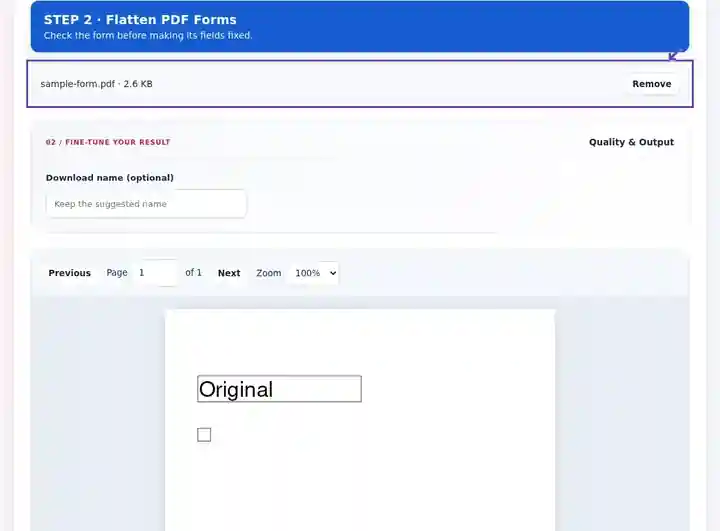
Open the fixed copy and compare the field appearances with the editable original.
Select the screenshot to enlarge it.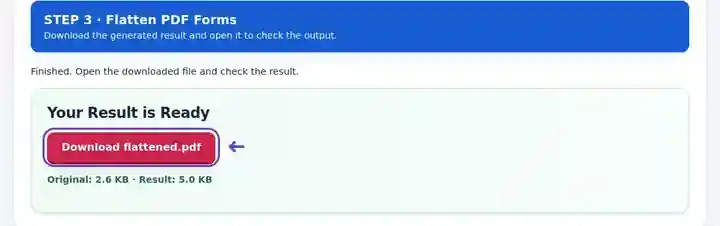
Screenshots show this toolkit using harmless sample files. Your file name, page count and settings may differ.
| Setting | What to expect |
|---|---|
| Accepted input | |
| Processing location | Your browser |
| File selection | One PDF |
| Input size | 100 MB total; decoded images and pages also have pixel limits |
| Document length | Up to 500 input pages. |
XFA forms are rejected. A PDF without interactive fields does not need this form-flattening process and returns a clear message. Keep the editable original if corrections may be required.
A form can store answers that another reader displays inconsistently. A fixed copy can make those completed field appearances easier to distribute and avoid ordinary changes through interactive controls. It is useful after the answers have been checked and further field filling is no longer part of the process.
A fixed form can still be changed with general PDF editing software. Flattening does not sanitize attachments or hidden information. Retain the editable source for corrections and inspect any long answer that scrolls beyond its visible field.
A coordinator can make a fixed copy of a completed non-sensitive feedback form for a report appendix. Check multi-line answers before flattening so a long response is not represented only by the visible beginning of a scrolling field.
An administrator can distribute a completed practice form whose answers should display consistently during a classroom review. Keep the fillable version as the teaching template instead of expecting to edit the flattened copy later.
A support team can archive a checked, routine handover checklist as a fixed working copy. Compare checkboxes, selected options and text with the editable original; flattening is not a substitute for the team’s records or approval process.
| Situation | What to do |
|---|---|
| The document has no interactive fields | There may be nothing for this tool to flatten. A scanned form is already page artwork. |
| A field looks different after saving | Its appearance may depend on fonts or viewer behavior. Review the result in another PDF reader. |
| You need to remove hidden content | Flattening fields is not redaction or a complete document sanitization process. |
For a completed feedback form, inspect every checkbox and long response before flattening. A scrolling answer can contain more text than the visible field shows. Create the fixed copy, reopen it in another reader and compare all answers with the editable original. Keep the original for corrections; changes to fixed text require a different editing step.
Turn supported form field appearances into fixed page content.
Settings used: {"range": "1", "dpi": "72"}
Compare the source and result before relying on this tool. This sample checks a bounded operation; output mode and document-structure limitations still apply.
Checked on . Small synthetic sample processed with release 3.23.0 in Chromium 153. This is a recorded local check, not a live-host or every-document guarantee.
The supported fields become fixed content. Return to the original interactive form to change their values.
This tool flattens supported form fields. It does not claim to flatten all PDF annotation types.
Complete and verify the form first. Follow the recipient’s process, especially if certificate-based signing is required.
No. The operation fixes supported form-field appearances; it is not complete document sanitization. Unrelated content can remain. Use the recipient’s required review process for attachments or hidden information.
Not necessarily. Flattening uses the field’s page appearance, which may show only part of a long stored value. Expand or otherwise correct the source field in a suitable editor before creating the fixed copy, then compare the entire response.
Continue with Fill PDF Forms, Sign PDF, PDF Reader. For an archive that specifically requires PDF/A, use the separate PDF to PDF/A tool. Flattening alone does not establish conformance.