Browser-Readable Bitmaps
Accept BMP files supported by your browser’s decoder. Unusual encodings may need a PNG export from an image editor first.

Convert browser-readable bitmap images into PDF pages.
Drop files here or use the button below.
Up to 100 MB total · Files stay on your device
Preview the document here. For added content, this is a placement guide; check the saved output.
Convert browser-readable BMP bitmap images into PDF pages. BMP files often come from older imaging tools and can be much larger than equivalent compressed images. Wrapping them in a PDF makes a set of bitmaps easier to share as one ordered document.
The browser decodes the bitmap and the tool embeds its raster appearance on the selected paper size. It scales the image proportionally and centres it inside the margins. One input bitmap creates one output page.
Accept BMP files supported by your browser’s decoder. Unusual encodings may need a PNG export from an image editor first.
Combine supported BMP images into one PDF, with one bitmap on each page and a file list you can reorder.
Keep bitmap proportions when fitting an equipment screenshot or old scan inside the selected page margins.
Select A4, Letter, custom or image-matched pages. Source image DPI changes the physical size of image-matched pages.
Select the BMP files your browser can decode and put the legacy images in order.
Select the screenshot to enlarge it.
Choose paper or image-matched page dimensions and set the surrounding margins.
Select the screenshot to enlarge it.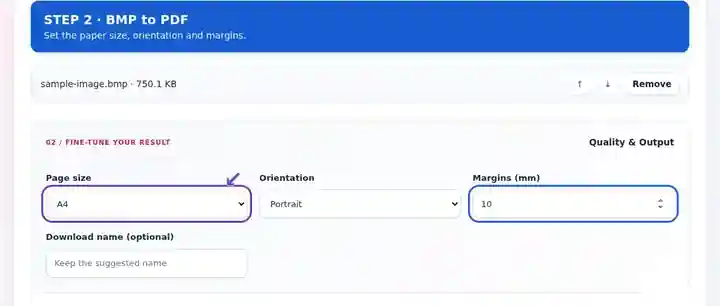
Download the PDF and inspect measurement labels, colour keys and page sequence.
Select the screenshot to enlarge it.
Screenshots show this toolkit using harmless sample files. Your file name, page count and settings may differ.
A legacy Windows application or instrument may export BMP even when the person reviewing its output wants a document. A PDF viewing copy provides page order and printing dimensions without requiring that reviewer to use the original application. Keep the BMP if exact source pixels, software compatibility or later measurements matter. The converter presents the raster image; it does not interpret a plotted value, recreate an instrument dataset or guarantee a smaller file.
Attach a legacy instrument screenshot to a maintenance note. Inspect unit symbols, axis markings and color keys; keep the original measurement file as well as the screenshot.
Bundle older scanned bitmaps into a readable review copy. Confirm the source sequence before conversion so detached images do not become misplaced pages.
Submit output images from a teaching application that exports BMP. Choose a page shape suited to the plotted screen and verify tiny legend text in the PDF.
| Setting | What to expect |
|---|---|
| Accepted input | BMP |
| Processing location | Your browser |
| File selection | Multiple files, with a maximum of 20 per batch |
| Input size | 100 MB total; decoded images and pages also have pixel limits |
BMP has several variants. An uncommon or damaged encoding can fail the browser decoder even when the filename ends in .bmp. Save a PNG copy with an image editor when decoding fails. A smaller PDF container does not automatically improve the source image.
A small-looking bitmap file may use palette colors, while another of the same dimensions stores full-color pixels. The browser decodes the supported source and the PDF embeds its resulting image. A change in file size therefore says little about restored detail or scientific accuracy. Keep original BMP captures when a later workflow needs their source format or metadata.
| Situation | What to do |
|---|---|
| The browser cannot decode the bitmap | Open it in a trusted image application and export a standard PNG or JPEG. |
| The image appears too small | Check the source pixel dimensions and selected margins. A large white border in the BMP is part of the image. |
| Several scans must become one PDF | Select the files together and reorder them before conversion. |
Use pixel dimensions and Source image DPI to plan a bitmap’s physical page size. This calculation describes a 1,200 × 900 pixel image at 300 DPI; it is independent of how many bytes its BMP file uses.
| Property | Value |
|---|---|
| Image dimensions | 1,200 × 900 px |
| DPI | 300 |
| Image-matched size before margins | 4 × 3 in / 101.6 × 76.2 mm |
Support depends on the browser’s image decoder. The interface reports a decoding failure instead of producing a blank page.
Yes. Select multiple supported BMP files and arrange their order before processing.
Use PDF to BMP. That exports complete rendered pages rather than restoring the exact original bitmap bytes.
Continue with Image to PDF, PDF to BMP, Compress PDF.