Modern DOCX Input
Convert one unencrypted DOCX up to 25 MB in the browser. Save DOC, ODT and RTF documents as DOCX in your source application first.

Convert supported DOCX pages to PDF page images on your device.
Drop files here or use the button below.
Up to 25 MiB total · Files stay on your device
Preview the document here. For added content, this is a placement guide; check the saved output.
Convert a modern DOCX document into PDF directly in your browser, without installing Office software or supplying an API key. The converter renders common paragraphs, lists, tables, embedded pictures, headers and footers into fixed pages. It is useful for sharing a letter, CV or report when the recipient needs a viewing copy rather than the editable source.
Browser Word output contains lossless page images. Its text is not selectable or searchable, and font substitution or browser pagination can change the layout. Use the route comparison below when your document needs a different result.
Convert one unencrypted DOCX up to 25 MB in the browser. Save DOC, ODT and RTF documents as DOCX in your source application first.
Render supported paragraphs, lists, tables, embedded pictures, headers and footers into fixed pages, with layout checks still required.
Choose 150, 200 or 300 DPI. The default 200 DPI balances image detail and output size for an ordinary reading copy.
Use browser conversion without uploading the document contents. The resulting pages are images, so selectable text requires a native export.
Choose the unencrypted DOCX document for the default on-device conversion.
Select the screenshot to enlarge it.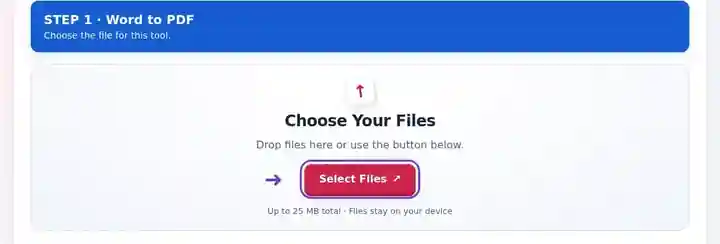
Select PDF image detail and review the notice that browser output contains page images.
Select the screenshot to enlarge it.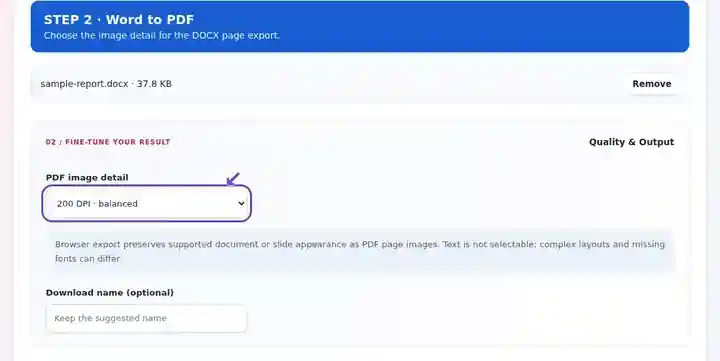
Download the PDF and compare page breaks, tables and the final paragraph with Word.
Select the screenshot to enlarge it.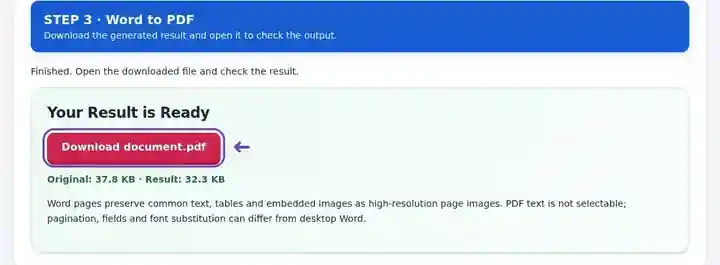
Screenshots show this toolkit using harmless sample files. Your file name, page count and settings may differ.
A recipient reviewing a letter or report may need a viewing copy rather than an editable DOCX. PDF places the rendered content onto fixed pages for that copy, while the Word file remains the source for later changes. Review the conversion before sending it because browser font substitution and pagination can change the appearance. Choose a native text PDF export for searchable archives, accessible text workflows or forms that require more than page images.
Prepare a short report, cover letter or CV for a submission that accepts image-based PDF. If a recruitment or assessment system needs searchable text, export a native text PDF instead.
Distribute a permitted letter or ordinary report as a viewing copy. Compare tables, amounts, dates and the final paragraph with the source before using it in an approved workflow.
Create a copy of permitted routine instructions or a course handout. Follow the organization’s handling rules and use an approved native export for specialist layouts or required document standards.
| Setting | Browser conversion |
|---|---|
| Input | One unencrypted DOCX file, up to 25 MB |
| Processing | On your device; document contents are not uploaded for this route |
| Resolution | 150, 200 or 300 DPI; 200 DPI is the default |
| PDF content | Fixed pages containing PNG page images; text is not selectable |
| Document limits | Up to 80 output pages, subject to image and rendering limits |
| Legacy formats | Save DOC, ODT and RTF documents as DOCX in your source application first. |
Check the source at its intended print size. A missing font can make a line wrap differently and push a paragraph onto the next page. Very tall table rows, oversized pictures, long list items and deeply nested tables can exceed a page. Split large content blocks in the source rather than reducing every page until its text is hard to read.
Browser conversion rejects multiple columns, footnotes, endnotes, charts, SmartArt, vector artwork, embedded objects, macros and linked external resources. Choose the route that supports the document and the required PDF features.
| Export route | Use and processing boundary |
|---|---|
| Browser DOCX conversion | For supported DOCX viewing copies. Runs on your device without uploading document contents and creates page images. |
| Optional Native Office export | Available only when this website has enabled the required local engine. The file is uploaded to this website’s server when you start processing. Inspect the resulting layout and text features. |
| Source application’s PDF export | Use Word or a suitable editor when you need its layout, selectable text, accessibility or print controls. Export there and inspect the PDF against the source document. |
| Situation | What to do |
|---|---|
| The page count changed | Review font substitution, margins and paragraph breaks. Compare both the first and last line of each page. |
| A layout is not supported | Use your desktop editor or optional Native Office export for multiple columns, footnotes and advanced objects. |
| The file exceeds a rendering limit | Split the source into smaller documents or lower the image resolution. A compact DOCX can still expand into large page images. |
| You cannot select the PDF text | Browser Word output is image based. Use a native PDF export when selectable text is required. |
For a one-page CV, inspect the contact details, bullet spacing, profile photograph and last line. Check at normal viewing size and at a closer zoom. If it becomes two pages, fix the source layout and convert again. Increasing DPI improves rendering detail but cannot restore a blurry source photograph.
Convert supported DOCX pages to PDF page images on your device.
Settings used: {"paper": "a4", "orientation": "portrait", "officeDpi": "120", "spreadsheetScale": "fit"}
Compare the source and result before relying on this tool. This sample checks a bounded operation; output mode and document-structure limitations still apply.
Checked on . Small synthetic sample processed with release 3.23.0 in Chromium 153. This is a recorded local check, not a live-host or every-document guarantee.
No. DOCX conversion runs in the browser by default. LibreOffice is needed only for the optional Native Office export route on this website’s server.
Common document elements are rendered, but fonts, page breaks and unsupported Word features can differ. Inspect the downloaded result before using it as a final copy.
Save DOC, ODT and RTF documents as DOCX in your source application first. For Google Docs, download DOCX or use Google Docs’ own PDF export.
Browser Word conversion produces high-resolution page images. If searchability, selectable text or accessible document structure is required, export PDF from Word or another suitable native editor. OCR can add a recognized text layer, but it does not recover the original Word structure.
Use the source application’s PDF export. This browser route rejects those layouts rather than claiming to reproduce them faithfully. Saving the same unsupported content under a new filename does not remove the limitation.
A compact DOCX can expand into many large page images. Browser export allows up to 80 output pages and also checks image dimensions and total rendered area. Split a long source at a sensible section boundary or reduce PDF image detail, then inspect the new page breaks.
Continue with PDF to Word, Merge PDF and Google Docs to PDF. For a different source format, see ways to create a PDF. · How Do You Convert Apple Pages to PDF? · How Do You Remove Blank Pages in Word?