Two Different Word Outputs
Preserve appearance creates page images in DOCX. Editable text exports wording with approximate paragraph formatting.

Create editable DOCX text or preserve full pages as images in Word.
Drop files here or use the button below.
Up to 100 MB total · Files stay on your device
Preview the document here. For added content, this is a placement guide; check the saved output.
Convert PDF pages into a Word-compatible DOCX. The default Preserve appearance mode works with scans and digital pages by placing their rendered images in Word. Choose editable text mode when you need to revise the wording in a PDF with a selectable text layer.
Choose editable text for rewriting, or Preserve appearance for a Word file containing full-page images. Editable mode reconstructs text lines and page boundaries; it does not recover the original columns, photographs or fonts. Appearance mode retains their rendered look but makes them part of an image.
Preserve appearance creates page images in DOCX. Editable text exports wording with approximate paragraph formatting.
Convert a letter, chapter or appendix rather than the entire PDF when only part needs to enter the Word workflow.
Choose the detail of the full-page PNG images. This setting does not improve editable text reconstruction.
Open the output in a compatible editor. The original PDF remains the reference for layout and wording checks.
A DOCX is useful when the next task happens in a word processor: rewriting recovered text or placing a fixed PDF page inside a larger document. Choose the mode for that task before converting. If the original Word document is available, edit it directly to avoid rebuilding its structure.
Recover wording from an old text-based policy PDF to draft a revised policy. Use editable mode, then rebuild the organization’s styles and verify every changed clause.
Bring a text-first PDF draft into a DOCX for revision. Check paragraph order, quotations and references before applying heading styles and resubmitting the work.
Place an unchanged scanned letter into a Word briefing pack. Appearance mode suits this task; the letter remains a page image rather than editable prose.
Select the PDF and decide which Word result you need.
Select the screenshot to enlarge it.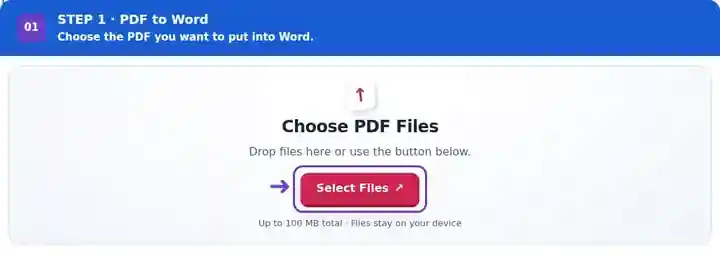
Choose the pages, Word output mode and appearance-mode DPI.
Select the screenshot to enlarge it.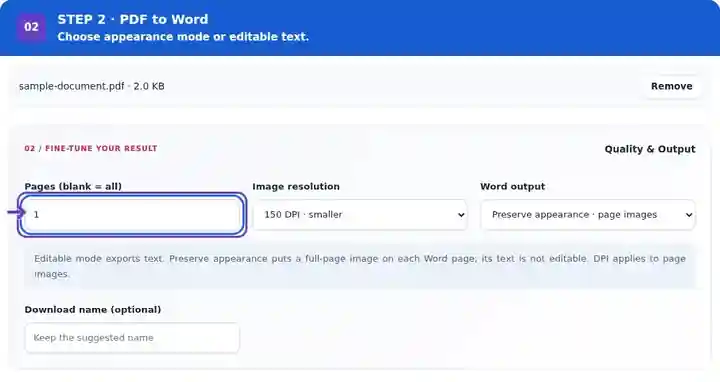
Download the DOCX and check editable text or page-image quality.
Select the screenshot to enlarge it.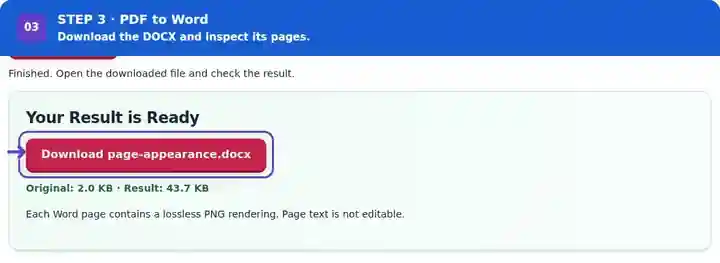
Screenshots show this toolkit using harmless sample files. Your file name, page count and settings may differ.
The same workshop handout was exported in both Word modes. The downloads let you compare the preserved page image with the extracted editable text.
This is the actual PNG embedded in the visual DOCX. The text and workshop mark remain part of that image.
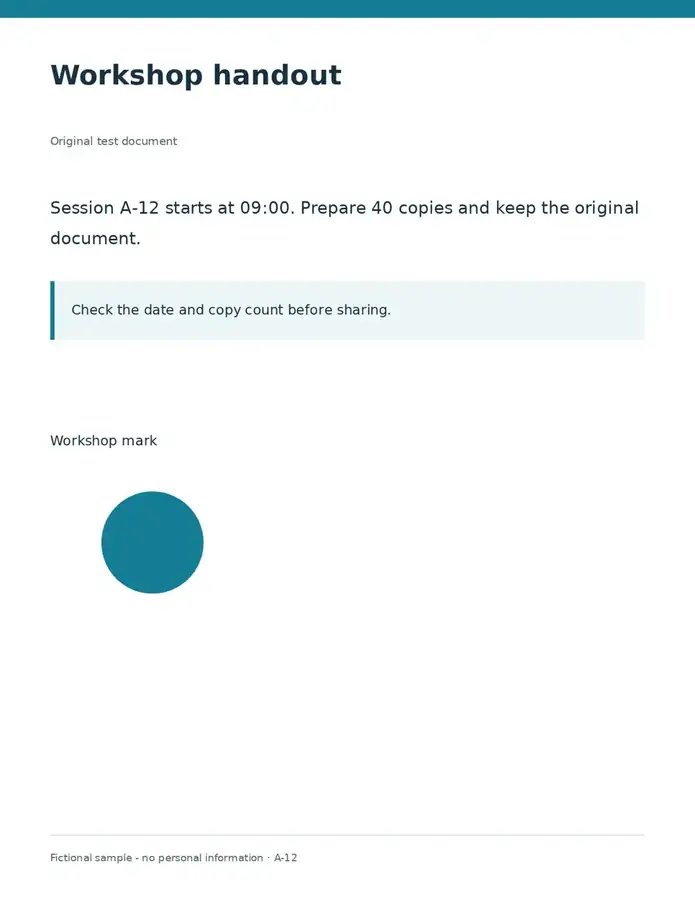
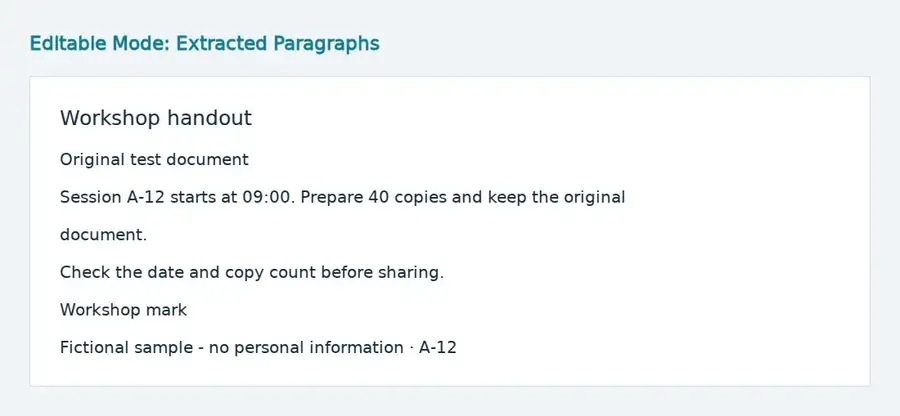
These paragraphs were read from the downloaded DOCX. This preview shows its text content, not a rendering by Microsoft Word.
Settings used: Page 1; visual mode at 150 DPI; a separate export in editable-text mode.
Visual mode keeps a page image. Editable mode reflows extracted text and omits the graphic. Inspect paragraphs, numbers and reading order in your editor.
Checked on . Original harmless samples processed locally in Chromium with version 3.16.0; this is not a production hosting benchmark.
| Setting | What to expect |
|---|---|
| Accepted input | |
| Processing location | Your browser |
| File selection | One input file |
| Input size | 100 MB total; decoded images and pages also have pixel limits |
| Page selection | Up to 200 selected pages per job. Blank Pages means all pages only when the PDF has 200 pages or fewer; use separate ranges for a longer document. |
| Rendered image limits | Preserve appearance mode: 36 megapixels per page and 120 megapixels across selected pages. Lower DPI or choose fewer pages if the selection is too large. |
No-text sources require OCR for editable text export. Appearance mode can render scanned pages without OCR.
In editable mode, compare a passage that crosses a page boundary and check any footnotes or multi-column text before applying Word styles. The exporter reconstructs lines and page breaks, not the source document’s original layout rules. In appearance mode, inspect the page image at the width it will occupy in the final Word document. Enlarging a low-resolution page image can expose blur even though the surrounding DOCX opens correctly. Mixed PDF page sizes can produce separate Word sections.
| Situation | What to do |
|---|---|
| The editable file lost the original images | Editable mode is text export. Choose Preserve appearance if the whole visible page matters more than editing its words. |
| A scanned page has no editable text | Run OCR first, or choose the appearance mode to place the scan itself in Word. |
| A high-resolution job hits a resource limit | Process fewer pages or select a lower DPI. The converter checks both individual and total rendered pixel area. |
For a two-column report that needs rewriting, export editable text and rebuild the headings, columns and tables in Word. Compare paragraph order with the PDF as you edit. If the same report only needs to be included unchanged in a Word pack, select Preserve appearance and inspect the page images at the intended viewing size.
Editable mode prioritizes wording and does not reconstruct the exact layout. Appearance mode places rendered page images in Word; it preserves the look at the selected resolution, with a small fit allowance, but its text is not editable. Keep the PDF for reference.
An image-only PDF has no selectable text for editable mode. Use OCR first and review recognition accuracy, or choose Preserve appearance to place the scan itself in Word.
Yes. Apply headings, paragraph styles and page settings in a compatible editor. Compare the wording and reading order with the original PDF as you work.
Preserve appearance places the page image in Word and does not make its words editable. For editable wording, add and check an OCR text layer first, then choose editable text mode. Layout cleanup is still required.
It supports Word page dimensions up to 22 inches and also checks rendered image limits. For a larger technical drawing, keep the PDF or export its page as PNG instead of assuming it will fit a Word page unchanged.
Continue with OCR PDF, PDF Reader, Word to PDF. If your destination is Hancom HWP, follow the reviewed PDF-to-HWP workflow.