One Page Image per Slide
Each selected PDF page becomes a PNG image on a presentation slide; original text boxes and charts are not recreated.

Create one image-based PowerPoint slide per PDF page.
Drop files here or use the button below.
Up to 100 MiB total · Files stay on your device
Preview the document here. For added content, this is a placement guide; check the saved output.
Create a PowerPoint-compatible presentation with one rendered PDF page per slide. This is useful for presenting a PDF on a projector or placing fixed page appearance into a slide deck.
Each slide contains an image of its source page. Text and diagrams are not editable original slide objects. The first selected page sets the slide proportions; other pages are fitted and centered without stretching.
Each selected PDF page becomes a PNG image on a presentation slide; original text boxes and charts are not recreated.
Use page numbers to present a short set of diagrams instead of copying every page of a report.
Select DPI according to the slide’s viewing needs and device capacity. Extra resolution also increases download size.
The first selected page sets the slide size. Other pages are centered and fitted within it without stretching.
A PDF can contain finished visual pages that need to be shown during a presentation. Converting them to PPTX puts those pages into the same slide-navigation workflow as the rest of a meeting deck. It is useful when the page should remain visually fixed while the presenter adds separate slides or notes. A portrait report may produce tall slides or large margins, so check the first selected page and the projected result. Use the original presentation source when you need to edit its text boxes, charts or animations.
Present selected pages from an approved workbook and place discussion slides between them. Check the room display to ensure the PDF’s smallest text is readable.
Prepare routine, non-sensitive training handout pages for a briefing deck. Verify page order and use source material approved for the briefing’s audience.
Bring approved design-sheet pages into a review presentation. Check mixed page sizes and diagram labels; the converted slide is a visual reference rather than an editable drawing.
Select the PDF pages you want to present.
Select the screenshot to enlarge it.
Set the page range and slide-image resolution.
Select the screenshot to enlarge it.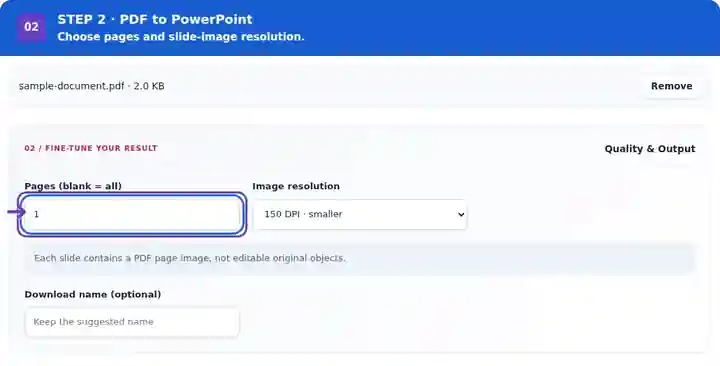
Download the PPTX and check every slide in presentation view.
Select the screenshot to enlarge it.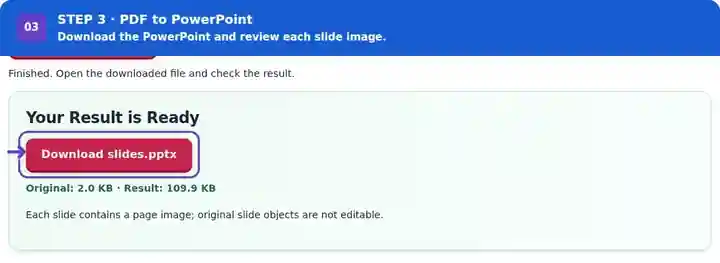
Screenshots show this toolkit using harmless sample files. Your file name, page count and settings may differ.
| Setting | What to expect |
|---|---|
| Accepted input | |
| Processing location | Your browser |
| File selection | One input file |
| Input size | 100 MB total; decoded images and pages also have pixel limits |
| Page selection | Up to 200 selected pages per job. Blank Pages means all pages only when the PDF has 200 pages or fewer; use separate ranges for a longer document. |
| Rendered image limits | 36 megapixels per page and 120 megapixels across selected pages. Lower DPI or choose fewer pages if the selection is too large. |
A deck uses one slide size based on the first selected PDF page. A later page with different proportions is fitted inside that size, which can create empty space around its image. Reordering the source pages can therefore change the presentation canvas. For a report mixing portrait notes and wide drawings, consider making separate decks with consistent page shapes. Check the projection view rather than only a thumbnail before deciding that small page text is suitable for the audience.
| Situation | What to do |
|---|---|
| You cannot edit a word on the slide | The page is a single image. Use the original presentation to edit individual objects. |
| A landscape page has borders | The first selected page may have a different shape. Convert pages with matching dimensions together when possible. |
| The PPTX is too large | Choose fewer pages or a lower DPI. Lossless page images prioritize edge quality over file size. |
For a PDF slide handout, select the actual slides rather than an introductory cover with different dimensions. After conversion, open the deck in the target slide application and start slideshow view. Check the smallest text from a realistic viewing distance instead of only inspecting slide thumbnails.
Create one image-based PowerPoint slide per PDF page.
Settings used: {"range": "1", "dpi": "72"}
Compare the source and result before relying on this tool. This sample checks a bounded operation; output mode and document-structure limitations still apply.
Checked on . Small synthetic sample processed with release 3.23.0 in Chromium 153. This is a recorded local check, not a live-host or every-document guarantee.
The exported pages are images. Add new PowerPoint objects over them or rebuild content when full editing is needed.
Yes. They are fitted onto the first selected page’s slide proportions, so some slides can show extra margins.
Open the PPTX in a presentation editor and insert new text boxes or shapes. These additions remain separate from the underlying PDF page image.
Continue with PowerPoint to PDF, Resize PDF Pages, Organize PDF.