Separate TIFF Page Images
Every selected page becomes its own TIFF. The tool does not build a single multi-page TIFF container.

Export each PDF page as an uncompressed TIFF image.
Drop files here or use the button below.
Up to 100 MiB total · Files stay on your device
Preview the document here. For added content, this is a placement guide; check the saved output.
Render each selected PDF page into a separate uncompressed RGB TIFF image. TIFF is useful for image workflows that request a raster file with explicit pixel dimensions.
This output uses baseline uncompressed TIFF rather than archival fax compression or a single multi-page TIFF container. Multiple page images are bundled in a ZIP.
Every selected page becomes its own TIFF. The tool does not build a single multi-page TIFF container.
Output uses uncompressed RGB raster data. It does not claim CCITT fax compression or a particular archival profile.
Choose a resolution that matches the receiving image workflow and the detail available in the source PDF.
Export a useful subset. Multiple TIFF images are bundled in a numbered ZIP so their source order remains clear.
An image-processing workflow may ask for TIFF because it expects an explicit raster image rather than a PDF document. This export provides a rendered page with known pixel dimensions, suitable as an intermediate image to inspect or edit. However, a request for “TIFF” alone can conceal requirements for a single multi-page file, black-and-white pixels, compression or a color profile. Confirm those details before uploading. This tool’s separate uncompressed RGB images should be used only where that output matches the requirement.
Supply a page image to a print preparation workflow that requests RGB TIFF. Check the print supplier’s resolution and color instructions before treating it as a finished press asset.
Create separate page images for a system that explicitly accepts individual TIFF files. Compare the format with that system’s ingest rules; this conversion alone does not establish archival compliance.
Render a PDF figure page at a repeatable DPI for visual comparison. Preserve the original PDF and record the chosen resolution so later exports can be compared consistently.
Choose the PDF pages you need as TIFF images.
Select the screenshot to enlarge it.
Set the page range and rendering resolution.
Select the screenshot to enlarge it.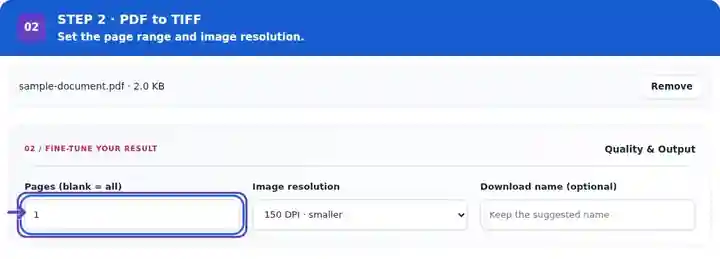
Download separate TIFF pages and confirm format compatibility.
Select the screenshot to enlarge it.
Screenshots show this toolkit using harmless sample files. Your file name, page count and settings may differ.
| Setting | What to expect |
|---|---|
| Accepted input | |
| Processing location | Your browser |
| File selection | One input file |
| Input size | 100 MB total; decoded images and pages also have pixel limits |
| Page selection | Up to 200 selected pages per job. Blank Pages means all pages only when the PDF has 200 pages or fewer; use separate ranges for a longer document. |
| Rendered image limits | 36 megapixels per page and 120 megapixels across selected pages. Lower DPI or choose fewer pages if the selection is too large. |
A file ending in .tiff can use different color depths, compression methods and page containers. An import rule requesting a single bilevel TIFF with fax compression is different from accepting separate uncompressed RGB pages. The output here addresses the latter kind of image workflow. Test one file in the receiving application, check its pixel dimensions and retain the original PDF while the format requirements are being confirmed.
| Situation | What to do |
|---|---|
| A system requests one multi-page TIFF | This exporter produces one file per page. Use a workflow that explicitly supports the required container. |
| The archive is too large | Uncompressed RGB TIFF can be large. Reduce DPI or convert only the needed page range. |
| The destination requires black-and-white CCITT | That encoding is not produced by this tool. Check the receiving specification before conversion. |
For an imaging application, test one exported page with small text and colored marks. Verify that the import shows the whole page at the expected orientation. Preserve the original PDF if the destination’s TIFF requirements are not yet confirmed.
Export each PDF page as an uncompressed TIFF image.
Settings used: {"range": "1", "dpi": "72"}
Compare the source and result before relying on this tool. This sample checks a bounded operation; output mode and document-structure limitations still apply.
Checked on . Small synthetic sample processed with release 3.23.0 in Chromium 153. This is a recorded local check, not a live-host or every-document guarantee.
No. Each selected PDF page becomes a separate TIFF image. Multiple outputs are packaged together in a ZIP.
Enter a single page number in the range field. A one-page selection produces a direct image download.
No. This operation renders whole pages. Extract Images from PDF saves supported embedded raster objects separately.
Continue with Extract Images from PDF, Image to PDF, PDF Reader.