Supported PPTX Slides
Render common text boxes, basic shapes, groups, tables and embedded pictures from one unencrypted PPTX up to 25 MB.

Convert supported PPTX slides to static PDF page images on your device.
Drop files here or use the button below.
Up to 25 MB total · Files stay on your device
Preview the document here. For added content, this is a placement guide; check the saved output.
Convert a modern PPTX presentation into a PDF in your browser. Each exported page contains a lossless image of a static slide at the presentation’s original dimensions. Common text boxes, basic shapes, groups, tables, embedded pictures, theme colors and supported master or layout elements are rendered for a viewing copy or handout.
The PDF is image based: text and slide objects are not selectable or editable. Animations and transitions do not become interactive PDF content, and this workflow does not create a speaker-notes handout. Charts, SmartArt, embedded media, WordArt, vector artwork, 3D effects and some advanced connectors need another export path.
Render common text boxes, basic shapes, groups, tables and embedded pictures from one unencrypted PPTX up to 25 MB.
Leave the range blank for visible slides or enter slide numbers such as 1, 3-5. An explicit range can include hidden slides.
Create a PDF page at each exported slide’s dimensions, with supported static appearance rendered into a lossless PNG page image.
Choose 150, 200 or 300 DPI for the rendered slides. Start at 200 DPI and inspect the smallest labels before increasing detail.
Choose the unencrypted PPTX presentation with the intended static slide content.
Select the screenshot to enlarge it.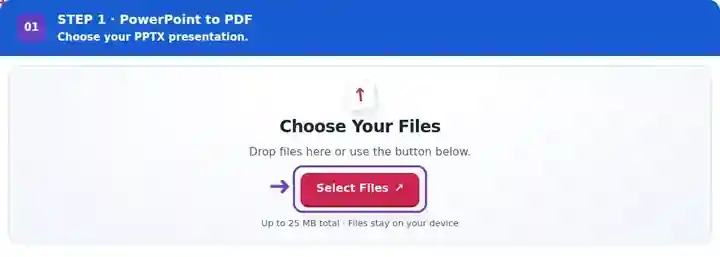
Set the slide range and PDF image detail; review how hidden slides are handled.
Select the screenshot to enlarge it.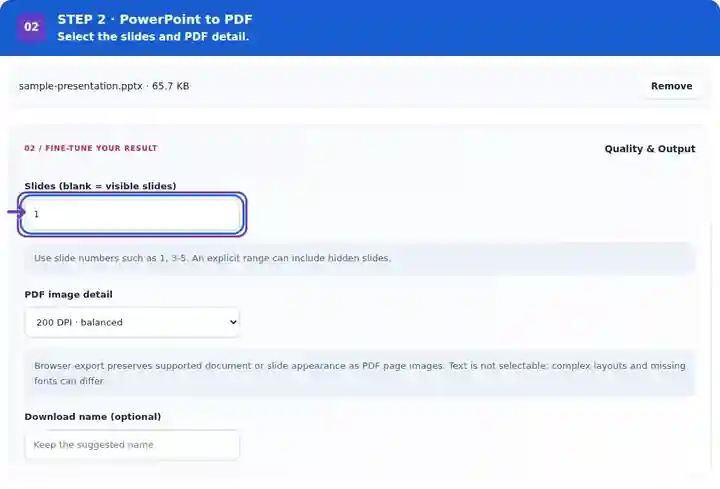
Download the PDF and check slide count, text wrapping and the smallest diagram labels.
Select the screenshot to enlarge it.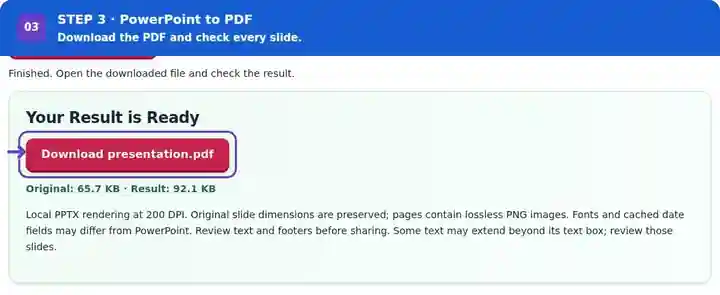
Screenshots show this toolkit using harmless sample files. Your file name, page count and settings may differ.
A PDF is useful when the recipient needs static slides to review rather than an editable deck or a running slideshow. Prepare the intended static content in PowerPoint before conversion, especially when animation normally reveals information in stages. This route creates one slide image per PDF page, not multi-slide handouts or speaker-note sheets. Keep the PPTX for editing, notes and presentation behavior, and use a native export when searchable text or unsupported objects are essential.
Share lesson slides or a class presentation for reading after the session. Check the smallest labels and include only the slides intended for the handout.
Send a supported static briefing deck for review. Complex charts need native export or an appropriate static source image; verify totals and legends against the authoring file.
Distribute permitted routine training slides through an approved workflow. Make animated instructions understandable as static content and remove hidden material from the intended sharing copy.
| Setting | Browser conversion |
|---|---|
| Input | One unencrypted PPTX presentation, up to 25 MB |
| Processing | On your device; this route does not upload presentation contents |
| Slide selection | Visible slides by default, or an explicit slide range |
| Resolution | 150, 200 or 300 DPI; 200 DPI is the default |
| PDF pages | Original slide dimensions, with lossless PNG page images |
| Limits | Up to 100 input slides, subject to rendered-page memory limits |
| Legacy formats | Save PPT and ODP presentations as PPTX in your source application first. |
A presentation often relies on an animation sequence to reveal information. Create a static version with the intended final state before sharing it as PDF. Check small chart labels, overlapping text and date fields. Browser font substitution can change line wrapping, so a well-spaced source slide is more reliable than a text box already filled to its edges.
Match the presentation’s content to the appropriate export route before converting.
| Slide content | Export behavior |
|---|---|
| Common text boxes, basic shapes, groups, tables and embedded pictures | Rendered into static PNG page images; inspect font spacing and crowded objects. |
| Hidden slides | A blank range omits them; an explicit slide range can include them. |
| Charts, SmartArt, WordArt, 3D | Use native export. Embedded media, vector artwork and some advanced connectors also need another route; an approved static image can replace a complex visual in a separate deck copy. |
| Situation | What to do |
|---|---|
| Text overlaps or clips | Review the source font and text-box size. Simplify crowded text or export with the authoring application. |
| A chart, media object or effect is rejected | Use a native PDF export or replace the object with a supported static image. |
| A hidden slide is missing | Default output contains visible slides. Include its number explicitly in the slide range if you want to share it. |
| The selected slides exceed memory limits | Select fewer slides or lower the DPI. The decoded page size matters in addition to the PPTX file size. |
| You need editable presentation objects | Keep the source PPTX. PDF to PowerPoint creates page-image slides and does not recover the original objects. |
For a ten-slide handout, count the exported PDF pages and inspect the title slide, the busiest diagram and the final slide. Check the smallest legend at normal reading size. If a reveal animation concealed content in the source, make a static handout deck with only the information you want the reader to see.
No. This converter produces static slide pages and does not generate a separate speaker-notes handout. Keep the PPTX for slideshow behavior and notes.
Common slide elements are rendered, but font metrics, date fields and unsupported objects can differ. Check the downloaded output against your original deck.
No. Modern PPTX files can be converted on your device. Optional Native Office export offers an isolated server route for DOCX, XLSX and PPTX when the host’s scanner, processor and cleanup checks are ready. Save PPT and ODP presentations as PPTX in your source application first.
No. A blank Slides field exports visible slides. An explicit range can include a hidden slide, so check the selected numbers before sharing the PDF.
Those objects are outside this browser renderer’s supported scope and can stop conversion. Export PDF from PowerPoint or a compatible native editor, or replace approved static artwork with embedded PNG/JPG images in a separate presentation copy.
Each slide is rendered as a PNG page image. This preserves the supported visible composition but does not create selectable text, editable slide objects or accessible slide structure. Use a suitable native PDF export when those properties are required.
Continue with PDF to PowerPoint, PDF Reader and Merge PDF.