Local HTML and HTM Input
Select a saved file from your device. This operation does not fetch a webpage from a URL.

Render local HTML text as PDF page images; scripts, styles and all images are removed.
Drop files here or use the button below.
Up to 500 kB total · Files stay on your device
Preview the document here. For added content, this is a placement guide; check the saved output.
Render a local HTML file into PDF pages using a sanitized set of common content elements. Headings, paragraphs, lists and tables can be included without sending the selected file to an external conversion API.
All image elements are removed, including remote, local and embedded images. Scripts, links, source attributes and styling are also removed. The converter uses a simple layout and exports page images; it does not capture a complete live website.
Select a saved file from your device. This operation does not fetch a webpage from a URL.
Render supported headings, paragraphs, lists, tables and code into a simple document, independent of the site’s original styling.
Remove scripts, source attributes and remote resources before building the PDF. Interactive page behavior is not executed.
Export the rendered content as image pages in an A4 portrait document. It is a reading copy rather than a live website capture.
Select the saved HTML or HTM file containing the required text.
Select the screenshot to enlarge it.
Review the basic-rendering notice: scripts, custom styles and all images are removed. Set an optional download name.
Select the screenshot to enlarge it.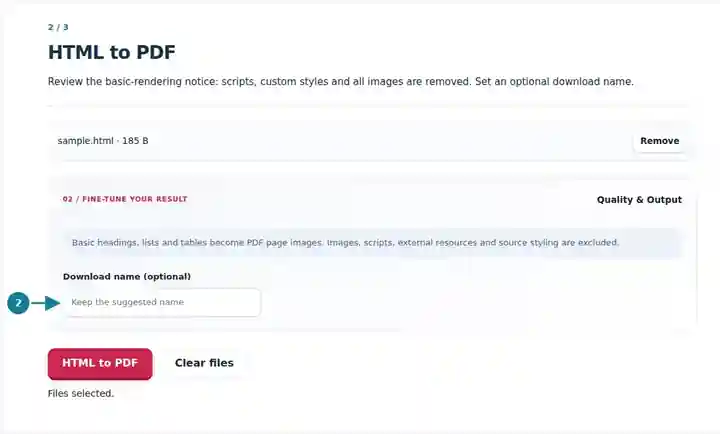
Download the PDF and compare supported content and page breaks with the local source.
Select the screenshot to enlarge it.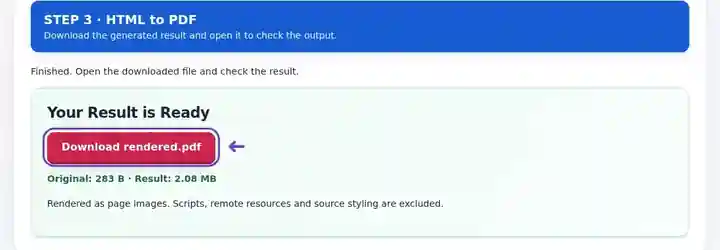
Screenshots show this toolkit using harmless sample files. Your file name, page count and settings may differ.
A saved notice or simple HTML report may need to be distributed as a page-based attachment. This tool focuses on supported written content, removing styling and interactions that can make an exported webpage dependent on its original environment. Use it when the words and basic structure matter more than the website’s appearance. If branding, clickable links, complex layout or exact print design are essential, use an appropriate print export from the source page.
Create a wording-review copy of a simple saved notice. Confirm the local file contains the full notice rather than depending on a script that loads missing text later.
Distribute a locally saved text-based reading sheet with headings and lists. Review table rows and provide required pictures through a suitable separate source workflow.
Convert a basic generated HTML report for a recipient who wants an attachment. Check that charts or styled elements have a readable textual counterpart, since site styling and remote resources are removed.
| Setting | What to expect |
|---|---|
| Accepted input | HTML, HTM |
| Processing location | Your browser |
| File selection | One input file |
| Input size | Up to 500 kB (500,000 B) of source text; rendered content must not exceed 25,000 pixels in height |
A saved HTML file can contain a small amount of source that expands into a long table. Shorten or divide that content if the rendered-height limit is reached, then inspect the join between converted parts.
Open the saved HTML without depending on its original site and compare it with the notice you intend to distribute. Some exports contain only a page shell while a script retrieves the actual wording. Because this tool does not run that script, the PDF may be empty or incomplete. Obtain a self-contained text export before converting rather than assuming that a saved page title proves the body was saved too.
Compare the generated PDF with the saved source, not just the live website. Check numbered lists, table headings and the final paragraph. If clickable references, branding or precise print layout are essential, use the source site’s supported print export and inspect it separately; the simple renderer here strips those source attributes.
| Situation | What to do |
|---|---|
| The page looks different from the website | This tool intentionally renders supported content without the website’s CSS or scripts. |
| Images do not appear | Every image element is excluded, whatever its source. A local file or data-embedded image is not an exception. Use a source application that includes the required pictures in its PDF export. |
| Content is cut near a page break | Simplify long tables or sections, then inspect the page boundary in the output. |
For an archived text notice, export a local HTML file and confirm that all necessary wording is present without relying on scripted content. After conversion, check headings, lists and any table endings. A clean PDF should not depend on interactions that were available only on the original webpage.
Render local HTML text as PDF page images; scripts, styles and all images are removed.
Settings used: {"range": "1", "dpi": "72"}
Compare the source and result before relying on this tool. This sample checks a bounded operation; output mode and document-structure limitations still apply.
Checked on . Small synthetic sample processed with release 3.23.0 in Chromium 153. This is a recorded local check, not a live-host or every-document guarantee.
This tool accepts a saved local HTML file. It does not fetch arbitrary website URLs or reproduce their full layout.
Source styling is removed. The renderer uses a simple local appearance, so prepare a separate print export if the original website design must be preserved.
This HTML renderer produces page images. Browser text selection in the source HTML is not carried into the generated PDF.
Continue with PDF to HTML, Image to PDF, PDF Reader.