Ranked Source Passages
Select up to 12 extracted passages using English-word frequency. The tool does not paraphrase them or offer a custom-length control.

Select prominent source passages with page references locally.
Drop files here or use the button below.
Up to 100 MiB total · Files stay on your device
Preview the document here. For added content, this is a placement guide; check the saved output.
Create a short reading aid from selectable PDF text. The browser ranks extracted passages by recurring English words, chooses up to 12 and returns them in source order as a TXT file, with a source page reference for each passage. It attempts to join ordinary wrapped prose before selection, but columns, headings, abbreviations and imperfect text extraction can still produce incomplete or awkward passages.
The result quotes extracted wording rather than generating a new explanation. No external AI service is used. The ranking does not establish the author’s main argument or verify facts; an unusual but important qualification may score below frequently repeated wording.
Select up to 12 extracted passages using English-word frequency. The tool does not paraphrase them or offer a custom-length control.
Selected passages return in their source order after ranking, so later sections are not moved ahead of earlier ones solely because they scored higher.
Save the TXT result with [Page N] references, then use those physical page positions to review each selected passage in the source.
The browser performs the text extraction and ranking. It does not send wording to a generative AI service.
Use the short extract to prepare a reading plan: identify repeated topics, choose a promising section and return to the source for details. A focused chapter usually has a clearer vocabulary than a bundle of unrelated reports. This makes page selection useful before a study session or document review, especially when you already know the source and want to refresh your memory.
Use selected passages to identify candidate topics, then read the chapter and write your own outline. Compare the extract with definitions, examples and exceptions the selection may omit.
Refresh your memory of recurring themes before a review meeting. Verify dates and qualifications in the source instead of quoting a standalone extracted sentence as a decision.
Use a short extract to decide which source sections deserve closer attention. Assess relevance by reading those sections; word frequency does not establish evidence quality or factual accuracy.
Choose a PDF with a readable text layer.
Select the screenshot to enlarge it.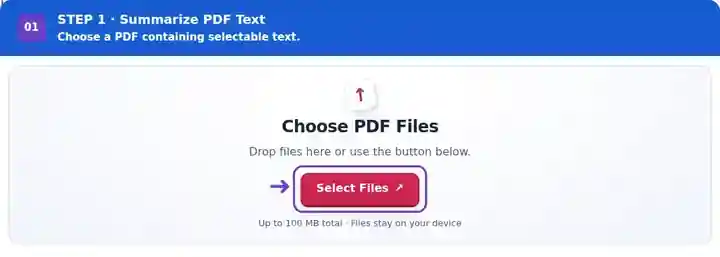
Choose the pages to include in the source-passage selection.
Select the screenshot to enlarge it.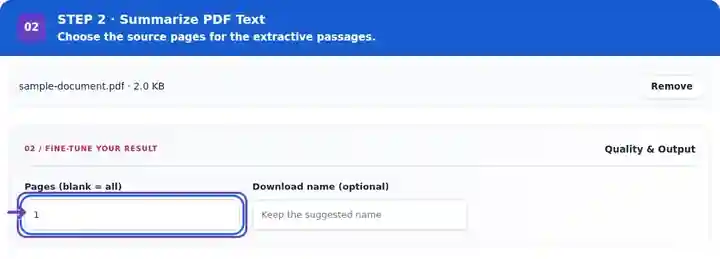
Download the TXT summary, follow its page references and read each passage in context.
Select the screenshot to enlarge it.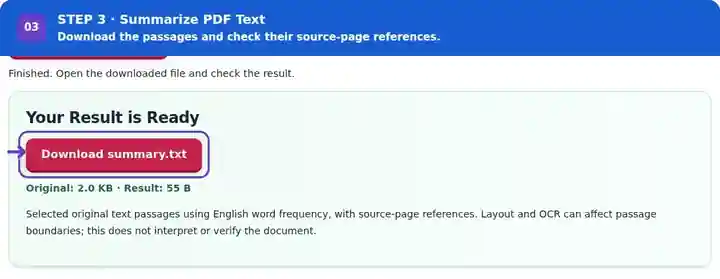
Screenshots show this toolkit using harmless sample files. Your file name, page count and settings may differ.
| Setting | What to expect |
|---|---|
| Accepted input | |
| Processing location | Your browser |
| File selection | One input file |
| Input size | 100 MB total; decoded images and pages also have pixel limits |
| Page selection | Up to 200 selected pages per job. Blank Pages means all pages only when the PDF has 200 pages or fewer; use separate ranges for a longer document. |
| Summary length | The selection targets about 20% of eligible passages, with a target minimum of three and a maximum of 12. If fewer than three suitable passages exist, it returns the available ones. There is no adjustable length control. |
An image-only scan needs a checked OCR text layer first. The ranking counts English letter-based words, so it is unsuitable as a reliable summary method for languages that use different scripts or word boundaries.
Frequency scoring rewards repeated vocabulary, which can favor page headers, standard notices or a frequently discussed minor topic. It cannot judge whether a sentence depends on a preceding exception. Table rows and multi-column layouts can also be extracted in an unhelpful reading order. For an important quotation, find the original wording and its surrounding context; do not assume the TXT passage is complete merely because it ends with punctuation.
| Situation | What to do |
|---|---|
| The summary repeats boilerplate | Restrict Pages to the relevant chapter; excluding repeated cover sheets or appendices can change the ranked passages. |
| A scanned document has no summary | A readable text layer is required. OCR it first when available. |
| A passage sounds incomplete or misleading | Read its surrounding paragraph. Extraction does not understand every dependency or caveat. |
For a 40-page report whose findings are on pages 12–18, summarize that range first. Follow a [Page N] reference from the TXT result and locate that phrase on the indicated physical PDF page; a printed chapter page label may use different numbering. If the extract concentrates on repeated project names, inspect the findings headings directly and write your own outline. The example shows a review method, not a guarantee that this ranking will identify every finding.
Select prominent source passages with page references locally.
Settings used: {"range": "1", "dpi": "72"}
Compare the source and result before relying on this tool. This sample checks a bounded operation; output mode and document-structure limitations still apply.
Checked on . Small synthetic sample processed with release 3.23.0 in Chromium 153. This is a recorded local check, not a live-host or every-document guarantee.
No. It selects extracted source passages using English-word frequency in your browser. It neither writes new analysis nor checks the truth of a passage.
Add a text layer through OCR first. Recognition errors can influence which passages are selected.
No. Use it as a navigation aid and check the complete relevant passages and qualifications.
There is no length control. The tool chooses a small share of eligible passages, with a maximum of 12. Select a different page range to change the source material; use PDF to Text when you need the full extracted wording.
Choose a source subset with Extract PDF Pages. Continue with PDF to Text, OCR PDF, Study with PDF Notes.