Define One Rectangular Region
Set Rectangle left, top, width and height as percentages of the displayed page. The same rectangle is covered on every page in the selected range.

Rasterize the document and permanently cover a selected rectangle.
Drop files here or use the button below.
Up to 100 MB total · Files stay on your device
Preview the document here. For added content, this is a placement guide; check the saved output.
Cover a selected rectangular region and rebuild the document as page images. This method creates a fresh PDF without copying the original text layer, attachments or interactive objects. It is intended for cases where the same region needs to be removed from selected pages.
Every output page is rasterized at 150 DPI, including pages outside the selected range. Selected pages receive an opaque black rectangle before their images are placed in the new PDF. The rectangle is positioned using percentages of the displayed page, so its location must be checked on pages with different dimensions.
Set Rectangle left, top, width and height as percentages of the displayed page. The same rectangle is covered on every page in the selected range.
Use Pages for the positions with the target layout. Different placements need separate checked runs rather than assuming one rectangle matches every page.
Every output page is newly rendered at 150 DPI, including pages outside the selected range. Original selectable text, form controls and attachments are not copied.
A confirmation checkbox acknowledges the image-only output. Check the downloaded copy for coverage, small-text sharpness and any information still visible outside the rectangle.
Load the PDF and choose the page positions containing the region to cover.
Select the screenshot to enlarge it.
Set the rectangle percentages and confirm the image-only output.
Select the screenshot to enlarge it.
Download the rebuilt PDF and inspect every covered page and repeated occurrence.
Select the screenshot to enlarge it.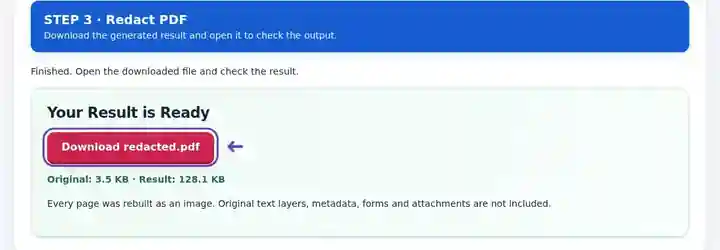
Screenshots show this toolkit using harmless sample files. Your file name, page count and settings may differ.
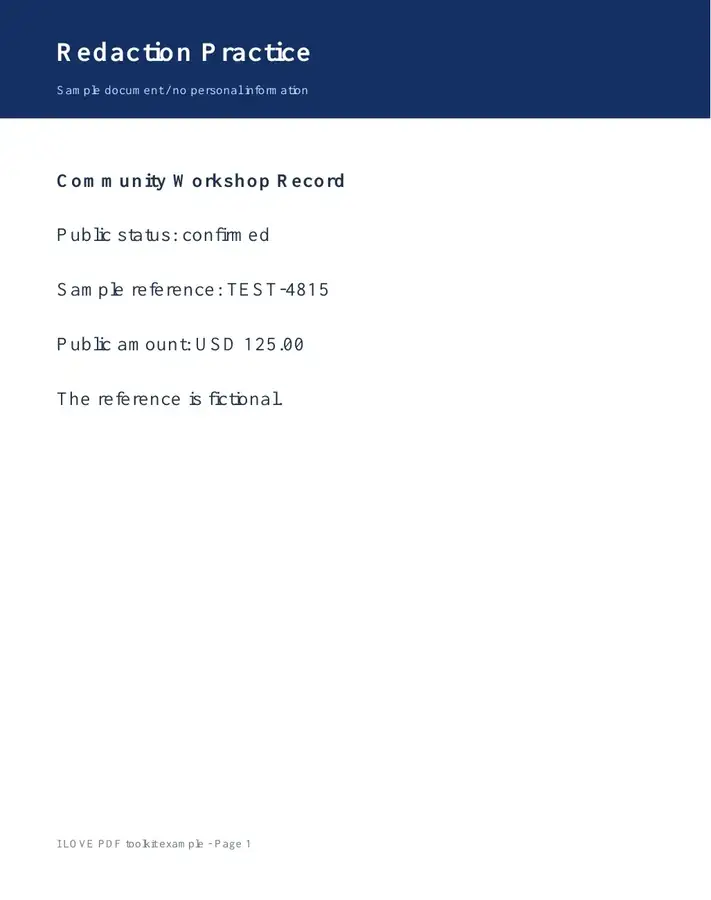
The source contains a made-up reference, TEST-4815. The tool covers that line and rebuilds the page as an image. The result below is the downloaded PDF, not a black box placed over a screenshot.
The fictional reference appears between the public status and amount.
The reference is covered in the rebuilt page. The public status and amount remain visible.
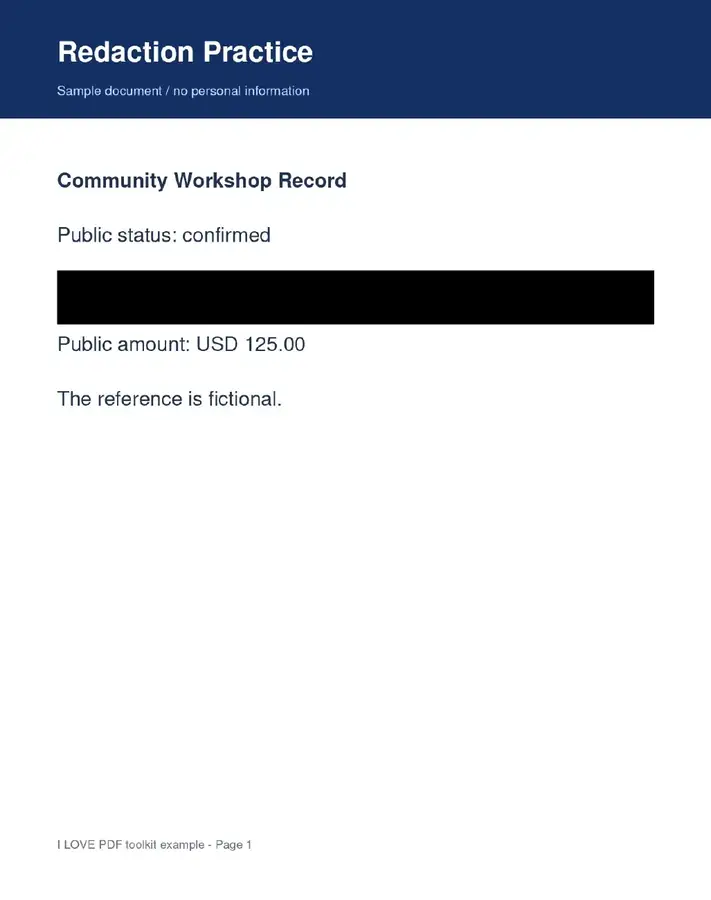
Settings used: Page 1; left 8%; top 30%; width 84%; height 6%; confirm image-based output.
The output loses selectable text across the whole page. This rectangle was checked against this sample only; inspect placement and the complete document before sharing your own file.
Checked on . Harmless samples processed in a local Chromium browser with this toolkit. These examples are not a live hosting benchmark.
| Setting | What to expect |
|---|---|
| Accepted input | |
| Processing location | Your browser |
| File selection | One PDF; up to 100 pages |
| Input size | 100 MB total; decoded images and pages also have pixel limits |
| Document length | Up to 100 input pages. Every output page is rebuilt, including pages outside the selected redaction range. |
This removes interactive forms, original searchable text and document navigation. Fine print may become less sharp after rasterization. It does not identify names, faces or private information automatically, and information outside the rectangle remains visible.
A teaching or demonstration document can contain a line that should not appear in the shared version. Rebuilding the page after covering that region differs from laying a black annotation above recoverable source text. This tool creates a new image-based document and does not copy the original text layer into it.
The important decision is the area and pages you select. There is no automatic search for repeated information, so another occurrence in a footer, note or image must be located manually. The whole document becomes image-only at 150 DPI, with reduced accessibility and possible loss of fine detail. For a document that needs several independently placed redactions or a specialist review process, use a workflow designed for that requirement.
A teacher can cover an irrelevant label in an authorized demonstration document before distributing the example. Check headers and footers for repetitions and inspect the saved rectangle at high zoom so nearby letters do not remain exposed.
A writer can remove an internal reference from a permitted sample before turning it into a public how-to attachment. Use a non-sensitive test copy to choose the rectangle and verify every selected page when layouts differ.
A presenter can remove a line that is outside the allowed scope of an otherwise shareable sample. Ensure the remaining material is authorized for sharing and understandable; the tool cannot determine permissions or identify other occurrences automatically.
| Situation | What to do |
|---|---|
| Sensitive text appears in several places | Inspect every page. The tool cannot infer other occurrences from the selected rectangle. |
| The block misses the edge of a word | Increase the rectangle slightly and check the downloaded output at high zoom. |
| You need searchable accessible output afterward | OCR recognizes the remaining visible content. Check for other occurrences outside the rectangle before making the copy searchable; the original text layer has been removed. |
On an authorized sample document, locate a reference label that should be absent from the shared copy. Set a rectangle that covers the full line, including its edges, and limit the range to pages with that layout. Inspect the rebuilt download at high zoom and check for the same reference elsewhere. Only the chosen rectangle is covered; all other visible material needs its own review.
A simple overlay can leave underlying text intact. This tool rebuilds page images after the region is painted over.
One run uses one rectangle on the selected pages. Use separate carefully checked runs for different regions.
The pages are newly created images. OCR can recognize information that remains visible elsewhere, but it cannot recover the pixels painted over in this new copy. Review every page and repeated occurrence before creating a searchable version.
Continue with Crop PDF, PDF to Text, PDF Reader.