Separate Page Files
Choose the pages you need and keep their original page numbers in the output filenames. A landscape page and a portrait page retain their own proportions.

Render selected PDF pages as flattened Photoshop PSD images.
Drop files here or use the button below.
Up to 100 MiB total · Files stay on your device
Preview the document here. For added content, this is a placement guide; check the saved output.
Create a Photoshop-compatible pixel image from a PDF page. The converter renders the visible page, then writes those pixels into an 8-bit RGB PSD. One selected page produces one PSD; a selection containing several pages produces a ZIP with a separate PSD for each page.
This is useful when a PDF design needs to become the starting image for new work. Original PDF text, vectors, layers, form fields and signatures do not become editable Photoshop objects. Keep the source PDF when those features matter.
Choose the pages you need and keep their original page numbers in the output filenames. A landscape page and a portrait page retain their own proportions.
Select 72, 150 or 300 DPI before rendering. Higher resolution creates more pixels for close inspection, but cannot reveal detail absent from the original page.
Receive a standard PSD containing one composite page image. Open it in an application that supports PSD, then add your own layers without suggesting that the original objects were recovered.
The selected PDF is read and rendered on your device. No conversion account, API key or server-side document upload is required for this tool.
Select the PDF page or document you want to render.
Select the screenshot to enlarge it.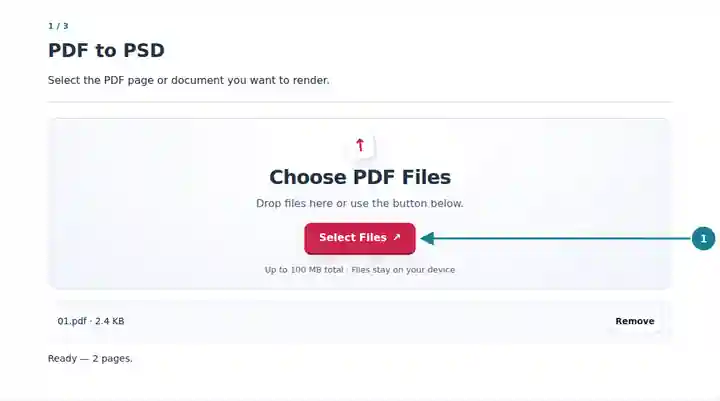
Choose a page range and the pixel resolution for the PSD output.
Select the screenshot to enlarge it.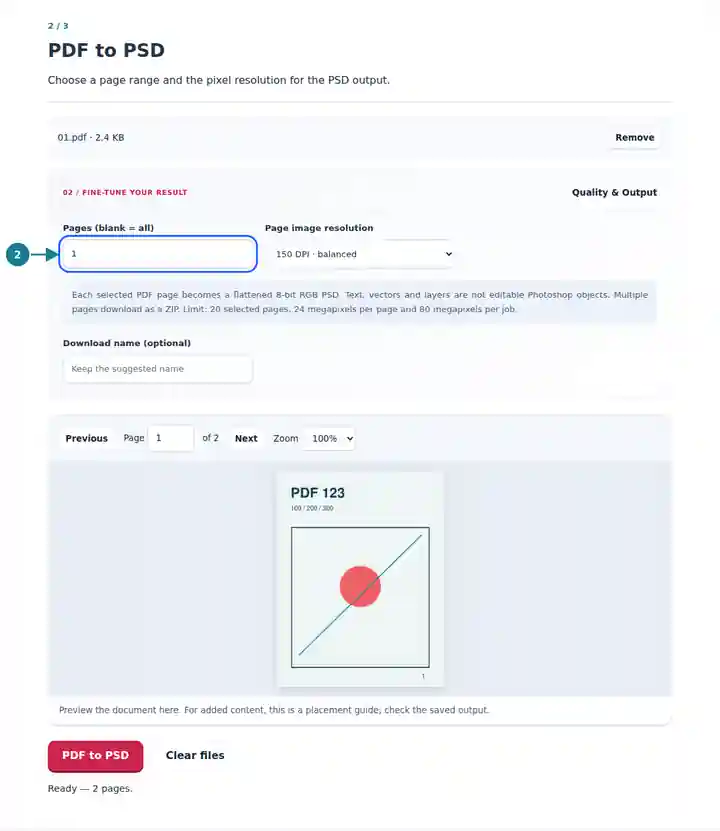
Save the flattened PSD, or the ZIP when several pages are selected.
Select the screenshot to enlarge it.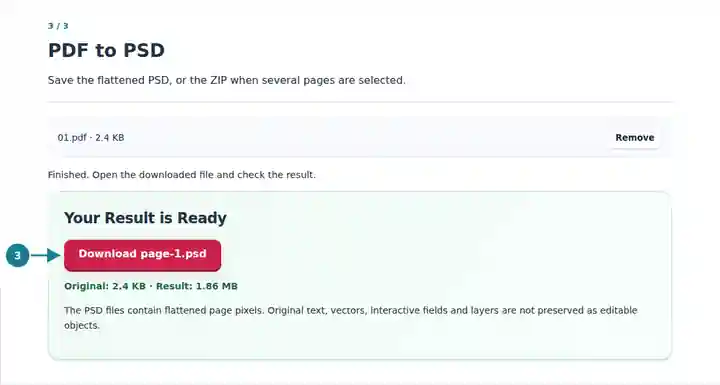
Screenshots show this toolkit using harmless sample files. Your file name, page count and settings may differ.
A flattened PSD is a practical starting point for visual annotation, presentation mockups and image compositing. It brings the page into a pixel-editing workflow with a predictable resolution. For changing a paragraph, moving an original vector or preserving a print color profile, return to the application that created the document. A raster conversion cannot reconstruct that editing history.
Place a page image in a new composition and add fresh artwork on separate layers.
Prepare annotated design feedback or presentation visuals from a supplied PDF proof.
Use a permitted page image in a design exercise while retaining the original document for reference.
| Setting | What to Expect |
|---|---|
| Input | One unencrypted PDF up to 100 MiB and 500 source pages. |
| Selection | Up to 20 selected pages; a blank range still respects this limit. |
| Rendering | 72, 150 or 300 DPI, with 24 megapixels per page and 80 megapixels per job. |
| Output | Flattened 8-bit RGB PSD; multiple pages arrive as a ZIP. Color appearance comes from the PDF renderer. |
For a poster proof, convert one page at 150 DPI and inspect the smallest labels. Use 300 DPI if you need more pixels for a detailed markup and the page fits the image limit. Preserve its proportions when placing it in another document; enlarging a small raster adds no original detail.
| Situation | What to Check |
|---|---|
| The selection is too large | Reduce the number of pages or lower the DPI. A physically large page can reach the pixel limit by itself. |
| The text is not editable | This tool renders page pixels. Use the original authoring document when you need editable text or vectors. |
| A PSD looks softer after enlargement | Check the exported pixel dimensions and the scale used in your image editor. Reconvert at a higher permitted DPI if appropriate. |
Render selected PDF pages as flattened Photoshop PSD images.
Settings used: {"range": "1", "dpi": "72"}
Compare the source and result before relying on this tool. This sample checks a bounded operation; output mode and document-structure limitations still apply.
Checked on . Small synthetic sample processed with release 3.23.0 in Chromium 153. This is a recorded local check, not a live-host or every-document guarantee.
No. Each output contains a flattened rendering of one PDF page. The converter does not recreate original layer names, blend modes or editable objects.
No. Each selected page becomes a separate PSD, and multiple PSD files are packaged together in a ZIP.
It increases the number of output pixels, but does not restore detail missing from the scan. Review the source before choosing a larger output.