Use the Known Password
Provide the current PDF password you are authorized to use. The tool does not guess or recover unknown credentials.

Remove encryption when you provide the correct password.
Drop files here or use the button below.
Up to 100 MiB total · Files stay on your device
Preview the document here. For added content, this is a placement guide; check the saved output.
Remove PDF encryption when you provide the correct existing password. The output is an unencrypted copy suitable for supported editing tools that cannot open encrypted sources. This workflow does not guess passwords or bypass unknown credentials.
If the password is incorrect, the processor returns an error rather than an apparently unlocked file. The operation reads and rewrites the document with qpdf running locally in your browser.
Provide the current PDF password you are authorized to use. The tool does not guess or recover unknown credentials.
The browser’s PDF processor reads the encrypted file and writes an unencrypted output copy.
An incorrect password stops the operation instead of presenting an apparently successful unlocked result.
An unencrypted output can be opened by other supported tools that reject encrypted source PDFs.
An encrypted document can be readable in a viewer but incompatible with an editing or conversion tool. Removing its encryption with the correct password can create a working copy for an authorized next step, such as page extraction or conversion. The new copy no longer asks for that opening password, so decide where it belongs before downloading it. If the password is unknown, obtain it from the document owner or request an appropriate source copy. Removing encryption does not itself prove permission to redistribute the content.
Open a password-protected statement with the supplied password, then create a working copy for approved reconciliation. Check every page before using the copy in another tool.
Remove an old opening password from their own file to organize pages or replace it with a new password. Keep the encrypted source until the updated output has been checked.
Prepare a permitted working copy when an internal PDF utility cannot accept encryption. Confirm that the request covers this copy and save it to the agreed working location.
Select the encrypted PDF for an authorized working copy.
Select the screenshot to enlarge it.
Enter the exact known PDF password.
Select the screenshot to enlarge it.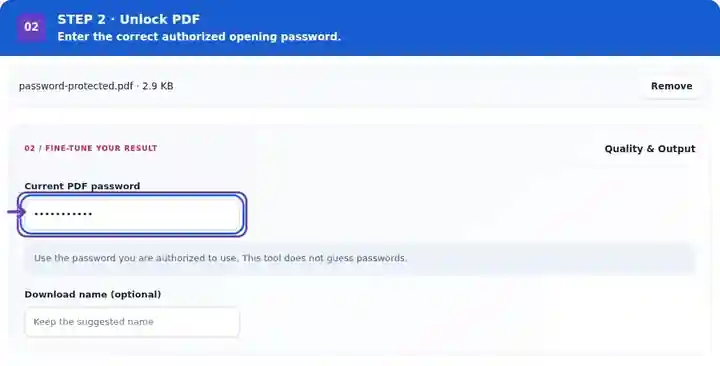
Download the unencrypted output and verify its pages.
Select the screenshot to enlarge it.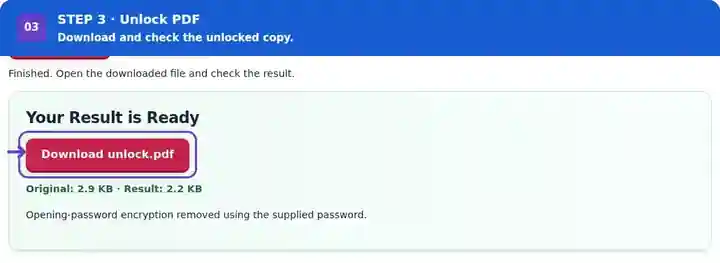
Screenshots show this toolkit using harmless sample files. Your file name, page count and settings may differ.
| Setting | What to expect |
|---|---|
| Accepted input | |
| Processing location | Your browser, on your device |
| File selection | One input file |
| Input size | Up to 100 MB, subject to device memory and decoded-page limits |
The password field is cleared when processing finishes or fails, when you cancel the job or when you clear the files. The temporary processing worker is terminated after the job. This uses ordinary browser-memory cleanup; it is not a certified secure-erasure process.
After unlocking, close the downloaded file and open it again without supplying a password. Check page count, visible form values and any attachments needed for the next task. A signature mark can remain visible even when rewriting changes cryptographic signature validity. Retain the protected original when it forms part of an approval record, and use the new copy only for the intended working step. If you merely need to read the file, opening it with its password may be sufficient.
| Situation | What to do |
|---|---|
| The password is rejected | Check capitalization, spaces and the exact password supplied by the document owner. |
| The file remains unusable | It may be damaged or use a feature the processor cannot handle. Obtain a fresh source copy. |
| You only need to read the PDF | Opening it locally with its password may avoid creating another unencrypted copy. |
Remove encryption when you provide the correct password.
Settings used: {"password": "Fixture-Only-3230"}
Compare the source and result before relying on this tool. This sample checks a bounded operation; output mode and document-structure limitations still apply.
Checked on . Small synthetic sample processed with release 3.23.0 in Chromium 153. This is a recorded local check, not a live-host or every-document guarantee.
This tool requires a correct accepted password. It does not perform password cracking.
The editing engine works with unencrypted documents. Use an authorized unlocked copy as its input.
The page appearance can retain visible marks, but that does not prove any cryptographic signature remains valid after rewriting.
Continue with Protect PDF, Edit PDF, Password-Protected PDF.